
Pricing
Log In
AI Generator
Happy Horse 1.0: Text to Video AI Video Generator
Create cinematic-quality videos effortlessly with Happy Horse 1.0. From text-to-video synthesis to realistic audio synchronization, this AI tool redefines video generation for creators and storytellers.
Happy Horse 1.0
Create cinematic-quality videos effortlessly with Happy Horse 1.0. From text-to-video synthesis to realistic audio synchronization, this AI tool redefines video generation for creators and storytellers.
Happy Horse 1.0 Creations
Explore stunning video examples created using Happy Horse 1.0.
8K, 60fps, cinematic video, faithful to original character: a freckled young woman with loosely tied brown hair in a French retro linen dress, holding a woven basket of wildflowers in a rural garden. She gently looks down at the flowers, brushes the daisy petals, breeze moving her hair and skirt, then looks up at the camera with a soft smile and adjusts the basket. Natural, relaxed, pastoral feeling. Close-up opening, slow zoom, then a slow 360° orbit shot.
8K, 60fps, cinematic video, faithful to original character: a fair-skinned girl with long curly gold-to-mint hair and ice-blue gradient eyes, wearing a French halter satin slip dress and holding a white lace parasol. She stands sideways in sunlight, slowly rotating the parasol as light moves across her face and shoulders. Breeze lifts her hair and skirt, she brushes hair by her ear, looks at the camera with a soft lazy smile, and leans forward slightly. Elegant, airy, sensual mood. Close-up opening, slow zoom in.
8K, cinematic animation, faithful to the original elf girl: long light-golden curly hair, pointed elf ears, emerald green eyes, a green leaf and white flower wreath, gold and emerald accessories, and a white-green elf gown. She stands in a sun-dappled magical forest as a soft breeze lifts her hair and dress. She slowly raises her right hand to touch a falling green leaf, smiles gently, looks softly at the camera, and turns slightly as her skirt moves naturally. Graceful, elegant, healing forest mood. Opening wide shot, slow zoom to upper body close-up, then a slow 360° orbit around her, showing the gown embroidery, accessories, and forest light.
What Makes Happy Horse 1.0 Stand Out?
Text-to-Video Generation
Happy Horse 1.0 is a better fit for users who want more directed text to video results instead of broad, generic outputs. It is especially useful when prompts include scene structure, camera movement, lighting, and subject action, because control at the prompt level is one of the clearest reasons people are comparing this model to other newer AI video tools.

Image-to-Video Animation
The image to video workflow is useful when users need stronger visual consistency across a character, product, or scene. Compared with models that drift more easily from the source look, Happy Horse 1.0 is more relevant for reference-led generation where composition, design cues, and overall style need to stay closer to the starting image.
Multi-Shot Motion and Scene Coherence
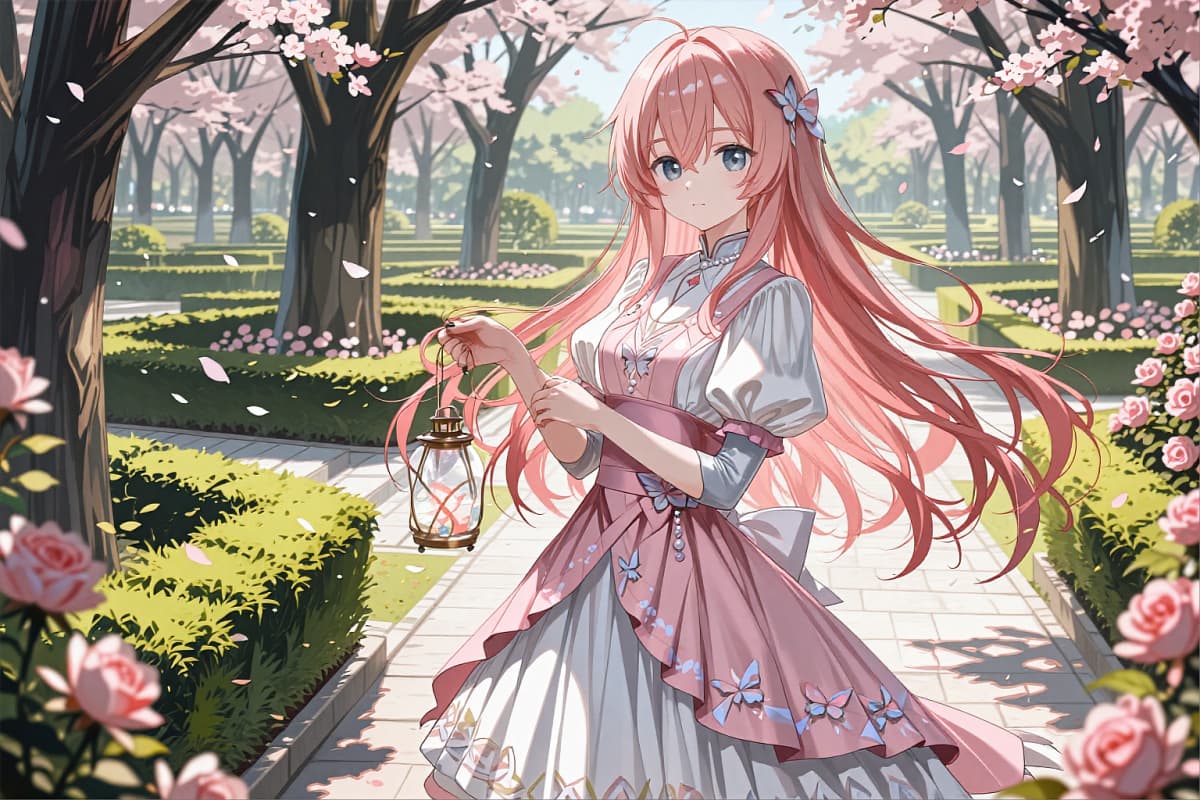
One of the more notable Happy Horse 1.0 strengths is that it is not only judged on single-shot quality. It is also relevant for short sequences where motion needs to feel smooth and shot-to-shot transitions need to stay readable. That makes it more useful for structured storytelling than models that can produce a strong first frame but lose coherence as the clip develops.
Audio-Aware Video and Lip Sync Workflows
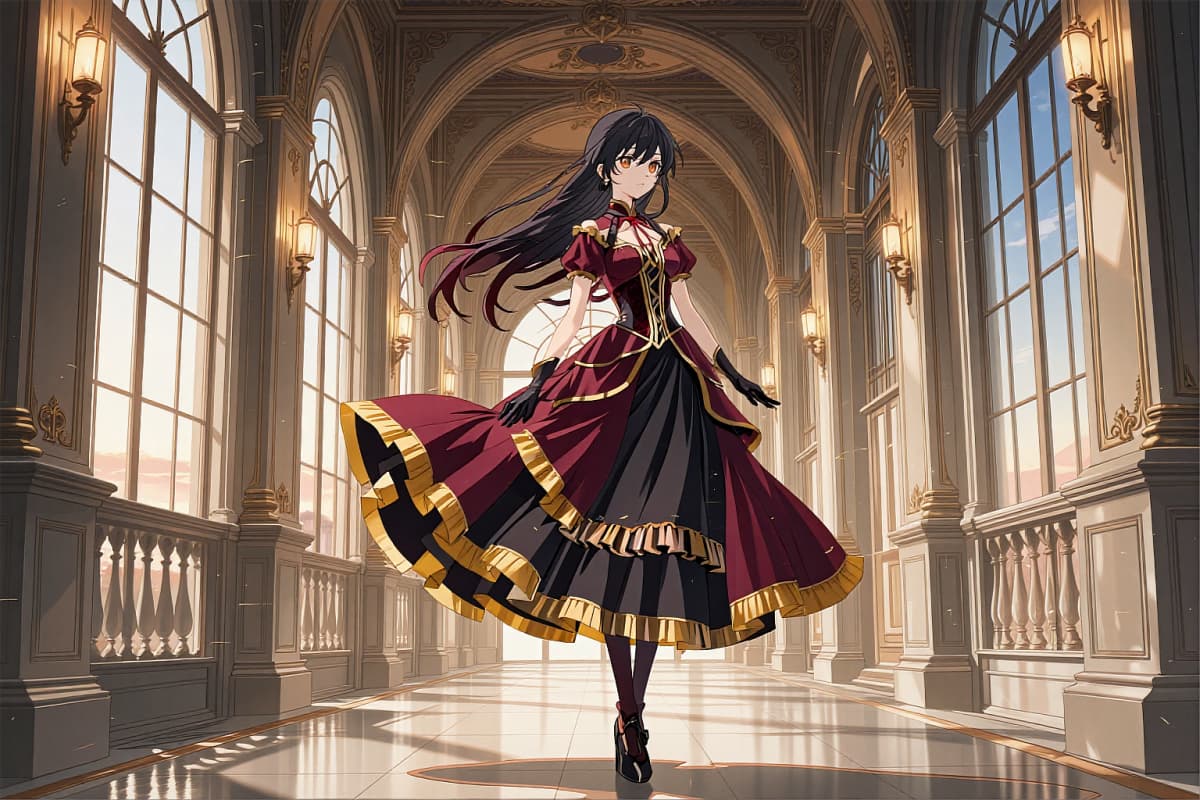
Another reason Happy Horse 1.0 is being discussed is its support for audio-aware generation and lip sync workflows, which gives this model a more specific identity than a standard silent video generator. For users exploring newer AI video tools on OCMaker AI, this matters because dialogue, vocal timing, and sound-led scenes are often where model differences become easier to evaluate.
Why Use Happy Horse 1.0?
Text to Video with Strong Prompt Control
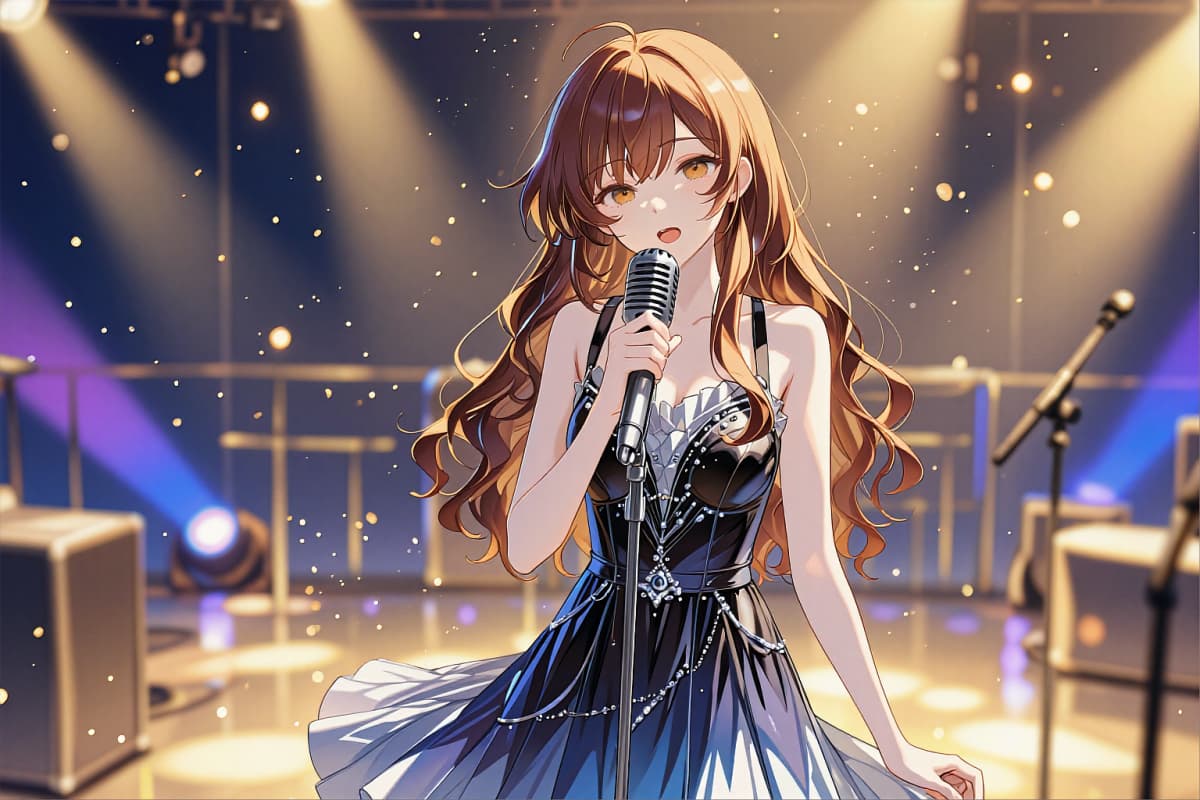
Happy Horse 1.0 is built for text to video workflows where users want clearer control over scene description, camera language, lighting, and subject motion instead of relying on overly generic prompt results.
Image to Video for More Consistent Results
The image to video workflow is useful when users want better visual consistency across a character, object, or scene, which makes it easier to guide style and composition from a reference image.
1080p AI Video Output
Happy Horse 1.0 is being discussed in part because it supports 1080p AI video output, a practical detail for users comparing newer models for cleaner social content, promo clips, and short cinematic scenes.
Multi-Shot Video Generation
One of the more relevant Happy Horse 1.0 strengths is support for multi-shot video generation, which matters for users trying to build short sequences with more structure rather than a single isolated clip.
Natural Motion and Scene Coherence
For many users, the main question is not just whether a model can generate video, but whether motion feels smooth and scenes stay coherent. This makes motion quality and shot continuity a key reason to evaluate Happy Horse 1.0.
Online Access and API Workflow
Happy Horse 1.0 can also appeal to users looking for an AI video generator with online access and API workflow options, which is relevant for both fast testing and more repeatable content pipelines.
How to Use Happy Horse 1.0
Generate videos in 3 simple steps
01
Choose the Happy Horse 1.0 Model
Start by selecting Happy Horse 1.0 in the AI video workflow. This step matters because the model is best suited for users testing text to video, image to video, motion quality, and more directed scene generation.
02
Add Your Prompt or Reference Image
Enter a clear prompt, upload a reference image, or combine both depending on the result you want. More specific inputs usually make it easier to guide subject appearance, scene structure, lighting, and overall visual consistency.
03
Generate and Review the Video
Generate the video, preview the result, and review whether the motion, scene coherence, and character consistency match your goal. If needed, refine the prompt or source image and run another test for a more controlled output.



What Creators Are Saying