
Pricing
Log In
Expand Image
Expand images with AI to add background space, change aspect ratios, and uncrop tight photos. Create wider banners, square posts, product cards, and social visuals without stretching the subject.
Expand Image with AI
Image Expansion Examples
Use these examples to plan wider banners, social crops, and product layouts before choosing the final canvas size.

Turn a Portrait Into a Wide Banner

Adapt Images for Social Sizes

Add Clean Space Around Products
More Image Tools

Remove Object
Remove unwanted objects from your image and keep the background looking clean and natural.

Generative Fill
Fill, replace, or extend selected areas with AI-generated details that match the original image.
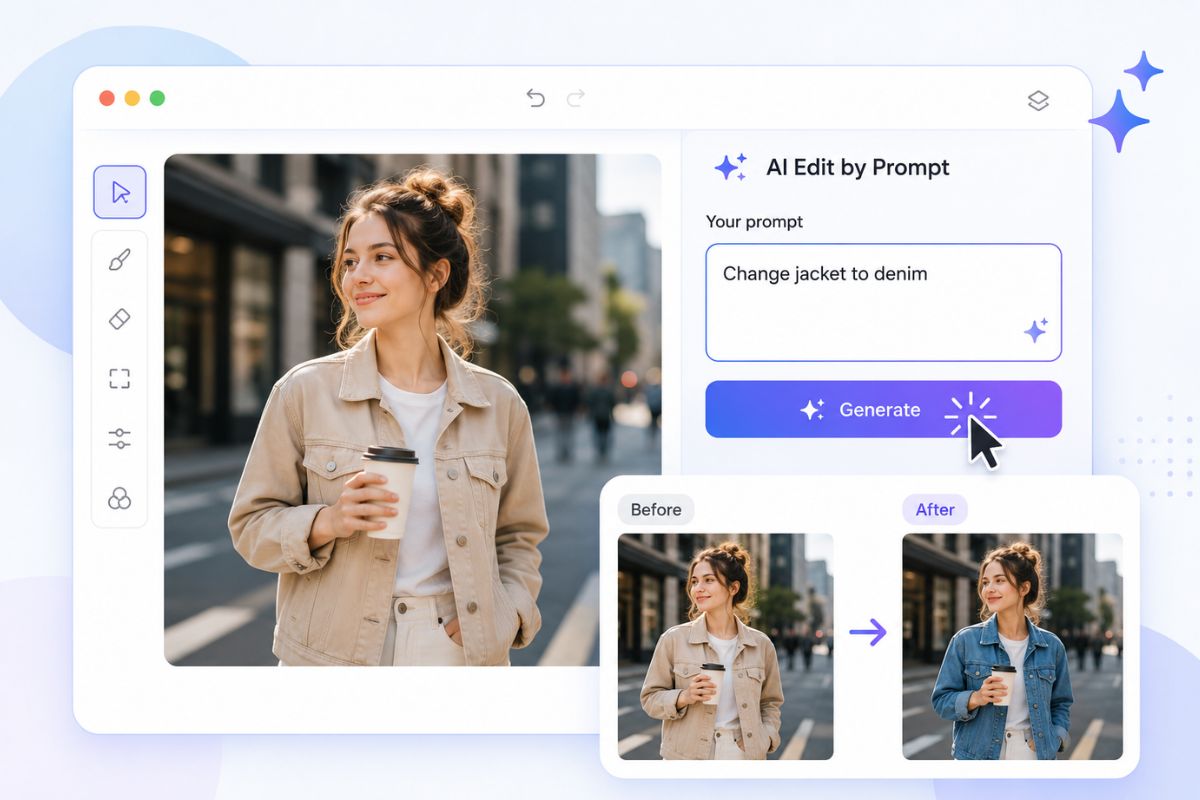
AI Image Editor
Edit images with AI by removing objects, expanding scenes, changing details, and improving visuals.
How to Expand an Image
01
Upload Your Image
Start by uploading the image you want to expand. Use a clear photo with a visible main subject so the AI can keep the original content stable while adding new space around it.
02
Choose the Expansion Size
Select the target canvas size or aspect ratio you need, such as a wide banner, square post, vertical story, website cover, or product-card layout.
03
Describe the Extended Scene
Tell the AI what you want the expanded area to look like. You can ask for more background, extra sky, a wider room, a cleaner product setting, or a natural continuation of the original scene.
Expand Image for Better Layouts
Expand Images Beyond the Original Crop
Use an AI image expander to continue the scene outside the original frame. It is strongest for skies, walls, studio backdrops, landscapes, product tables, and simple environments where the existing image gives enough visual context.

Create Layout-Ready Aspect Ratios
Expand image edges to prepare 16:9 banners, 1:1 social posts, 9:16 stories, and wider website covers without stretching the subject. This is better for layout changes than basic cropping because the AI adds new background space.

Use Uncropping to Recover Space
Uncropping helps when a subject is too close to the edge or a good image feels cramped. Expand the canvas to restore headroom, side space, or bottom room before using the result in thumbnails, ads, profile covers, or product pages.

Refine Expansions Before Publishing
Treat each expansion as a draft and check repeating patterns, warped edges, broken shadows, and strange objects near the new border. For stronger scene changes, combine expansion with generative fill or image to image edits.

Why Use This AI Image Expander
Canvas Extension
Add new pixels around the original image instead of stretching or cropping the subject.
Aspect Ratio Conversion
Prepare wider, square, or vertical layouts for websites, ads, social posts, stories, and covers.
Uncropping Support
Recover extra headroom or side space when the original photo feels too tightly framed.
Background Continuation
Continue skies, walls, floors, landscapes, studio backdrops, and simple textures around the image.
Subject-Safe Framing
Keep the main person, product, or object unchanged while expanding the surrounding scene.
Version Comparison
Generate and compare multiple expansions to choose the cleanest edge blend and most believable layout.