
Pricing
Log In
Drop image or Upload image
Character
Library
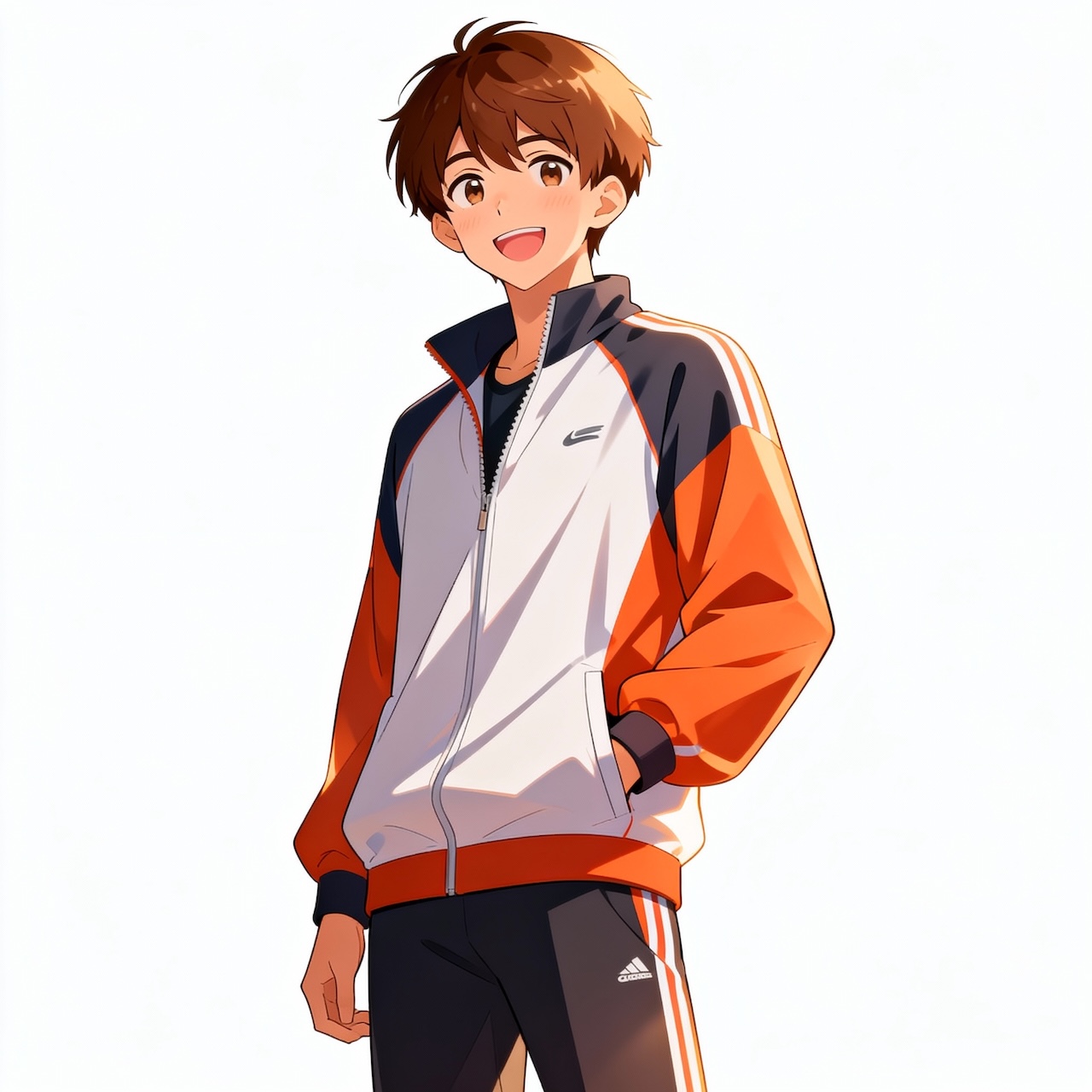
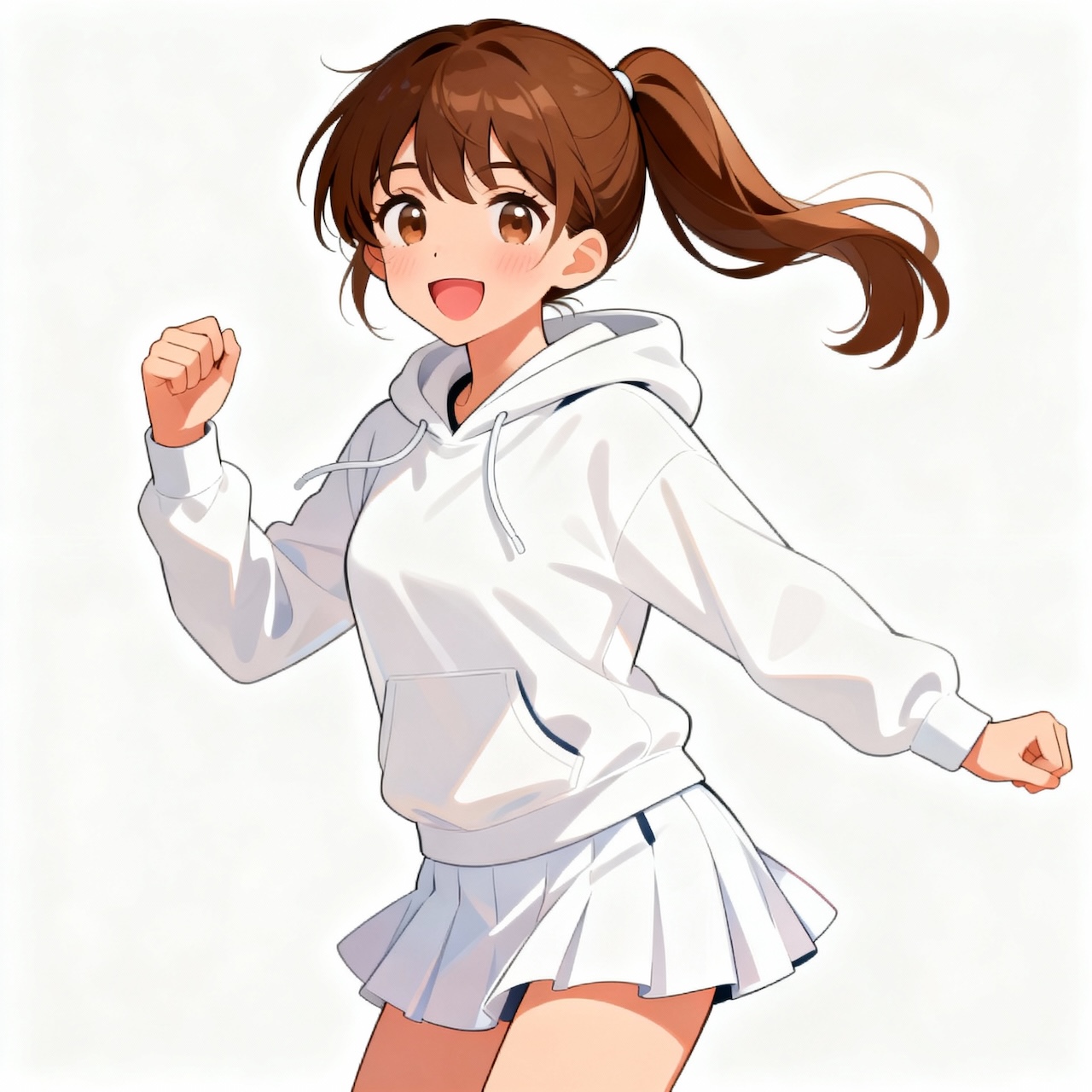
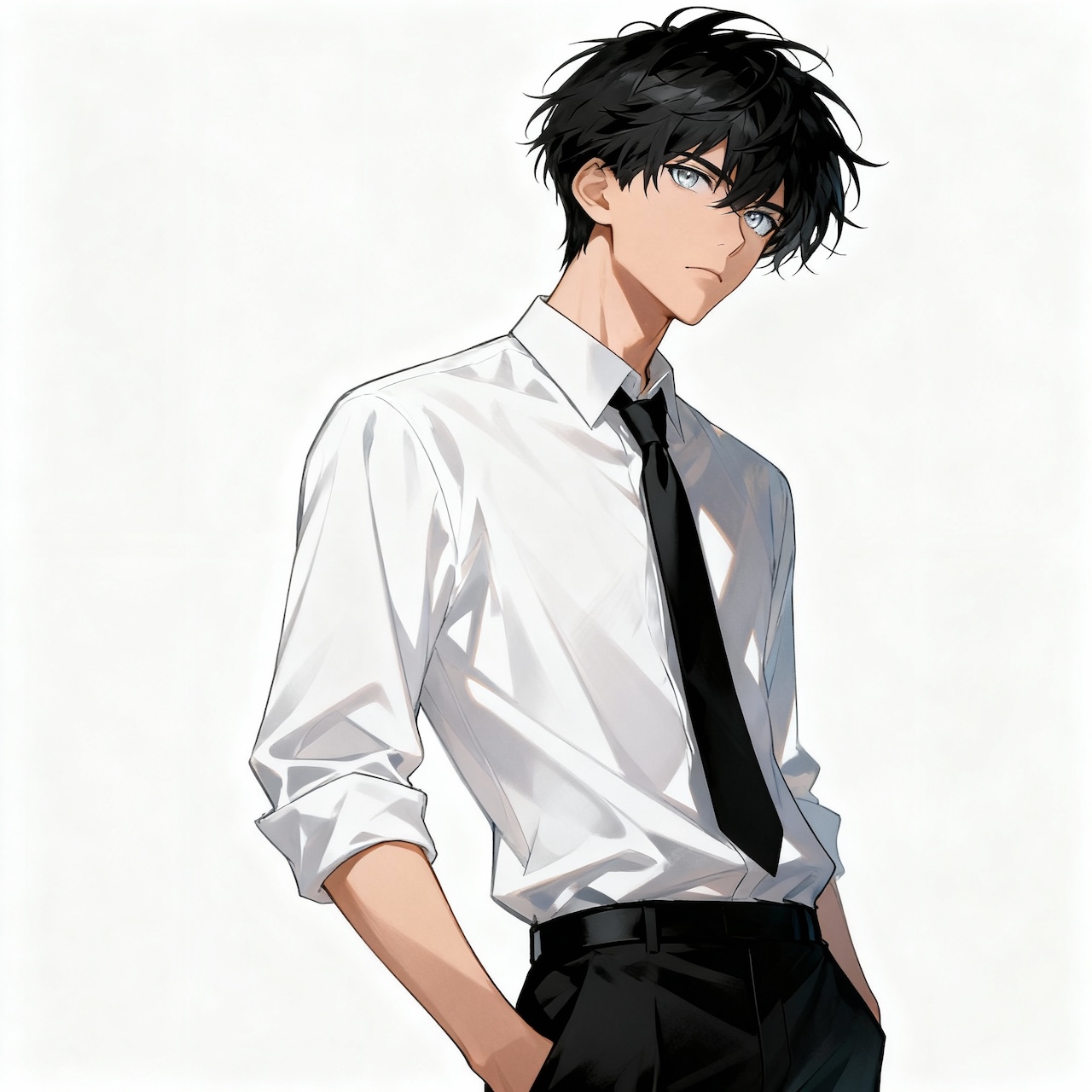
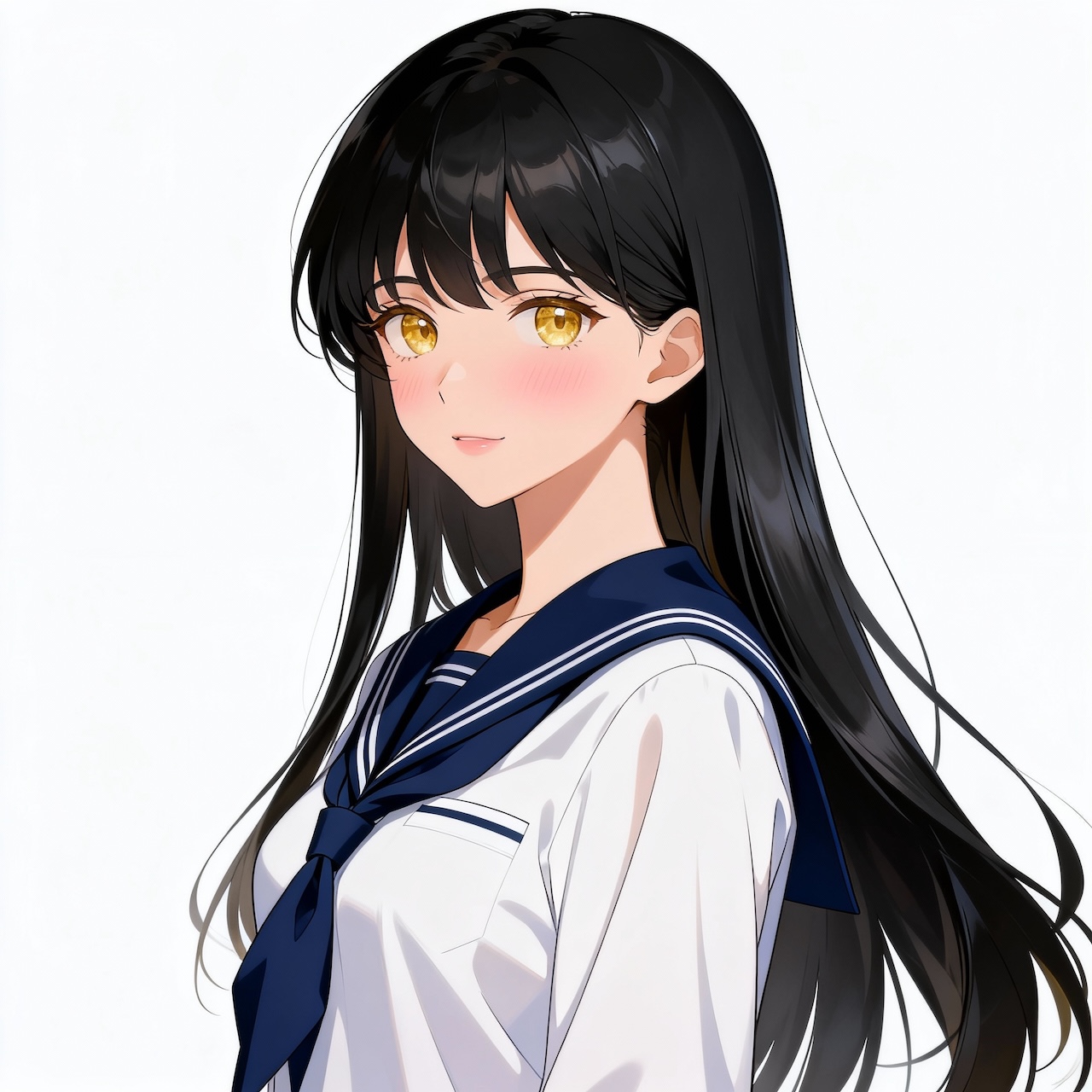
Demo Preview
PixVerse V5.5
PixVerse V5.5
Unleash the power of AI-driven video creation with PixVerse V5.5 Lip. Transform simple text into multi-shot videos with synchronized audio and lip movements, creating captivating narratives without cumbersome edits.
PixVerse V5.5 Videos
City Night View
Coffee Brand Promotion
Castle in the Sky
How PixVerse V5.5 Turns Ideas Into Cinematic Clips
Dialogue, Voice, and Visuals Stay in Sync
One of the most useful upgrades in V5.5 is how it handles dialogue. A single line can include both the visual description and the spoken line, and the system keeps the audio aligned with the action on screen. The result feels more like a finished clip than a rough prototype. This makes PixVerse practical for storytelling, explainers, or character scenes created alongside tools like OCMaker AI.

Script to Cinematic Scene in Seconds
PixVerse V5.5 is designed around a simple idea: start with a sentence and let the system direct the scene. Write a short description and the model builds a 5–10 second 1080p clip with natural pacing, camera movement, and a clear visual structure. Instead of manually planning shots, you can focus on the story or message. For creators already experimenting with text to video workflows, PixVerse makes the process feel closer to directing a micro-scene than generating a raw animation.

Built for Short, Structured Story Segments
PixVerse works best when each clip communicates one clear idea. A single segment might explain a concept, show a moment in a story, or present a visual hook for a video. Because every clip has a beginning, middle, and end, creators can combine multiple segments to build longer narratives. Many creators pair these clips with visuals generated from text to image tools to develop storyboards before turning them into animated scenes.

Consistent Visual Style Across Shots
V5.5 benefits from an updated visual backbone that helps maintain stable characters and environments even as the camera changes angles. Whether the scene is stylized, anime-inspired, or more realistic, the look remains consistent across the entire clip. This consistency also makes it easier to adapt assets created through image to image workflows into animated sequences without losing the original style.

Explore Key Features of PixVerse V5.5 Lip
Automated Script-to-Video Creation
Convert written scripts into multi-shot videos with synced audio using PixVerse V5.5 Lip, eliminating the need for manual editing and providing a platform for efficient content creation.
Intelligent Camera Angles and Shot Sequences
PixVerse AI automatically selects and synchronizes various camera angles, building coherent story sequences that captivate audiences without cumbersome sequencing.
Real-Time Lip Sync and Dialogue Generation
Generate spoken dialogue that aligns with lip movements in real-time, ensuring smooth transitions from script to video and enhancing storytelling by maintaining narrative fluidity.
How to Use PixVerse V5.5 Script to Video Generator
Create Cinematic Clips with PixVerse V5.5 Text to Video
01
Enter a Scene Prompt or Short Script
Start by writing a short script or scene description. PixVerse V5.5 works best when the prompt includes a subject, an action, and a setting. For example: a character walking through a rainy street at night. The AI reads the script and uses it as instructions for generating the video scene.
02
Let the AI Plan Shots and Audio
After submitting the prompt, PixVerse V5.5 automatically organizes the scene. The system may generate multiple camera shots such as wide views, medium frames, or close-ups. If dialogue is included, the AI video generator can also add voiceover and match mouth movement through lip sync.
03
Generate the Video and Export the Clip
Click generate and allow the system to render the video. Within a short time, PixVerse V5.5 produces a short cinematic clip with motion, transitions, and synchronized audio. You can then preview the result and download the final video.
More Popular Models
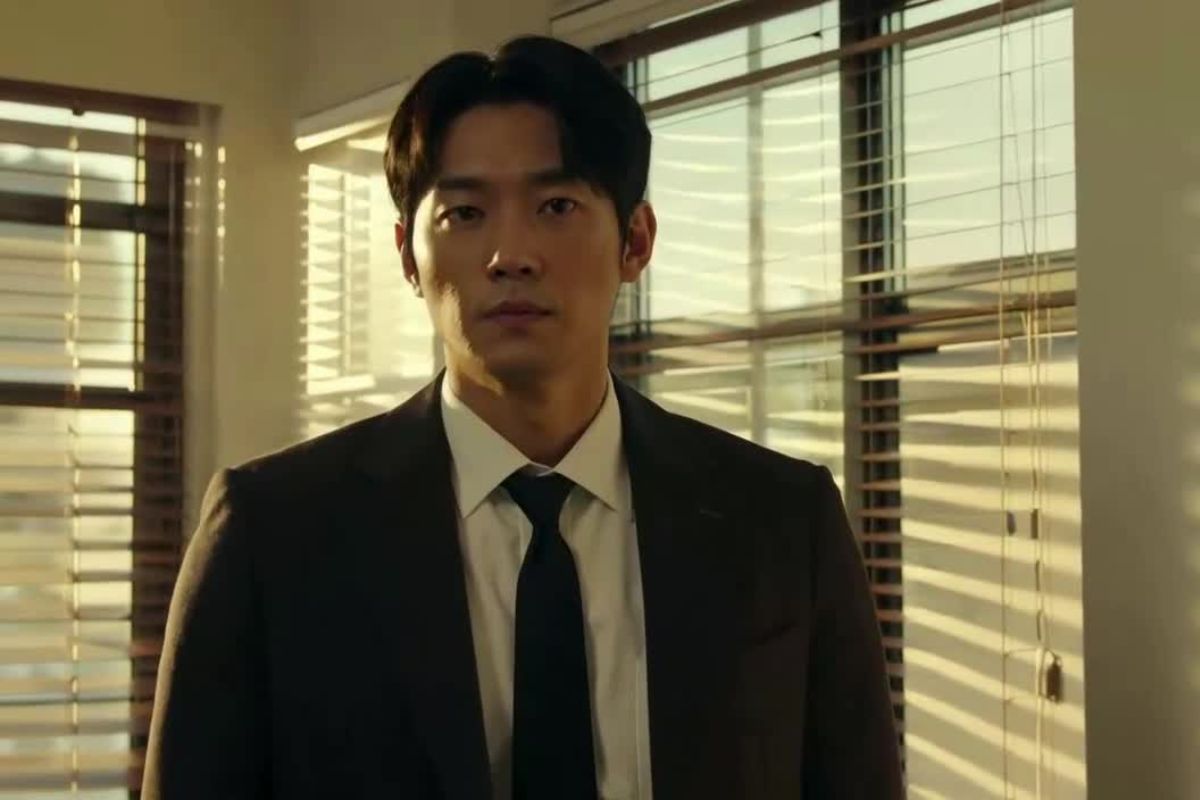

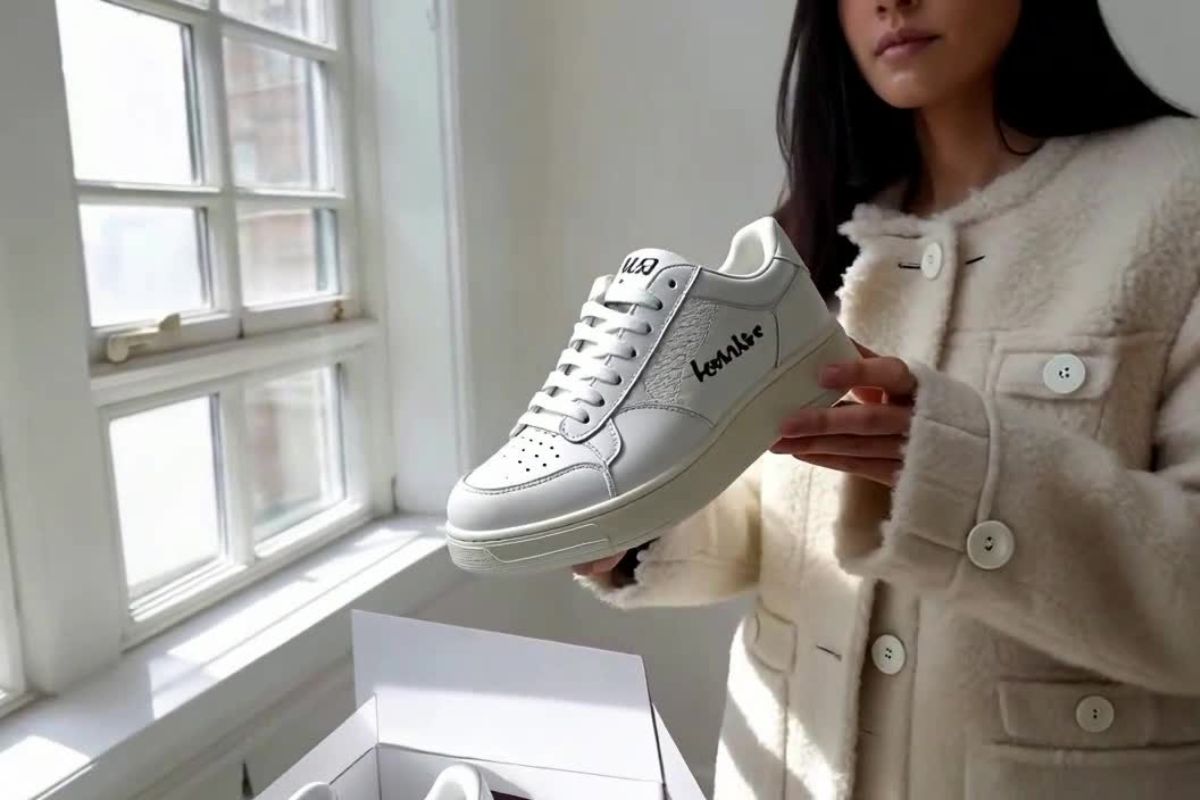
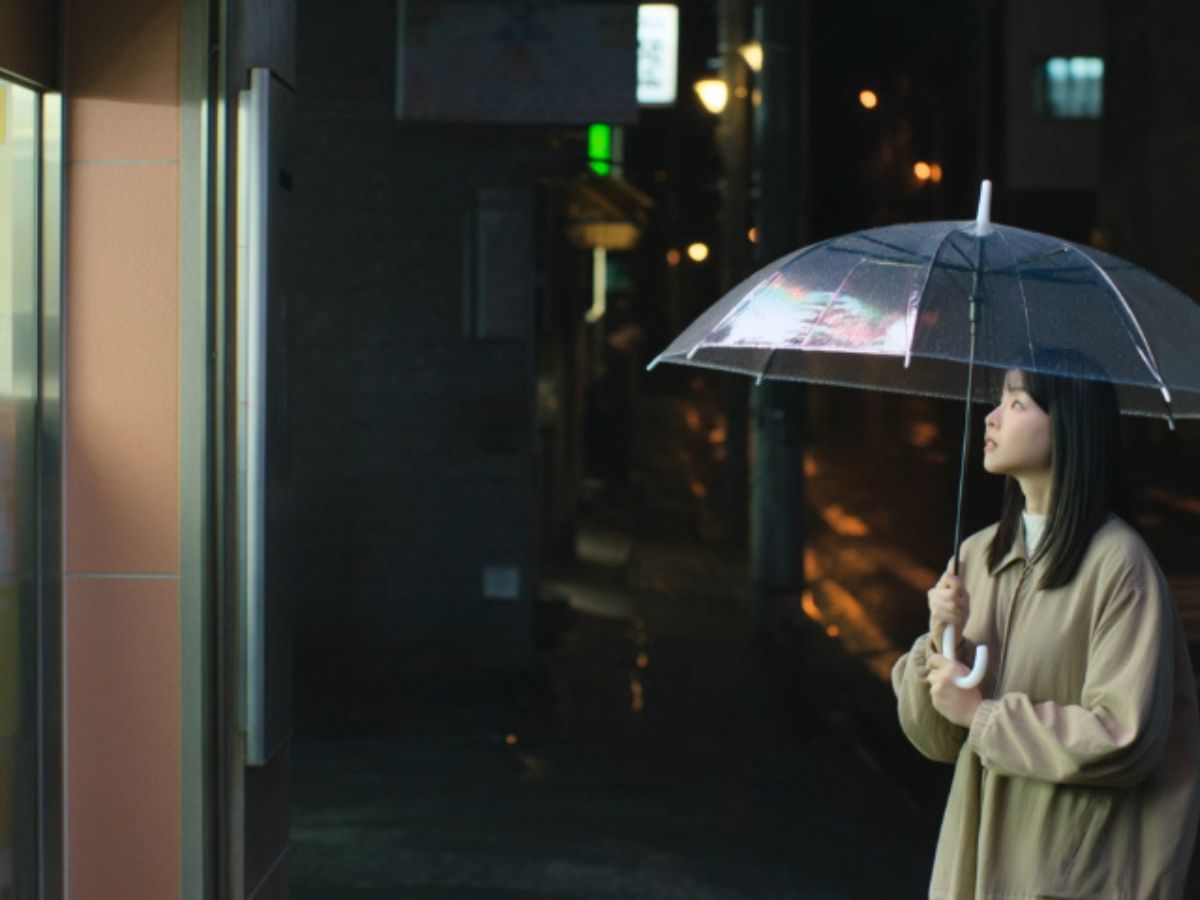
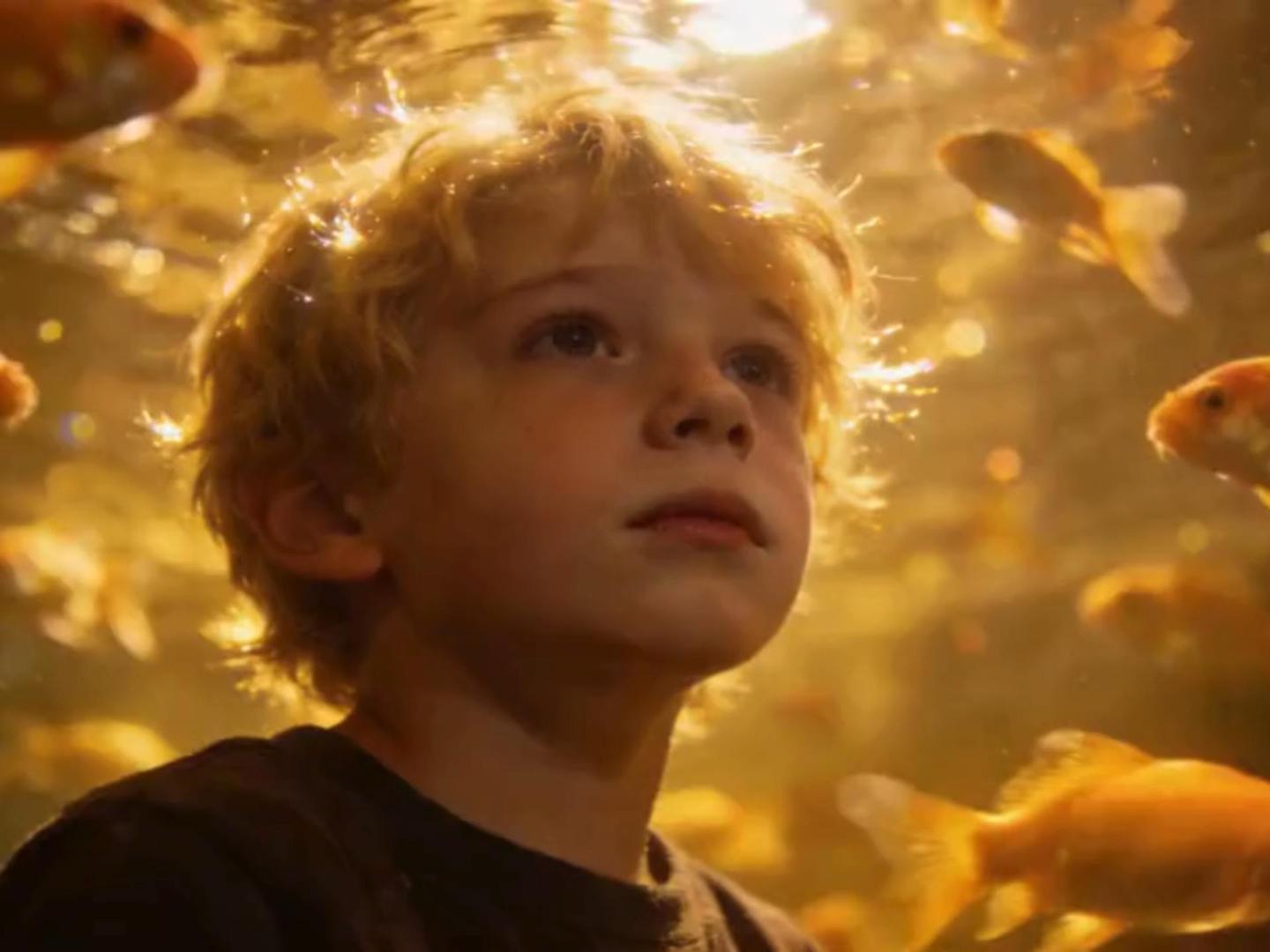
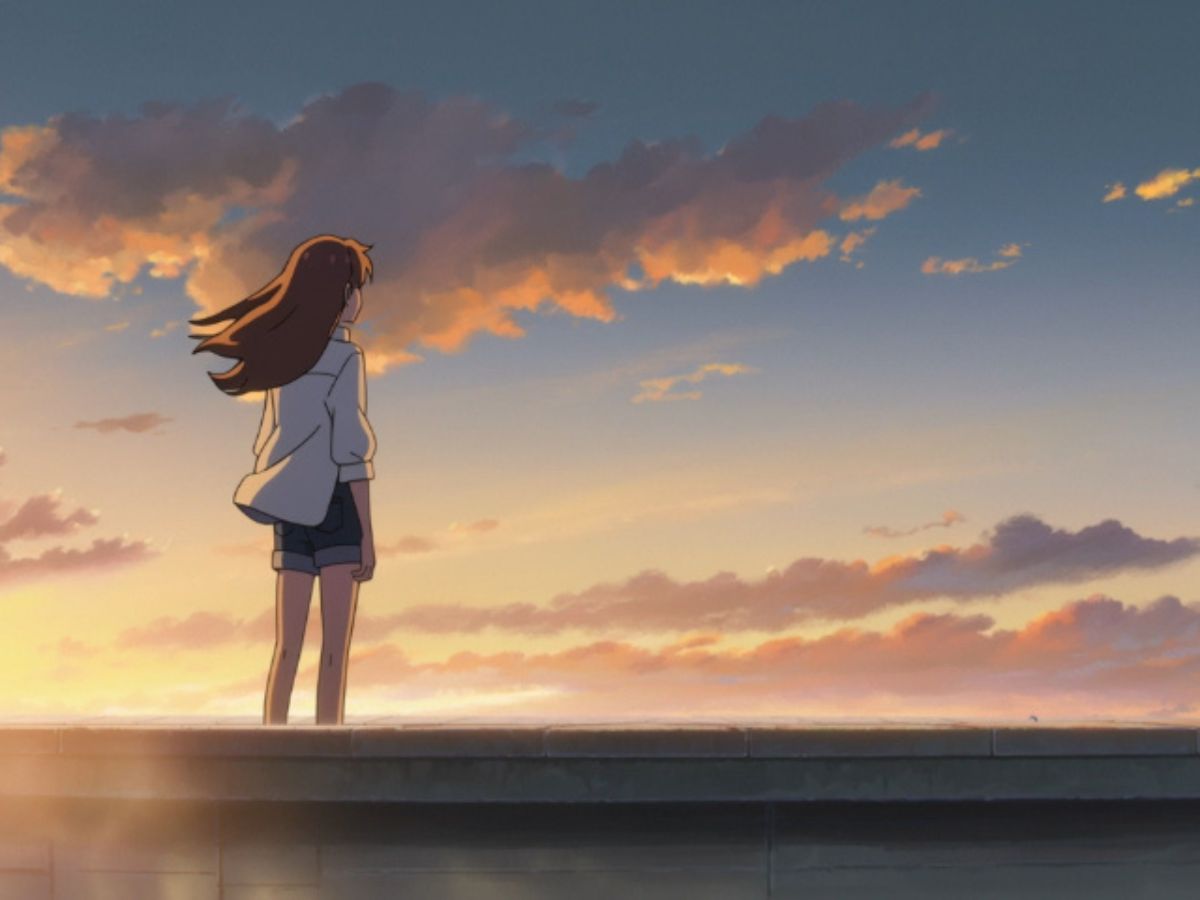
Real Experience Using PixVerse V5.5 Text to Video Generator
FAQs about PixVerse V5.5 Lip
Experience PixVerse V5.5 Lip
Discover PixVerse V5.5 Lip and unlock advanced video storytelling capabilities for compelling content. Transform your scripts into dynamic visual narratives seamlessly.