
Pricing
Log In
Prompt
Attach MediaLibrary
Pick Character
1 / 4
💎 2 tokens
Demo Preview
Z Image Turbo
Z Image Turbo: AI Image Generator
Z Image Turbo is a fast open-weight image model from Tongyi-MAI for bilingual text-heavy mockups, photorealistic drafts, and repeatable 8-step prompt iteration on accessible hardware.

Why Creators Choose Z Image Turbo
8-Step Draft Speed
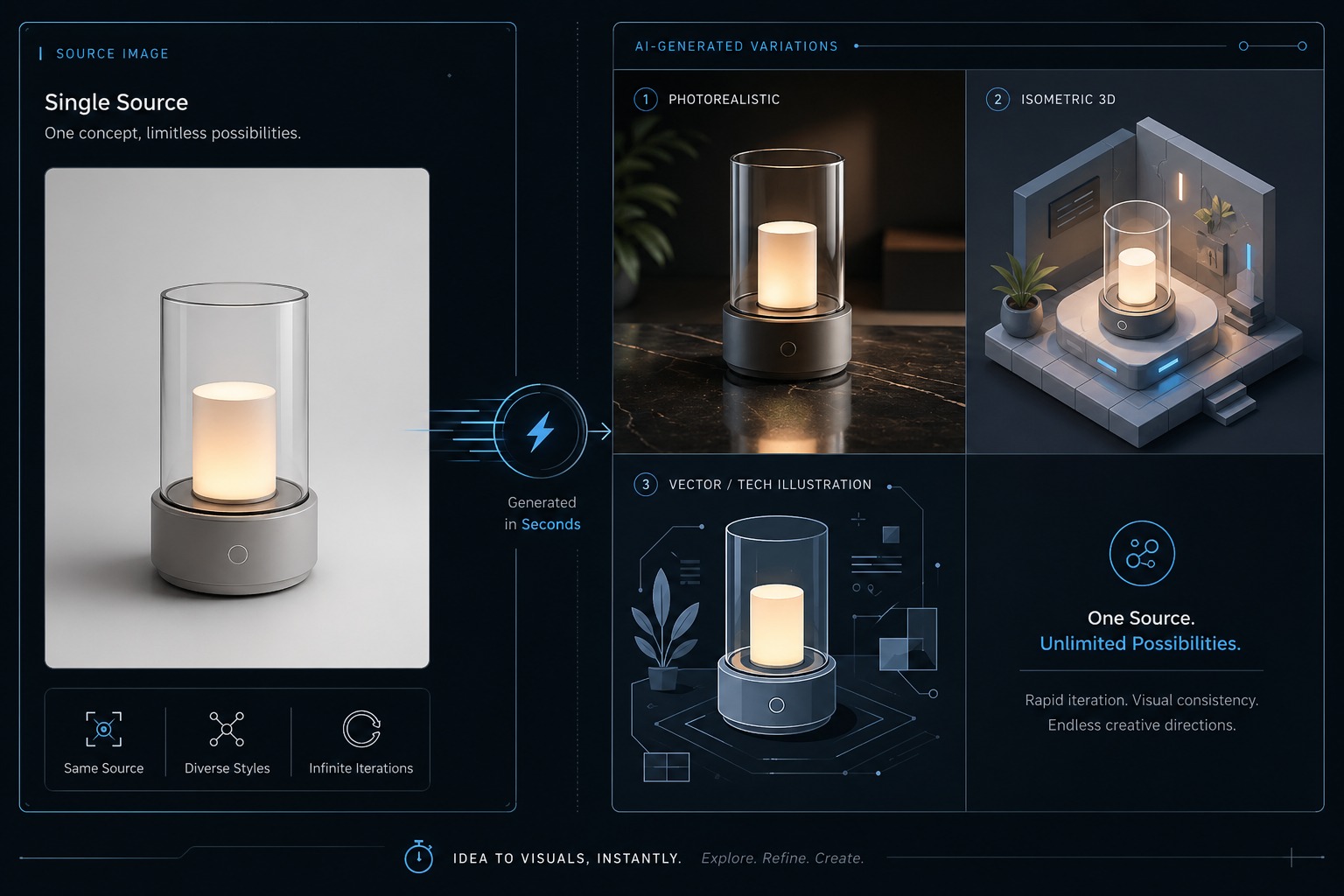
The official project positions Z Image Turbo as an 8-step distilled model, which changes how fast a team can test headlines, layouts, product scenes, and visual directions. The benefit is not abstract speed. It is the ability to get more useful first-review options before the creative brief goes stale.
Bilingual Text Layouts
Official materials repeatedly highlight English and Chinese text rendering, which makes Z Image Turbo more relevant for posters, menus, labels, and UI boards than many fast image models. When visible words stay readable, review can focus on hierarchy and message instead of apologizing for broken type.

Photorealistic Review Assets
Z Image Turbo works well when the draft must look grounded enough for real discussion. Product concepts, ad mockups, landing page heroes, and campaign scenes benefit when lighting, materials, and faces feel believable on the first pass instead of looking obviously synthetic.

Open and Accessible
The official repo and model card make Z Image Turbo appealing to builders as well as artists: it is open-weight, documented in diffusers, and positioned to run on consumer hardware under 16GB VRAM. That makes it easier to test locally, benchmark internally, or connect to a broader AI image workflow.

Speed-first reasons teams pick it
What Makes Z Image Turbo Practical
Fast iteration loops
Eight-step generation lets teams compare more options before they commit to one direction.
Better text-heavy drafts
Bilingual text rendering helps posters, labels, and UI mockups survive first review with less cleanup.
Accessible local testing
Official materials say the model fits consumer GPUs under 16GB VRAM, which lowers experimentation cost.
Diffusers-ready workflow
Public diffusers support makes it easier for developers to prototype pipelines around the model.
Speed over diversity
Turbo is great for throughput, but the official model zoo warns that diversity is lower than the base model.
Best for fresh drafts
Use it when you need new prompt-driven options quickly, not when you need delicate source-image preservation.
How to Use Z Image Turbo Well
Three practical steps
01
Start with the output job
Name the image type first, such as a poster, menu board, product hero, or UI mockup, so the model knows what must stay organized.
02
State text and layout early
If the image contains English or Chinese text, put that requirement near the top of the prompt along with the intended hierarchy and placement.
03
Use the Turbo baseline and iterate
Begin with the official Turbo-style setup, including the simple guidance pattern from the model card, then run several fast revisions instead of one overloaded prompt.
Related AI Image Tools and Workflows

OCMaker AI Home
Start from the main OCMaker AI hub if you want to browse the broader image and creator tool lineup.

Text to Image
Use the core text-to-image route when you want a broader prompt-led workflow beyond one specific model family.

Image to Image
Switch to image-to-image when you already have a source visual and need controlled revision instead of a fresh generation.

GPT Image 2
Compare this page with GPT Image 2 if text accuracy and structured commercial layouts matter more than raw iteration speed.
Frequently Asked Questions
Common Questions About Z Image Turbo
Start fast image generation with OCMaker AI
Try Z Image TurboBuilt for fast bilingual image drafts
Z Image Turbo is most convincing when the team needs many realistic, text-aware concepts in a short time, then wants to take the best direction into deeper refinement.