Expand Image

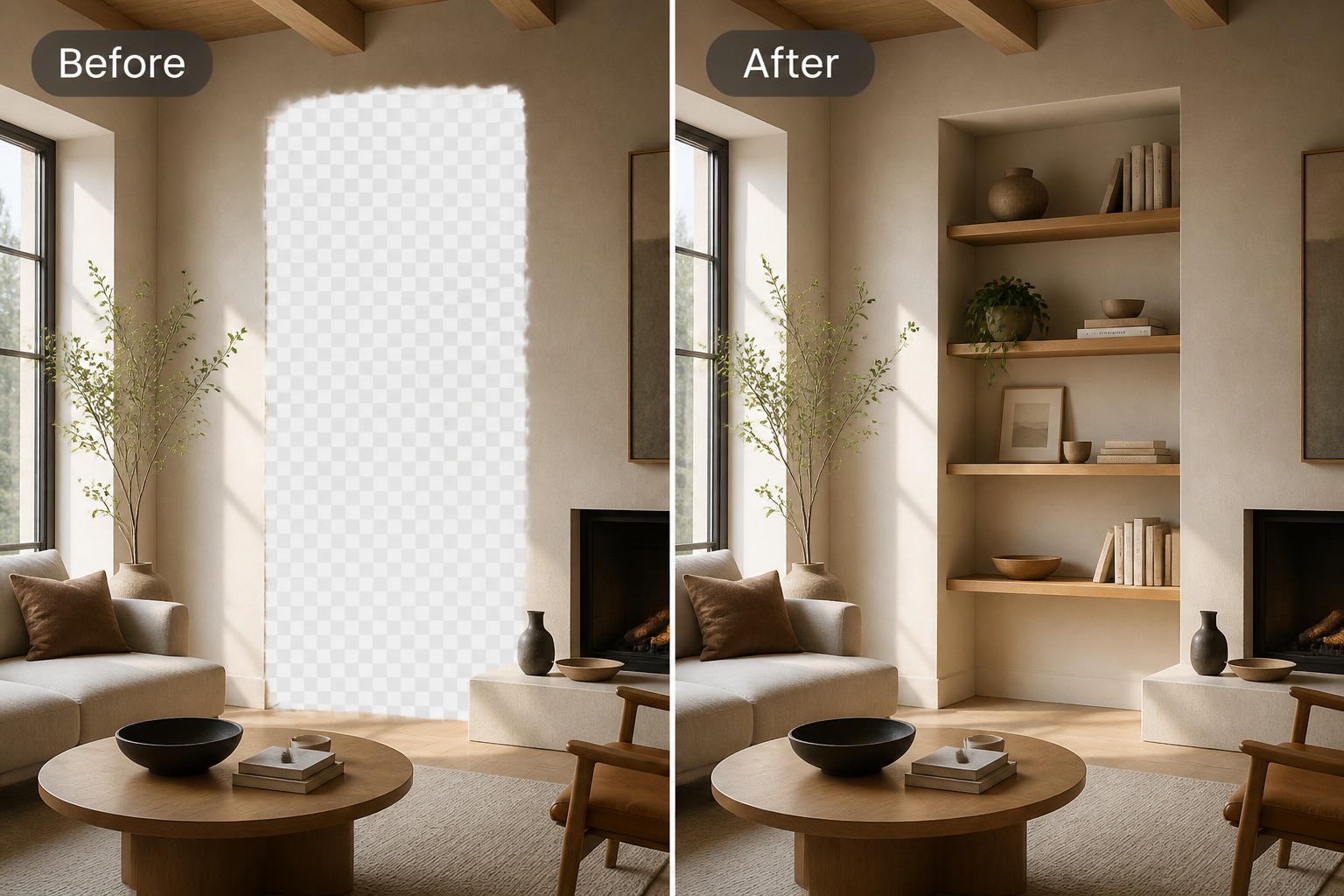
Expand images with AI to add background space, change aspect ratios, and uncrop tight photos. Create wider banners, square posts, product cards, and social visuals without stretching the subject.

Image Expansion Examples

Use these examples to plan wider banners, social crops, and product layouts before choosing the final canvas size.

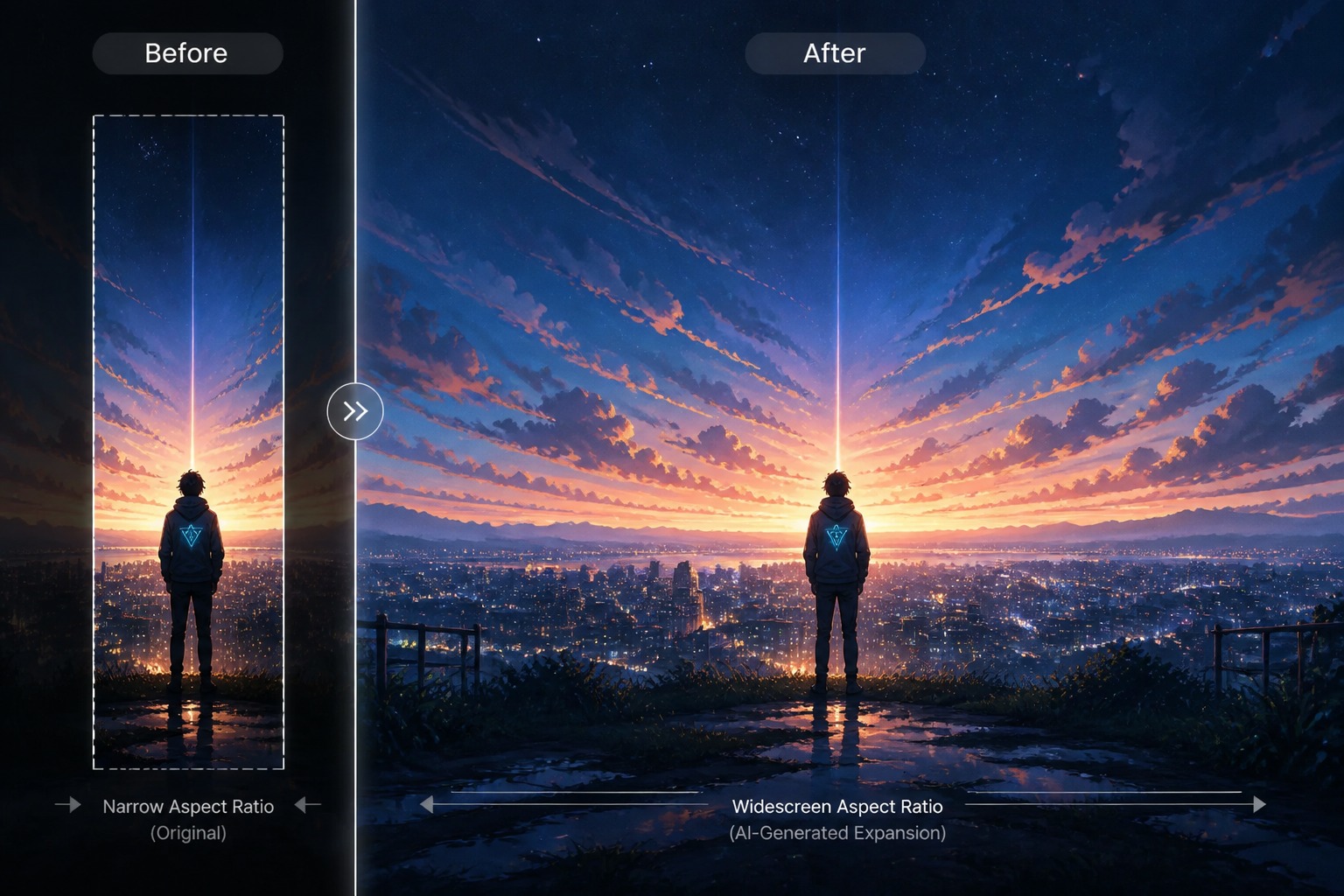
  • Turn a Portrait Into a Wide Banner01

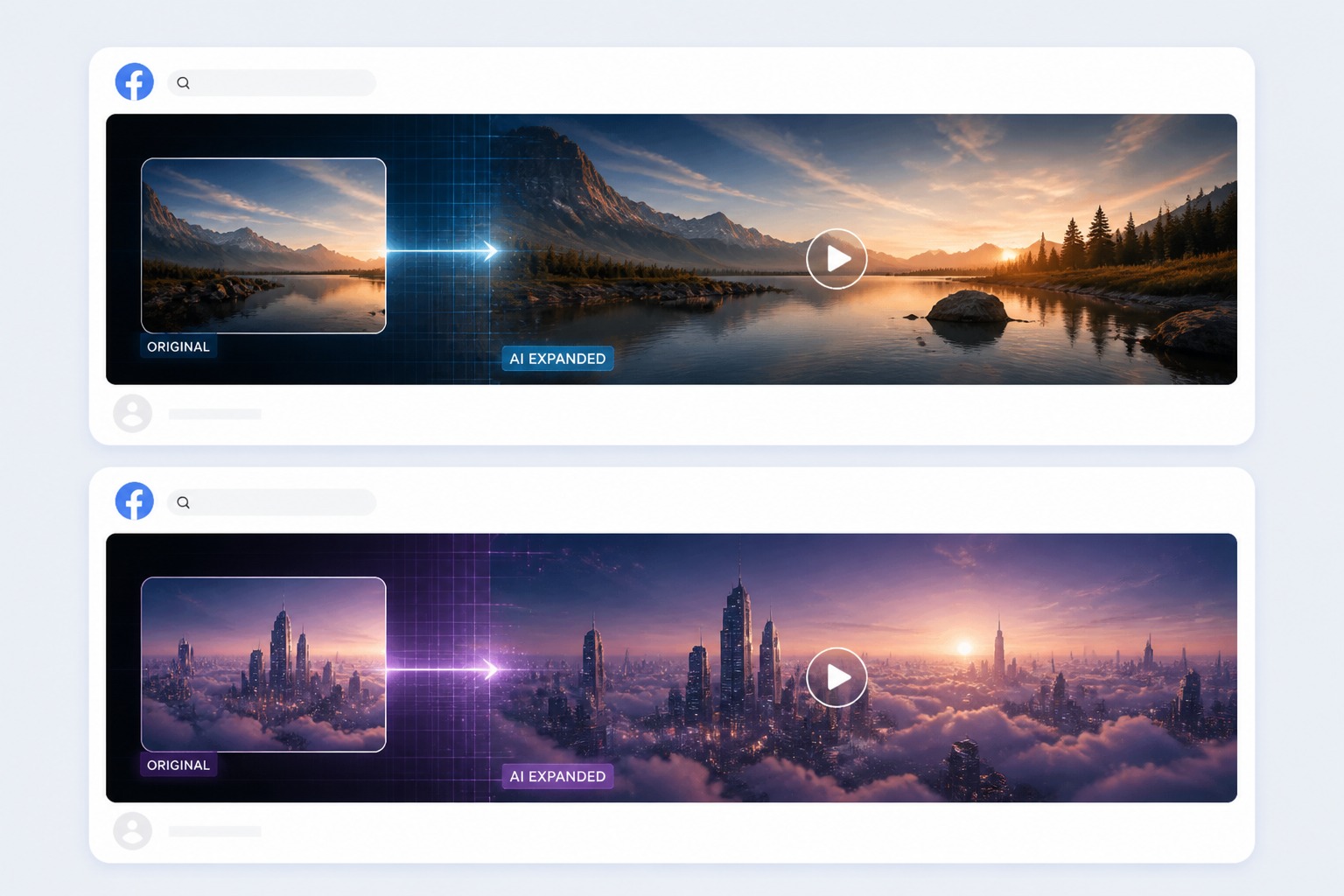
    Turn a Portrait Into a Wide Banner

    Expand the left and right edges of a vertical or square image so it fits website heroes, ads, thumbnails, and cover layouts.

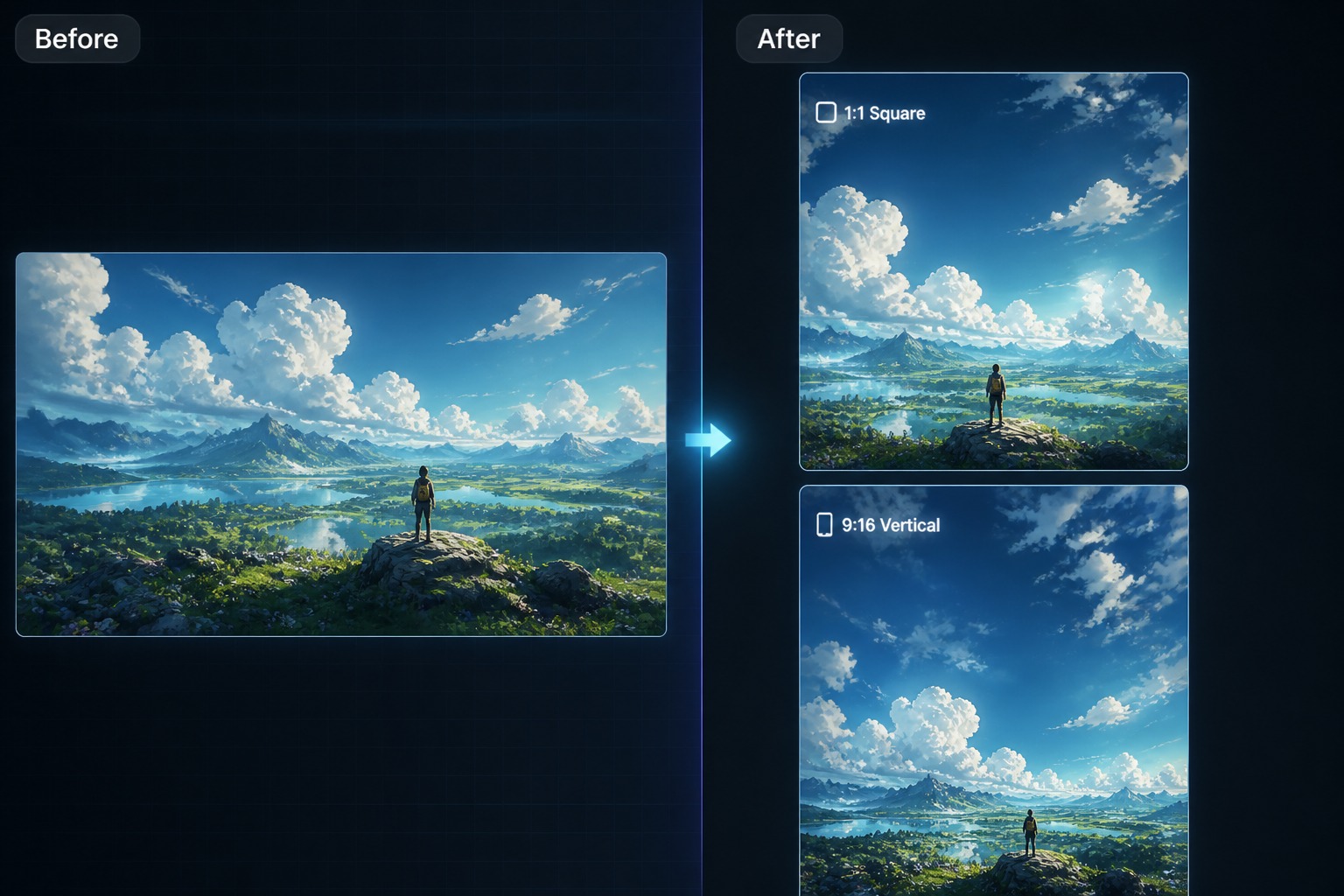
  • Adapt Images for Social Sizes02

    Adapt Images for Social Sizes

    Create more room around the subject for square posts, story crops, profile covers, and platform thumbnails without awkward cutting.

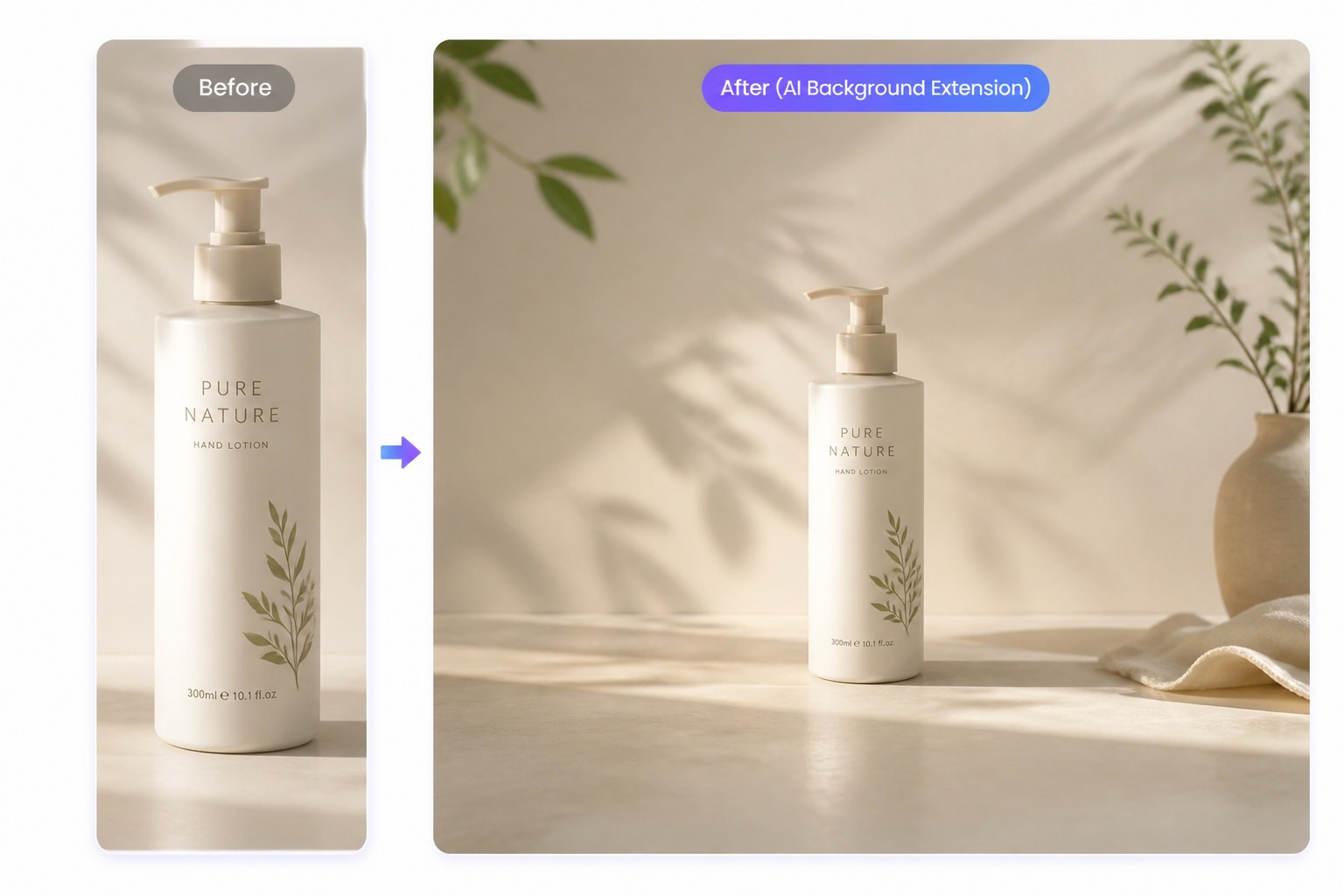
  • Add Clean Space Around Products03

    Add Clean Space Around Products

    Expand product images to create extra breathing room for layout, cropping, marketplace cards, and campaign design without changing the product.

More Image Tools

How to Expand an Image

Upload your image, choose the size you want to expand to, and describe how the new area should look.

  1. Upload Your Image

    Start by uploading the image you want to expand. Use a clear photo with a visible main subject so the AI can keep the original content stable while adding new space around it.

  2. Choose the Expansion Size

    Select the target canvas size or aspect ratio you need, such as a wide banner, square post, vertical story, website cover, or product-card layout.

  3. Describe the Extended Scene

    Tell the AI what you want the expanded area to look like. You can ask for more background, extra sky, a wider room, a cleaner product setting, or a natural continuation of the original scene.

Expand Image for Better Layouts

Add new background space around a photo so it fits banners, social posts, product cards, and cover formats.

0104

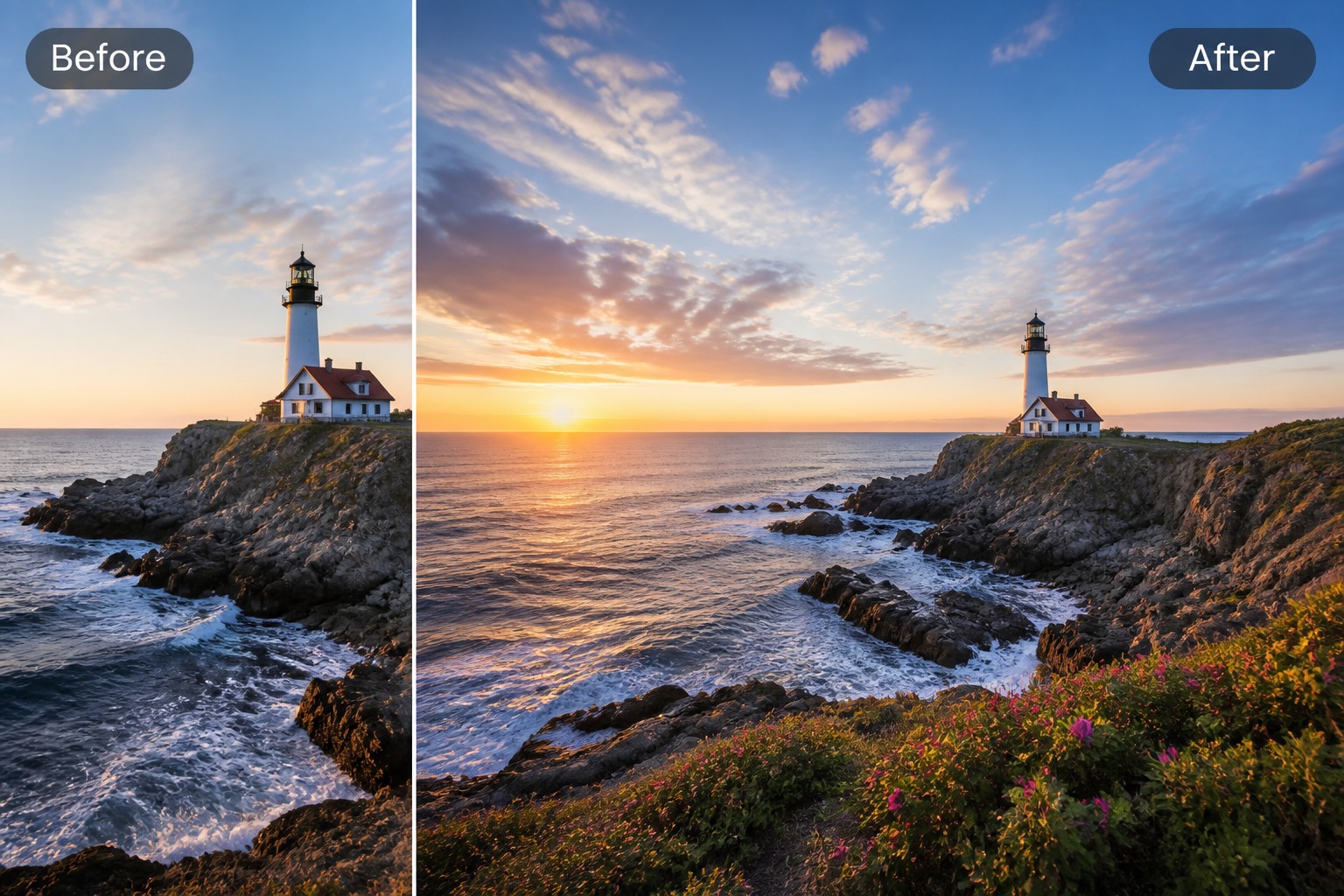
Expand Images Beyond the Original Crop

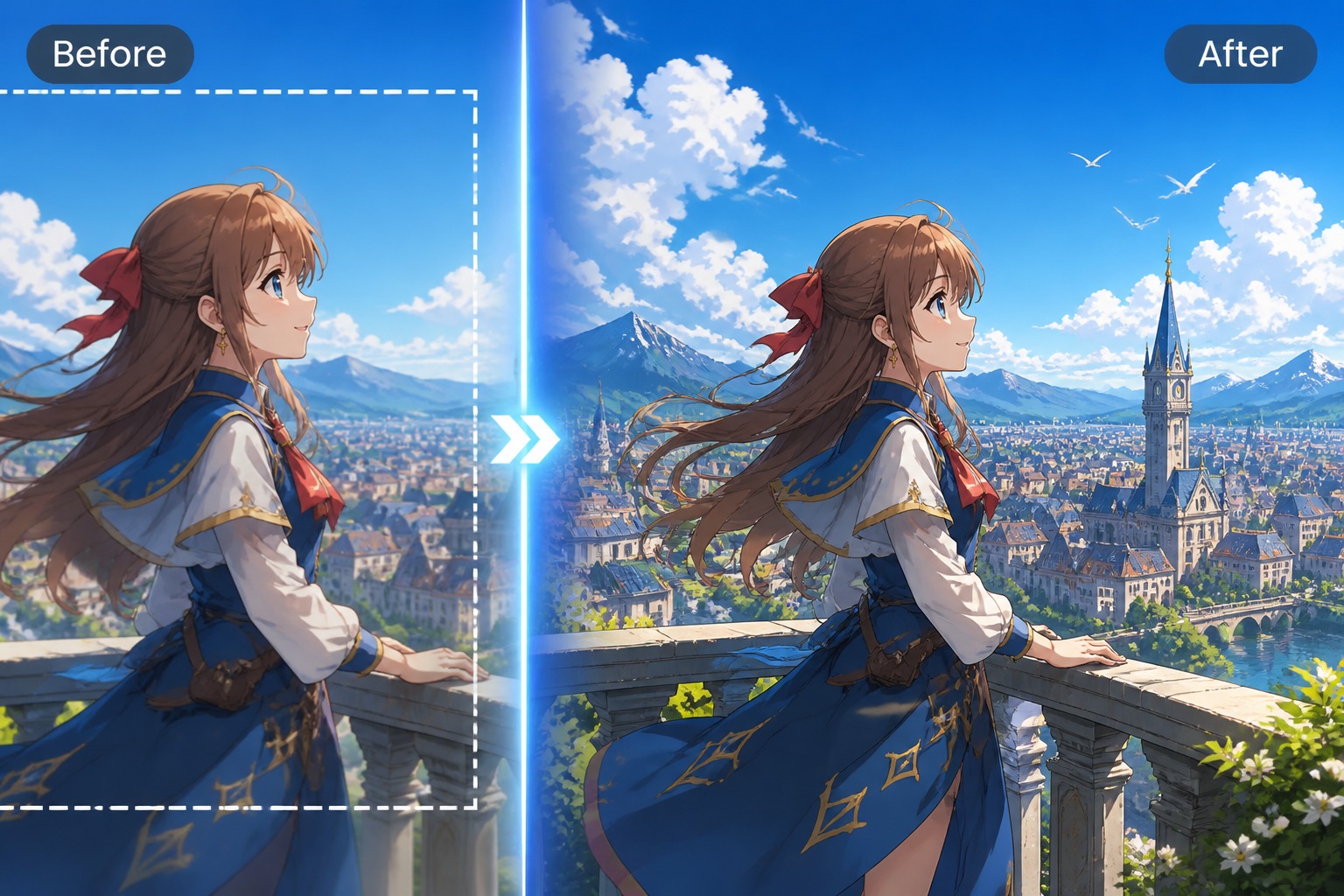
Use an AI image expander to continue the scene outside the original frame. It is strongest for skies, walls, studio backdrops, landscapes, product tables, and simple environments where the existing image gives enough visual context.
Expand Image Now
Expand Images Beyond the Original Crop

0204

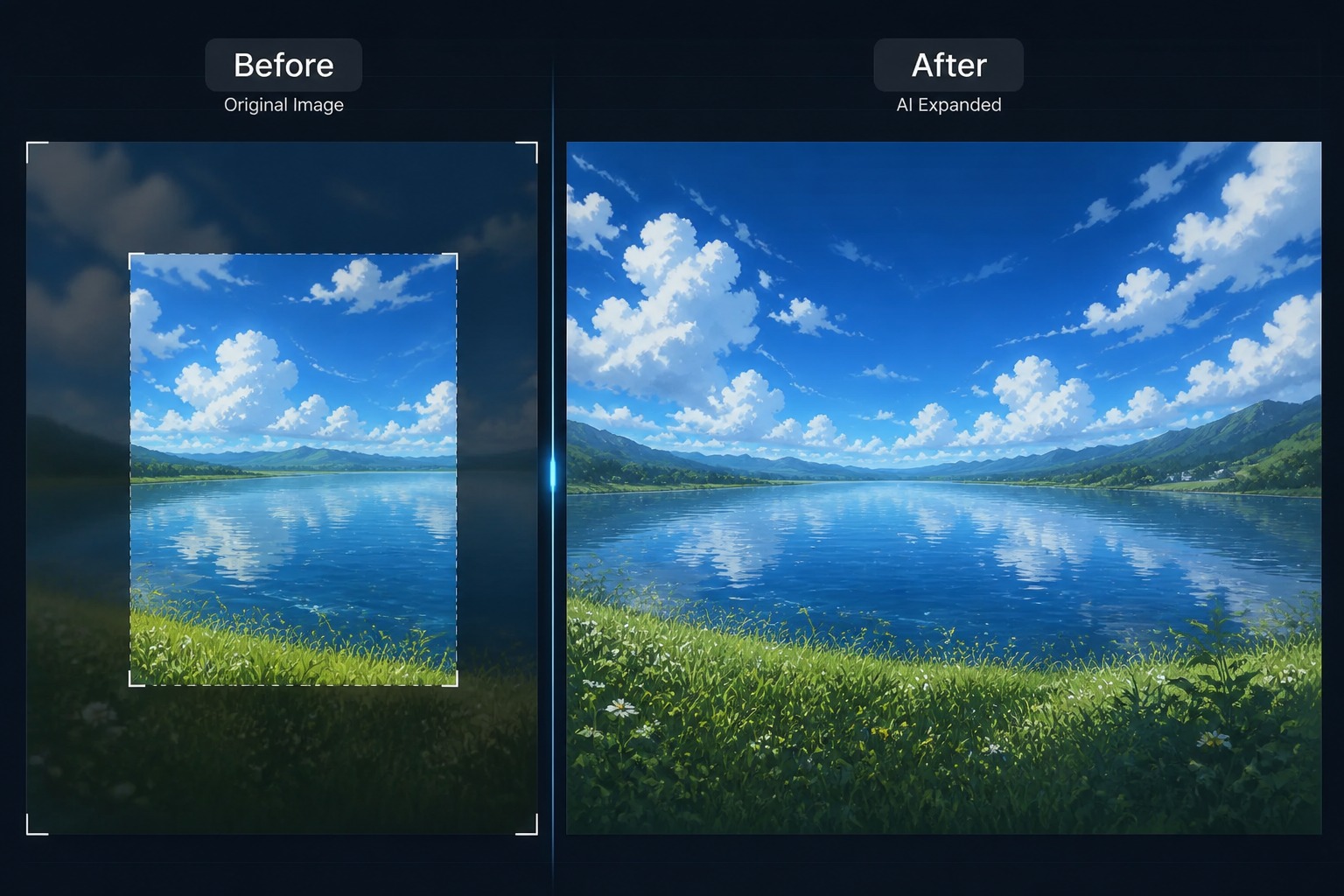
Create Layout-Ready Aspect Ratios

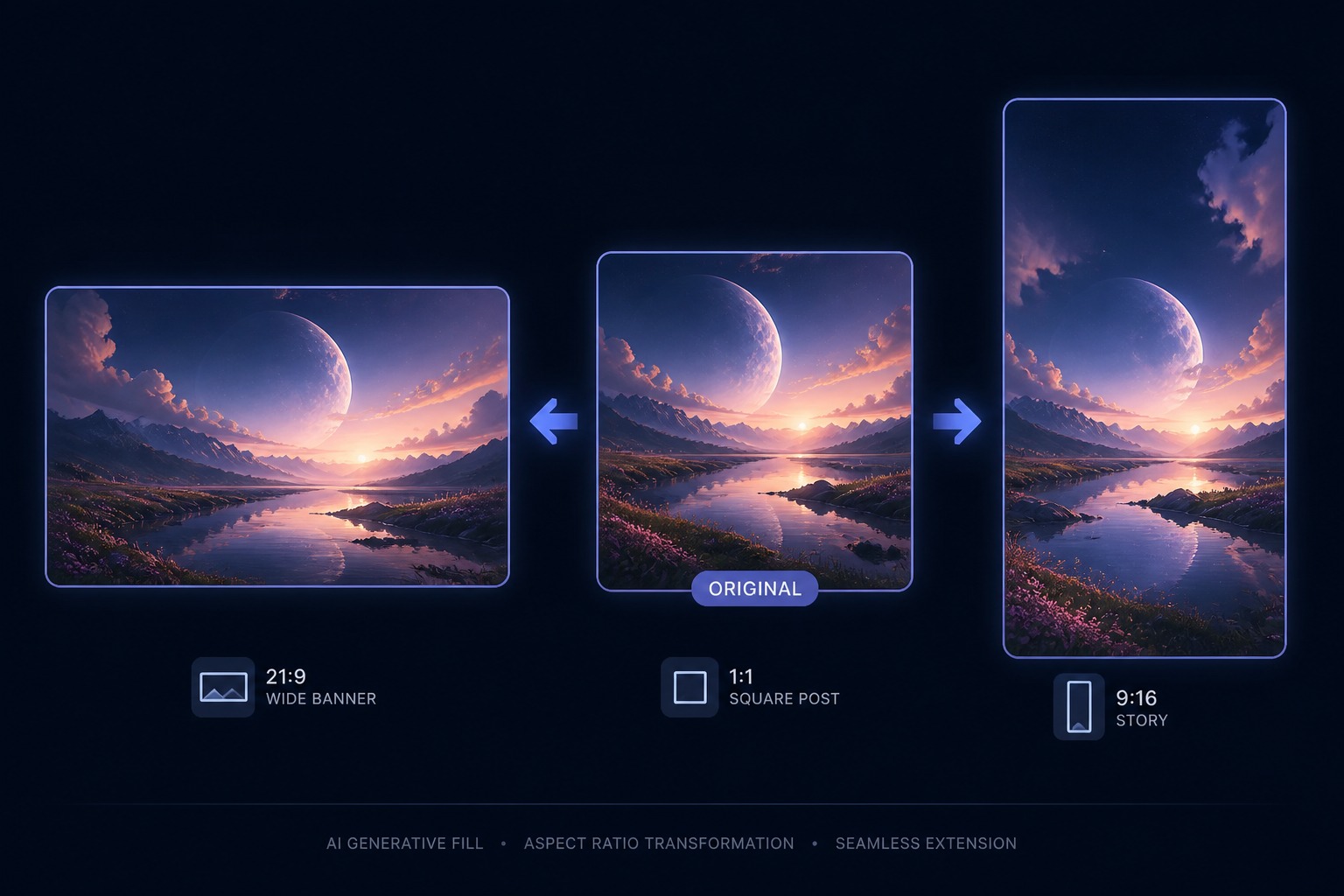
Expand image edges to prepare 16:9 banners, 1:1 social posts, 9:16 stories, and wider website covers without stretching the subject. This is better for layout changes than basic cropping because the AI adds new background space.

Create Layout-Ready Images
Create Layout-Ready Aspect Ratios

0304

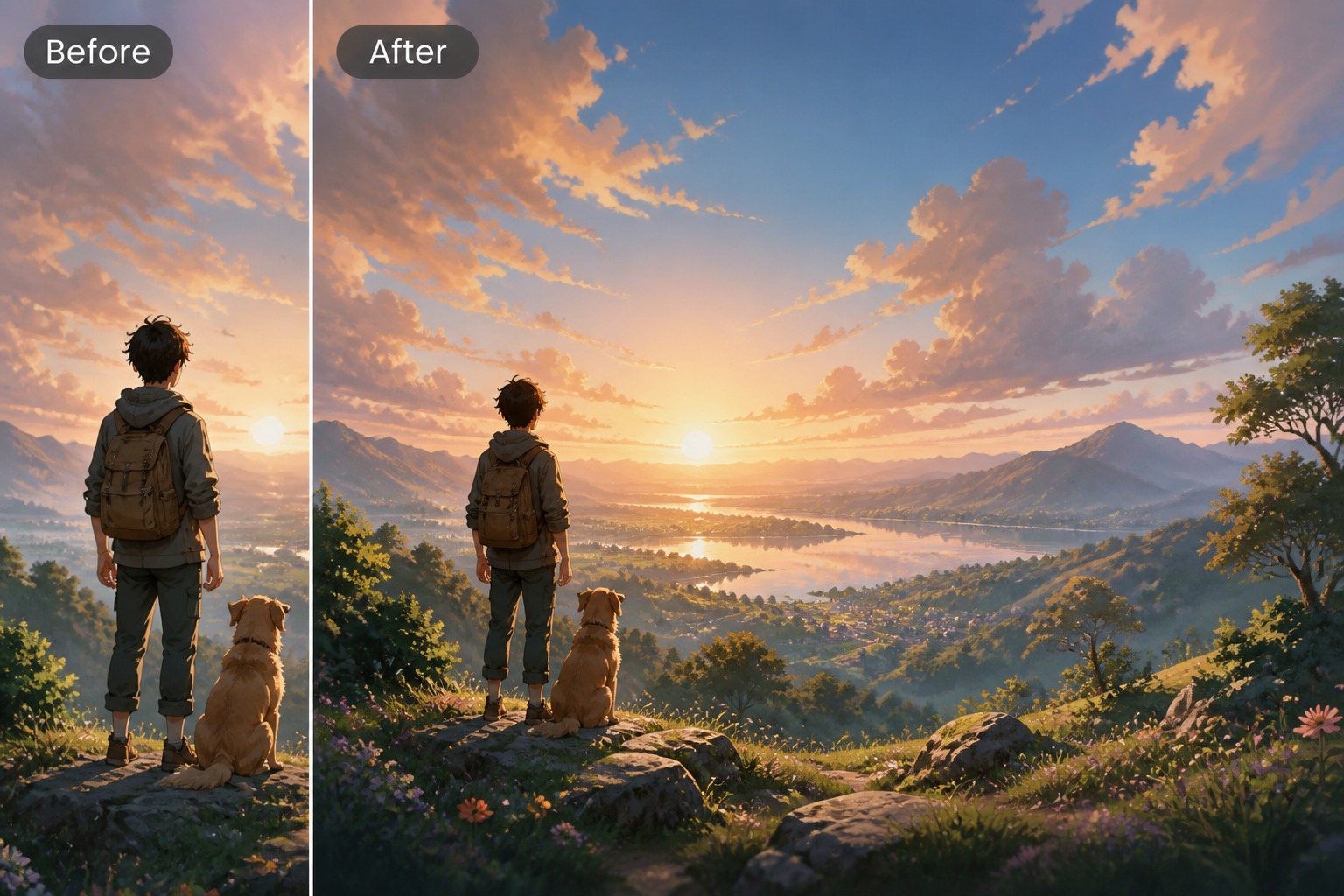
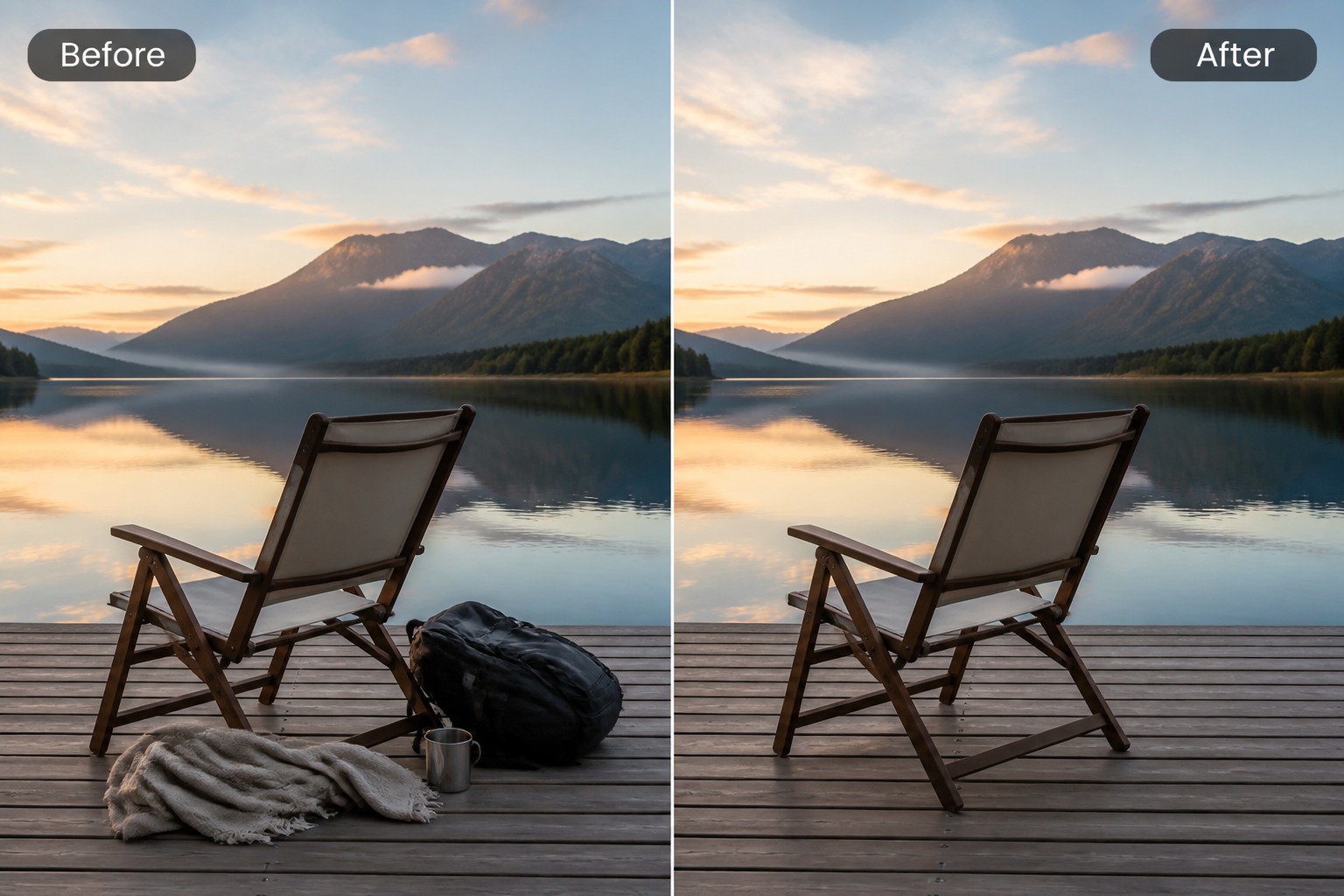
Use Uncropping to Recover Space

Uncropping helps when a subject is too close to the edge or a good image feels cramped. Expand the canvas to restore headroom, side space, or bottom room before using the result in thumbnails, ads, profile covers, or product pages.

Uncrop Your Photo
Use Uncropping to Recover Space

0404

Refine Expansions Before Publishing

Treat each expansion as a draft and check repeating patterns, warped edges, broken shadows, and strange objects near the new border. For stronger scene changes, combine expansion with generative fill or image to image edits.

Refine Your Expansion
Refine Expansions Before Publishing

Why Use This AI Image Expander

Create more usable layouts by expanding the canvas while preserving the original subject and composition.

  • 01

    Canvas Extension

    Add new pixels around the original image instead of stretching or cropping the subject.

  • 02

    Aspect Ratio Conversion

    Prepare wider, square, or vertical layouts for websites, ads, social posts, stories, and covers.

  • 03

    Uncropping Support

    Recover extra headroom or side space when the original photo feels too tightly framed.

  • 04

    Background Continuation

    Continue skies, walls, floors, landscapes, studio backdrops, and simple textures around the image.

  • 05

    Subject-Safe Framing

    Keep the main person, product, or object unchanged while expanding the surrounding scene.

  • 06

    Version Comparison

    Generate and compare multiple expansions to choose the cleanest edge blend and most believable layout.

Expand Image FAQ

Answers about AI image expansion, uncropping, aspect ratios, commercial use, and cleaner expanded borders.

What does expand image mean?

Expand image means adding new visual space beyond the original borders. Instead of stretching the photo, AI generates extra background or scene detail around the existing image.

How does an AI image expander work?

An AI image expander studies the existing edges, lighting, perspective, and texture, then generates new pixels outside the original crop. Results are strongest when the background has clear visual patterns.

What is image expansion useful for?

Image expansion is useful for turning portraits into banners, adapting product photos for marketplace cards, creating social crops, adding headroom, and preparing images for layouts where the original crop is too tight.

Is uncropping the same as image expansion?

Uncropping is a common type of image expansion. It tries to recover space around a cropped image, such as extra sky, wall, floor, or side room, so the subject feels less cramped.

Can I expand an image without changing the subject?

That is the ideal use case. Keep the subject outside the expansion area and let AI generate surrounding background space. If the subject is cut off, hands, faces, or product edges may need closer review.

Will expanded edges always look natural?

No. Simple backgrounds usually work better than complex architecture, text, logos, mirrors, crowds, or detailed hands. Check the new borders for repeated patterns, strange objects, and inconsistent shadows.

Can I use expanded images commercially?

Commercial use depends on your source image rights, platform terms, people, trademarks, and any brand assets in the image. Review the expanded result and licensing rules before using it in ads or ecommerce.

How do I get a cleaner expansion?

Use a clear source image, choose one target ratio at a time, and compare several results. If the border looks messy, reduce the expansion amount or try a source image with simpler background structure.

Expand an Image With AI

Upload a photo, choose the layout you need, and use OCMaker AI to extend the canvas for banners, social posts, product cards, and cover images.

Uncrop & Expand Image: Free AI Image Expander