
Pricing
Log In
AI Generator
Kling 2.6 AI Video Generator Online–Fast 1080p Short Video Maker
Kling AI 2.6 generates fast 1080p short videos with native audio, smooth motion control, and easy export for social platforms.
Kling 2.6 Video Generator
Kling 2.6 is a next-generation AI video generator that lets creators produce short, high-quality clips with minimal effort. It combines native audio output (voice, sound effects, and ambience in one render) with accurate motion control for complex actions like dance or martial arts. Users can also train or upload custom voices to keep character audio consistent across multiple videos.
Explore Kling 2.6 Video Generator Features
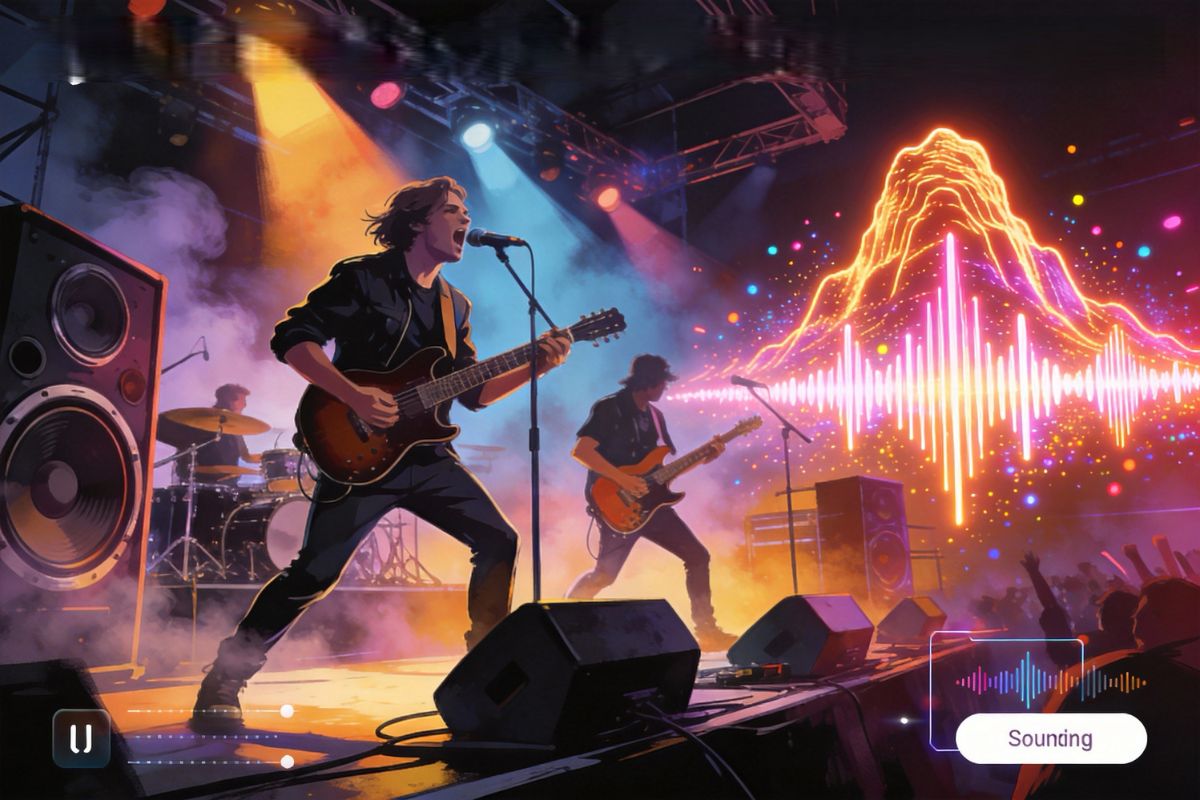
Native Audio-Visual Output
Generate high-quality short videos in one render with synchronized voice, sound effects, and ambient audio, eliminating manual post-production.
Kling 2.6’s native audio-visual workflow makes it easy to produce polished content quickly, especially for creators who need fast turnaround and consistent output across multiple clips. Try it on OCMaker AI, and see how fast you can go from idea to finished video.
Voice Control & Cloning
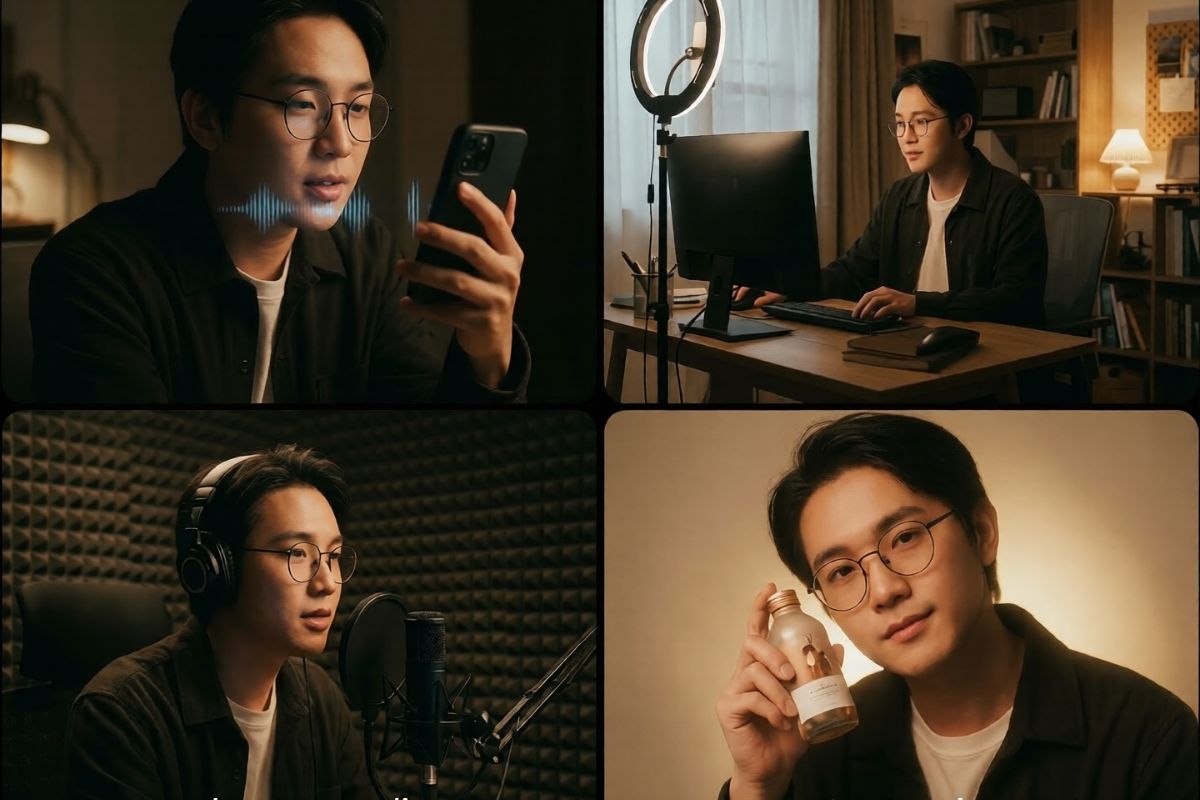
Upload or train your own voice to keep character audio consistent across multiple videos, supporting branded series, recurring personalities, and IP-driven content.
With Kling Avatar 2.0, you can build recognizable characters that sound the same every time, making storytelling and marketing campaigns more cohesive. This feature is ideal for creators who want professional-quality voice continuity without hiring voice actors.
Enhanced Motion Control
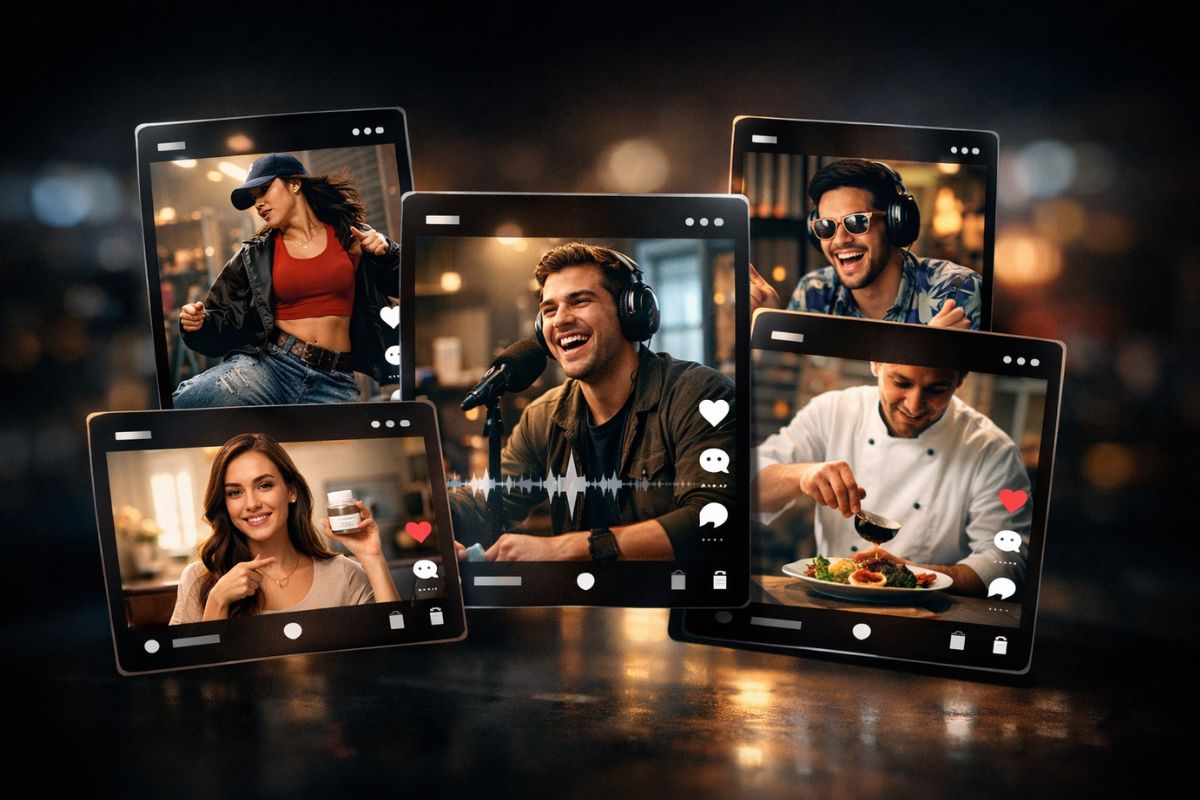
Use 3–30 second reference clips to accurately reproduce full-body movement, even for fast dance or martial arts, while maintaining realistic hand tracking and lip synchronization.
Kling 2.6’s motion control reduces blur and unnatural motion, enabling cinematic-quality performances for short films, dance reels, and action content. The result is smoother, more natural movement that matches the energy of your reference footage.
Short-Form High Fidelity & Platform Integration
Optimized for 5–10 second 1080p outputs, this tool is designed for short-form formats and easy integration with popular platforms and editing tools. Creators can quickly iterate on ideas, export clean clips, and apply Kling AI to remove watermark licensing when needed for distribution and monetization.
For those building next-level content pipelines, Kling AI capabilities make production faster and more scalable.
Key Features of Kling 2.6
Native Audio-Visual Output
One-click generation of short videos with synchronized voice, sound effects, and ambient audio, removing the need for manual post-production and speeding up the workflow.
Precise Motion Control
Upload 3–30s reference clips to reproduce complex full-body movement, including fast dance or martial arts, with improved hand tracking and smoother motion.
Custom Voice Training
Train or upload your own voice to keep character audio consistent across multiple videos, ideal for branded series, recurring characters, and IP-based storytelling.
High-Fidelity Short Clips
Optimized for 5–10 second outputs at 1080p, designed for short-form formats and fast iteration, delivering clear, cinematic results without heavy rendering.
Platform-Friendly Integration
Built for easy integration with editing tools and publishing platforms, enabling creators to export and distribute content quickly in common workflows.
Clean Export Options
Supports licensing options to remove watermarks and generate distribution-ready videos, making it suitable for commercial campaigns and professional content production.
How To Use Kling 2.6 Video Generator?
Simple steps to create amazing content
01
Upload Your Reference Visuals
Start by uploading an image reference to set the visual style, character appearance, or overall aesthetic for your Kling 2.6 video.
02
Write Your Scene Prompt
Describe the scene, action, and mood in your prompt. Include details like emotion, pacing, camera movement, lighting, or dialogue direction to guide the avatar performance.
03
Choose Settings and Generate
Select output options such as resolution, aspect ratio, and duration, then hit Generate. Review the result, make adjustments if needed, and export your final Kling 2.6 video.
Frequently Asked Questions