
Remove Object

Remove unwanted objects, background people, clutter, and small distractions from photos. Create cleaner product images, travel shots, profile photos, and social visuals with natural background repair.

Object Removal Edits You Can Make

Use these examples to plan cleaner travel photos, product backgrounds, and everyday image cleanup edits.

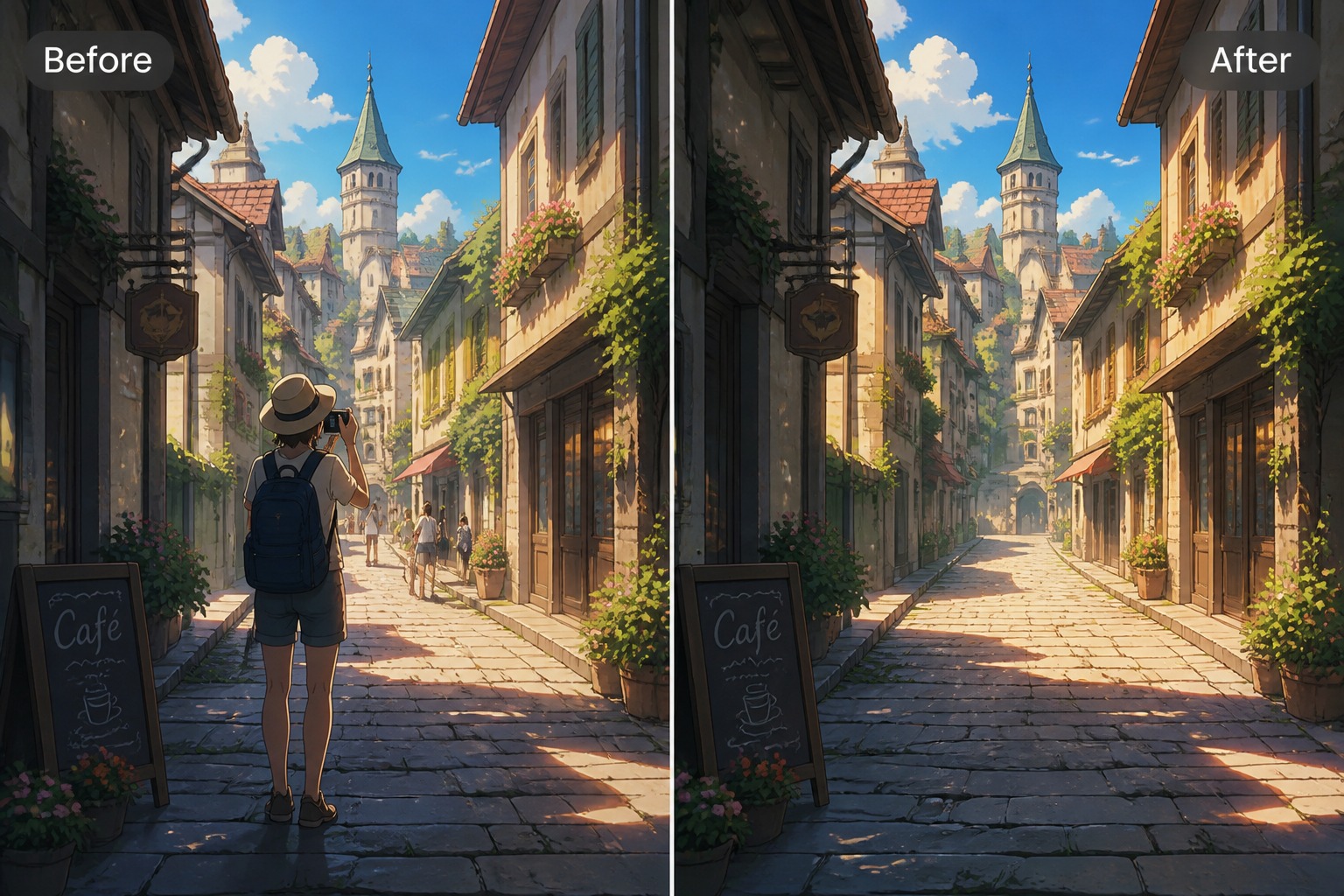
  • Remove People From Travel Photos01

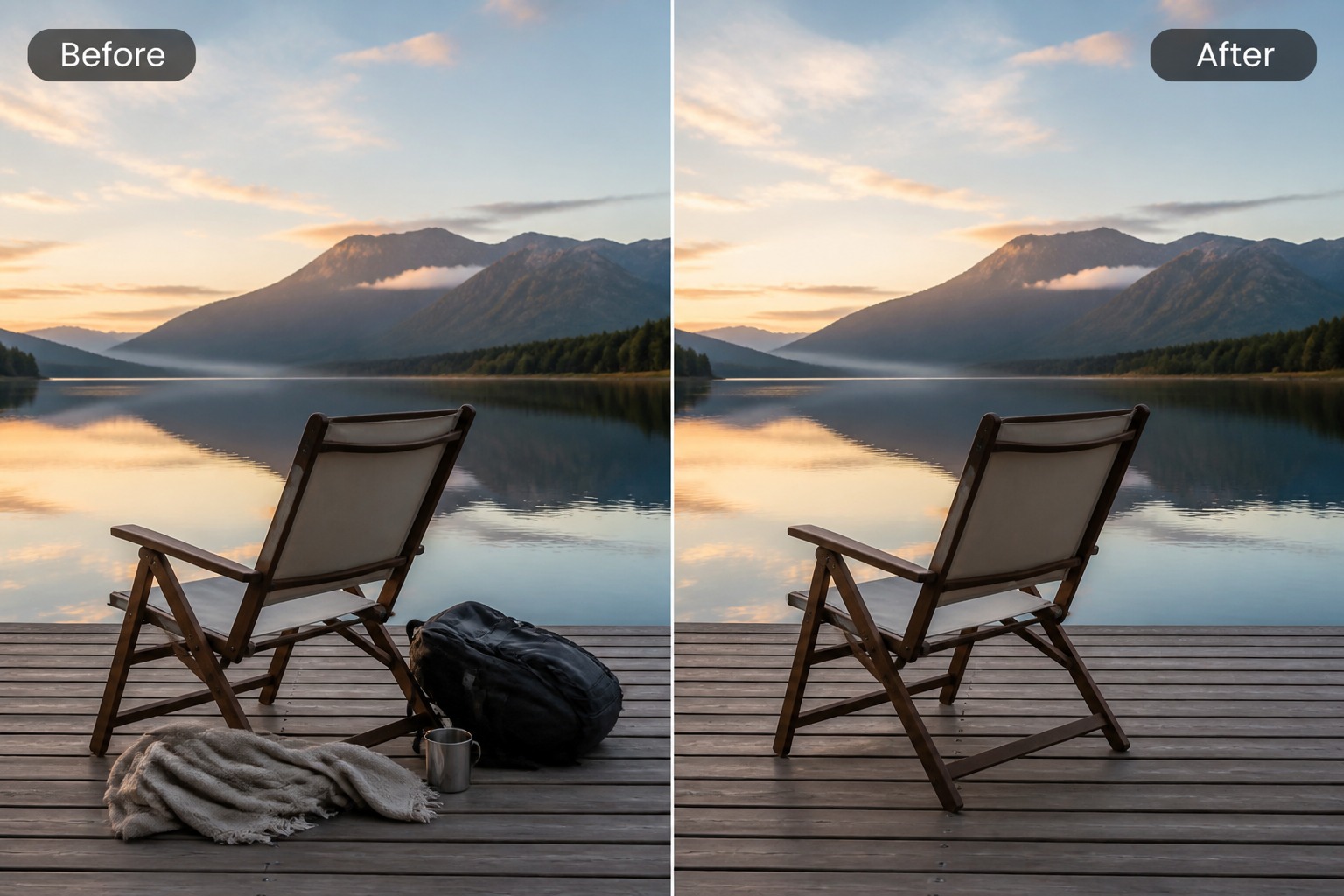
    Remove People From Travel Photos

    Clean up a scenic photo by removing a passerby or background person while keeping the pavement, sky, and surrounding scene believable.

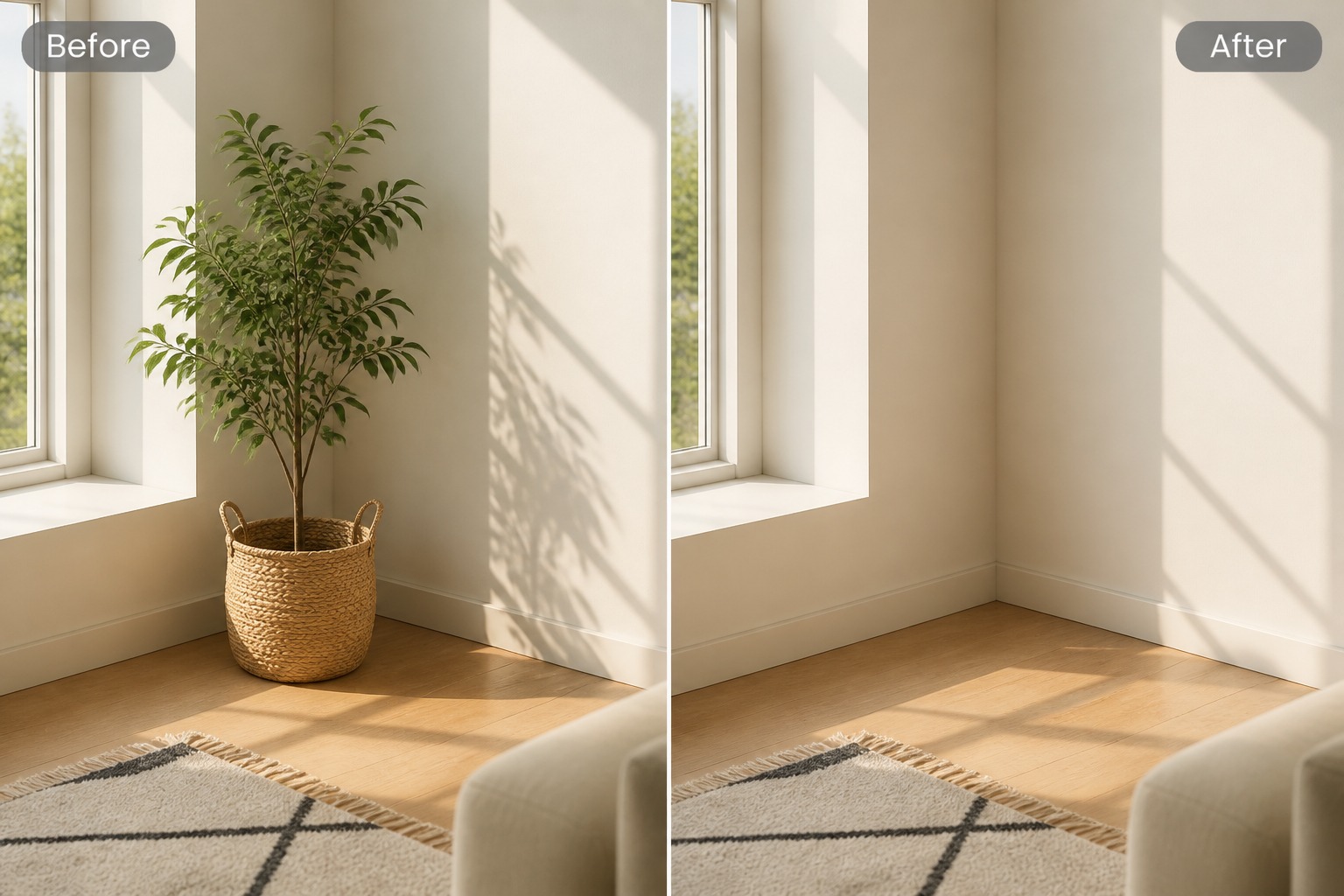
  • Clean Product Backgrounds02

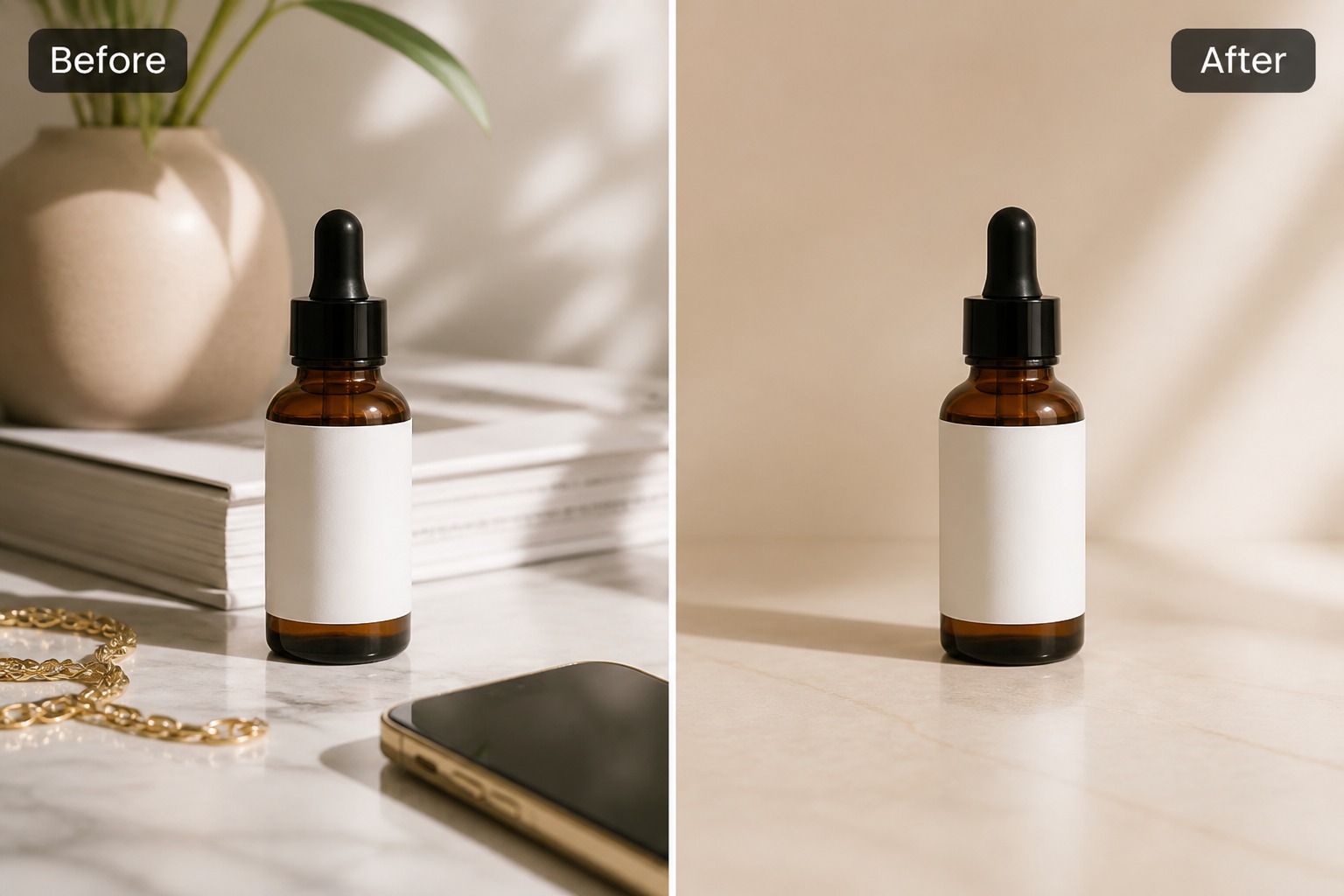
    Clean Product Backgrounds

    Remove props, cables, crumbs, or visual clutter around a product so the main item looks clearer in listings and promo images.

  • Fix Small Photo Distractions03

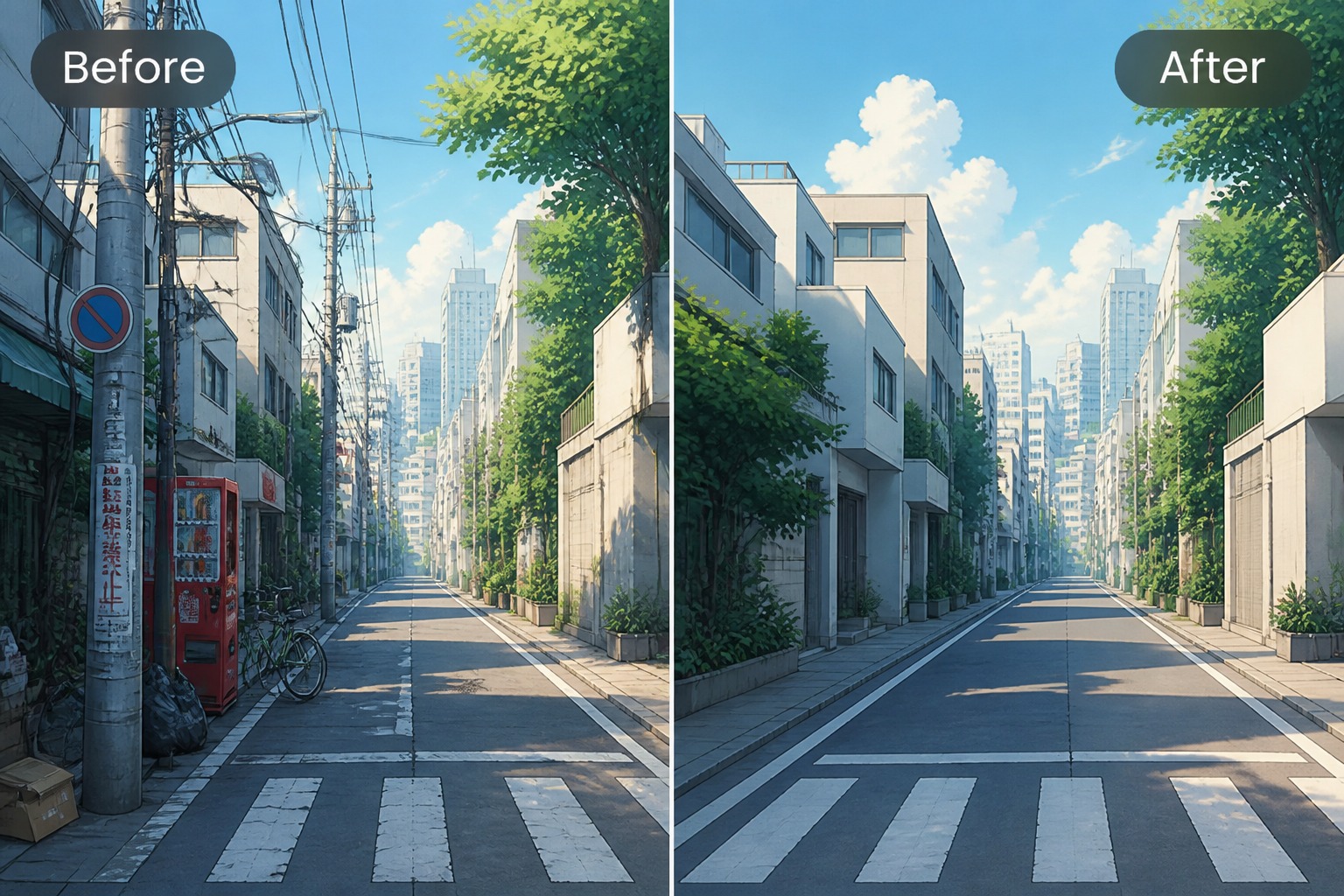
    Fix Small Photo Distractions

    Remove trash, signs, extra objects, or messy corners when the rest of the photo already has enough detail to reconstruct the background.

Remove Object From Photos With AI

Erase distractions and repair the background for cleaner product, travel, profile, and social images.

0104

Remove Unwanted Objects Fast

Use an AI object remover to erase distracting items, background clutter, small props, or accidental photobombs from a picture. It works best when the object is clearly selected and the surrounding background gives enough texture to rebuild the gap.
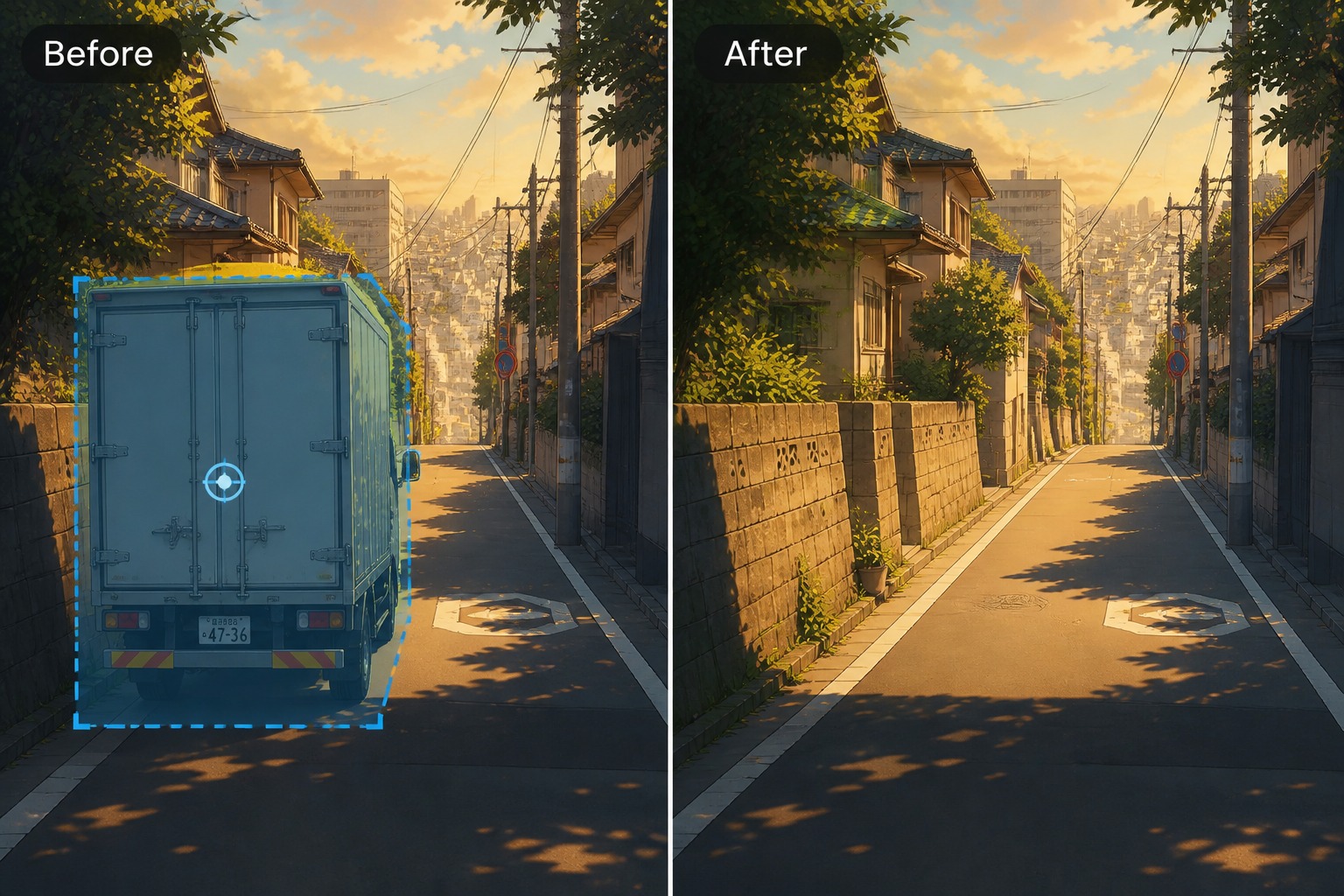
Erase Objects Fast
Remove Unwanted Objects Fast

0204

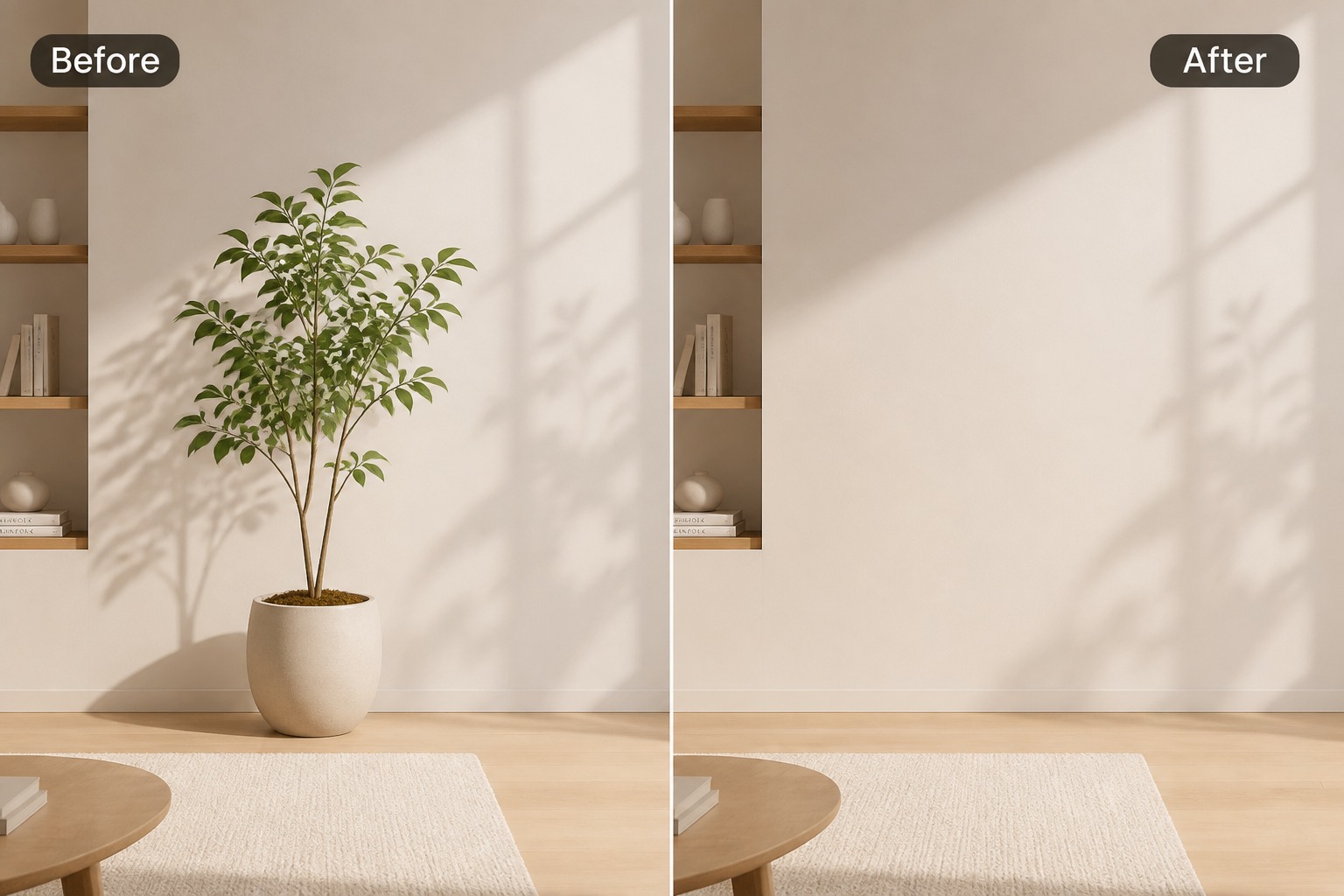
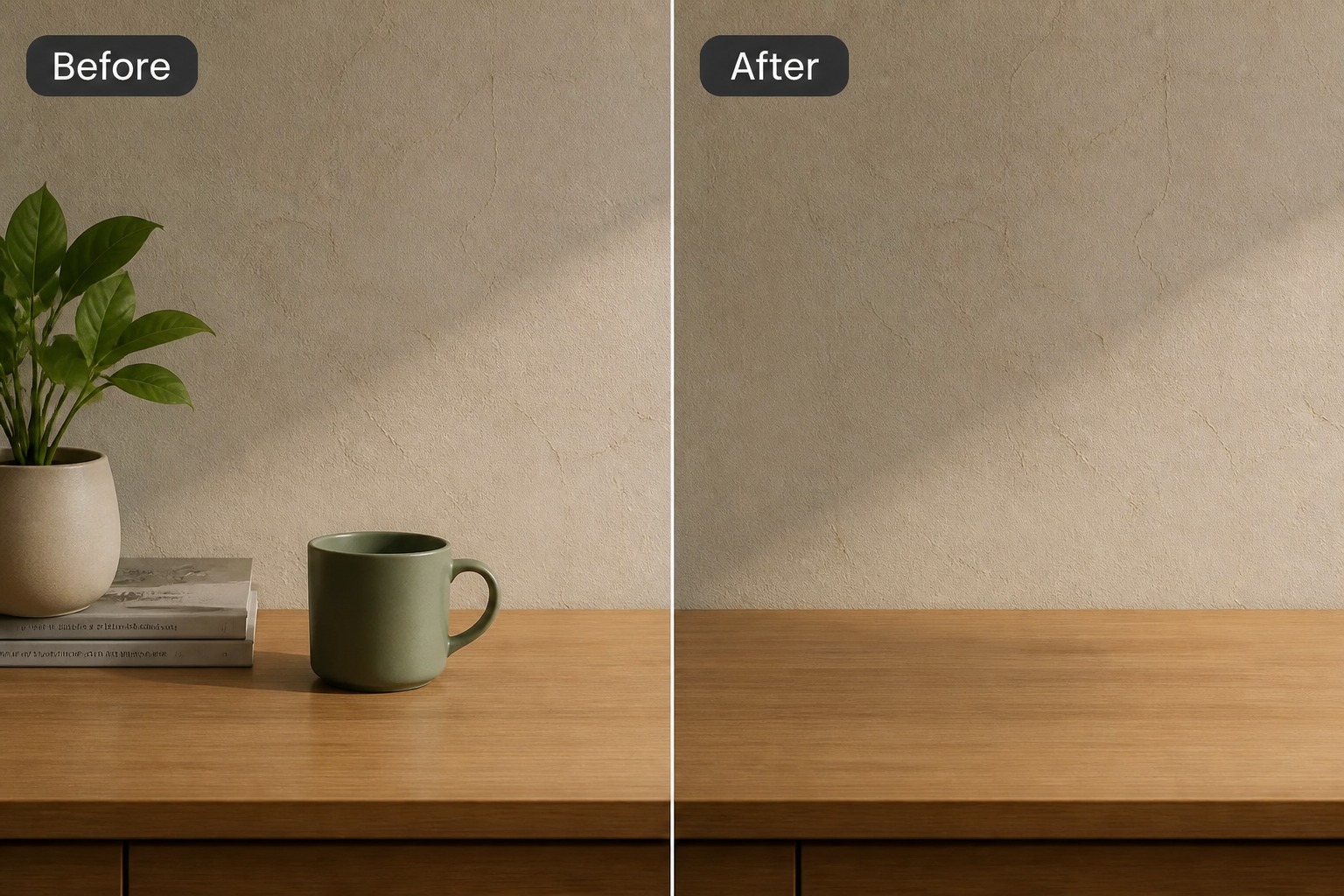
Repair the Background Naturally

A good photo object remover should not leave a blurry patch. Use it to rebuild walls, tables, grass, sky, fabric, or simple surfaces so the final image looks clean when viewed at normal social or ecommerce sizes.

Repair Backgrounds
Repair the Background Naturally

0304

Clean Photos for Real Use Cases

Remove object edits are strongest for product listings, travel photos, profile shots, thumbnails, and creator visuals where one distraction pulls attention away from the subject. For deeper edits, continue in generative fill.

Clean Photos Now
Clean Photos for Real Use Cases

0404

Compare Results Before Publishing

Treat each removal as a draft and check edges, shadows, reflections, and repeated textures before sharing. If the object touches faces, hands, branded labels, or complex patterns, try smaller selections or use image to image edits for more control.

Compare Before Publishing
Compare Results Before Publishing

Why Use This Photo Object Remover

Clean specific distractions while keeping the main subject, crop, and original photo composition intact.

  • 01

    Focused Object Selection

    Mark the exact distraction you want removed instead of changing the whole image.

  • 02

    People and Clutter Cleanup

    Remove passersby, messy props, cables, trash, or small objects that compete with the main subject.

  • 03

    Texture-Aware Repair

    Fill the removed area with background details that better match nearby light, color, and surface texture.

  • 04

    Product and Listing Photos

    Clean ecommerce images by removing distracting items while keeping the product shape and shadow readable.

  • 05

    Creator and Social Edits

    Prepare profile photos, thumbnails, travel shots, and posts with fewer visual distractions.

  • 06

    Multiple Result Checks

    Compare versions to choose the cleanest fill with the most believable edges and background continuity.

How to Remove Objects From Photos

Upload a photo, select the unwanted object, then review the repaired area for clean edges and natural texture.

  1. Upload the Photo With a Clear Subject

    Choose a photo where the main subject should stay unchanged and the unwanted object is visible. Simple backgrounds, clean lighting, and separated objects usually produce better removals.

  2. Mark Only the Object to Remove

    Select the person, prop, cable, sign, trash, or clutter you want removed. Avoid selecting too much background at once unless you want the AI to rebuild a larger area.

  3. Review Edges, Shadows, and Patterns

    Check the repaired area at normal viewing size and zoomed in. Regenerate with a smaller selection if the output has smudges, repeated texture, broken shadows, or mismatched perspective.

Remove Object FAQ

Answers about AI object removal, product cleanup, people removal, commercial use, and better repair results.

What does remove object mean in photo editing?

It means selecting an unwanted item in a photo and using AI to erase it while rebuilding the background. Common uses include removing people, cables, signs, trash, props, or small distractions.

How does an AI object remover work?

An AI object remover analyzes the selected area and nearby pixels, then generates replacement background detail. It works best when the surrounding image gives clear clues about texture, lighting, and perspective.

Is this a photo object remover for product images?

Yes, it can help clean product photos by removing clutter, props, cables, or small marks. Always inspect product edges, shadows, labels, and reflections before using the edited image in a listing or campaign.

Can I remove people from a photo?

You can remove background people or passersby when the scene has enough context to repair the gap. Avoid misleading edits involving real people, and be careful with consent, privacy, and publishing context.

Will the removed area always look natural?

No. Simple walls, floors, skies, grass, and tabletops usually work better than hands, faces, text, logos, mirrors, or complex architecture. Treat the result as a draft and compare versions.

Can I use remove object edits commercially?

Commercial use depends on your source image rights, platform terms, trademarks, people in the image, and local rules. Review the final image carefully before using it in ads, ecommerce, or client work.

What should I do if the removal looks blurry?

Try selecting a smaller area, remove one object at a time, or regenerate a few versions. Blurry patches usually mean the selection was too broad or the background did not provide enough clear structure.

Is remove object different from generative fill?

Remove object focuses on erasing distractions and repairing the background. Generative fill is broader: it can remove, replace, extend, or add content. Use remove object when cleanup is the main goal.

Remove Unwanted Objects From Photos

Upload a photo, select the distraction, and use OCMaker AI to clean up the scene for product images, travel photos, profile shots, and social posts.

Remove Objects from Images: Free AI Photo Cleanup