AI Image Editor

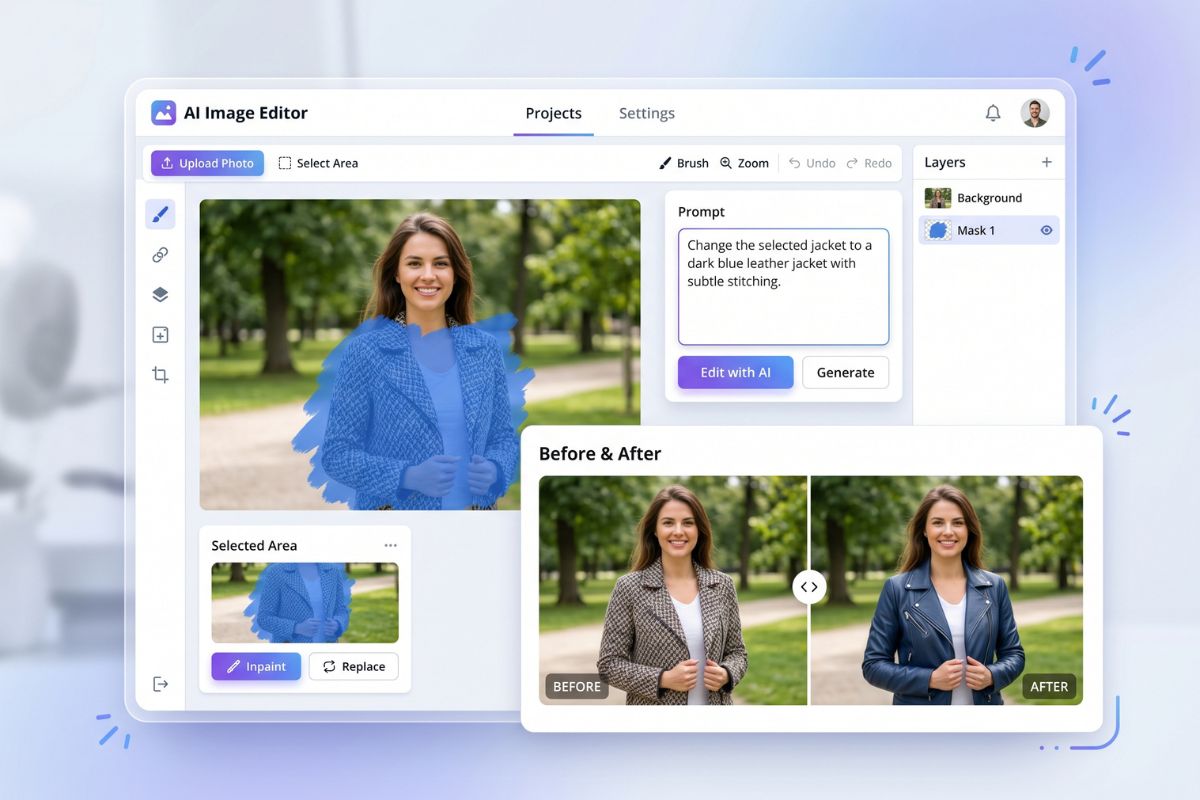
Upload a photo, brush over the part you want to change, then type what should happen next. This AI image editor is built for small fixes and bigger creative edits, from object cleanup to background changes, product retouching, and photo editing free trials.

AI Image Editor

Image Editing Ideas You Can Try

Use the same uploaded photo for quick cleanup, clothing changes, background swaps, product polish, or style tests. A good AI picture editor should let you control the exact area instead of rewriting the whole image.

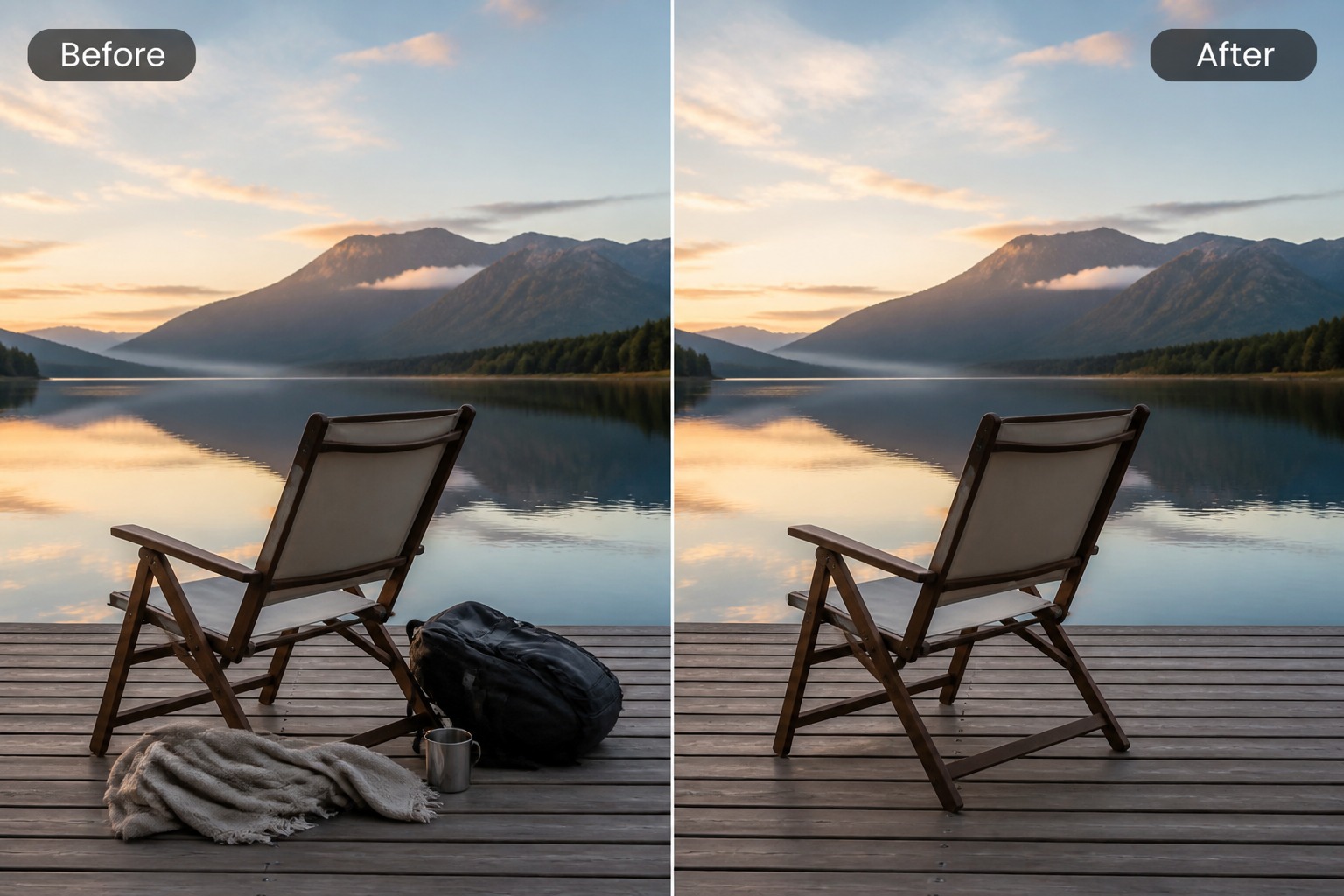
  • Brush and Replace01

    Brush and Replace

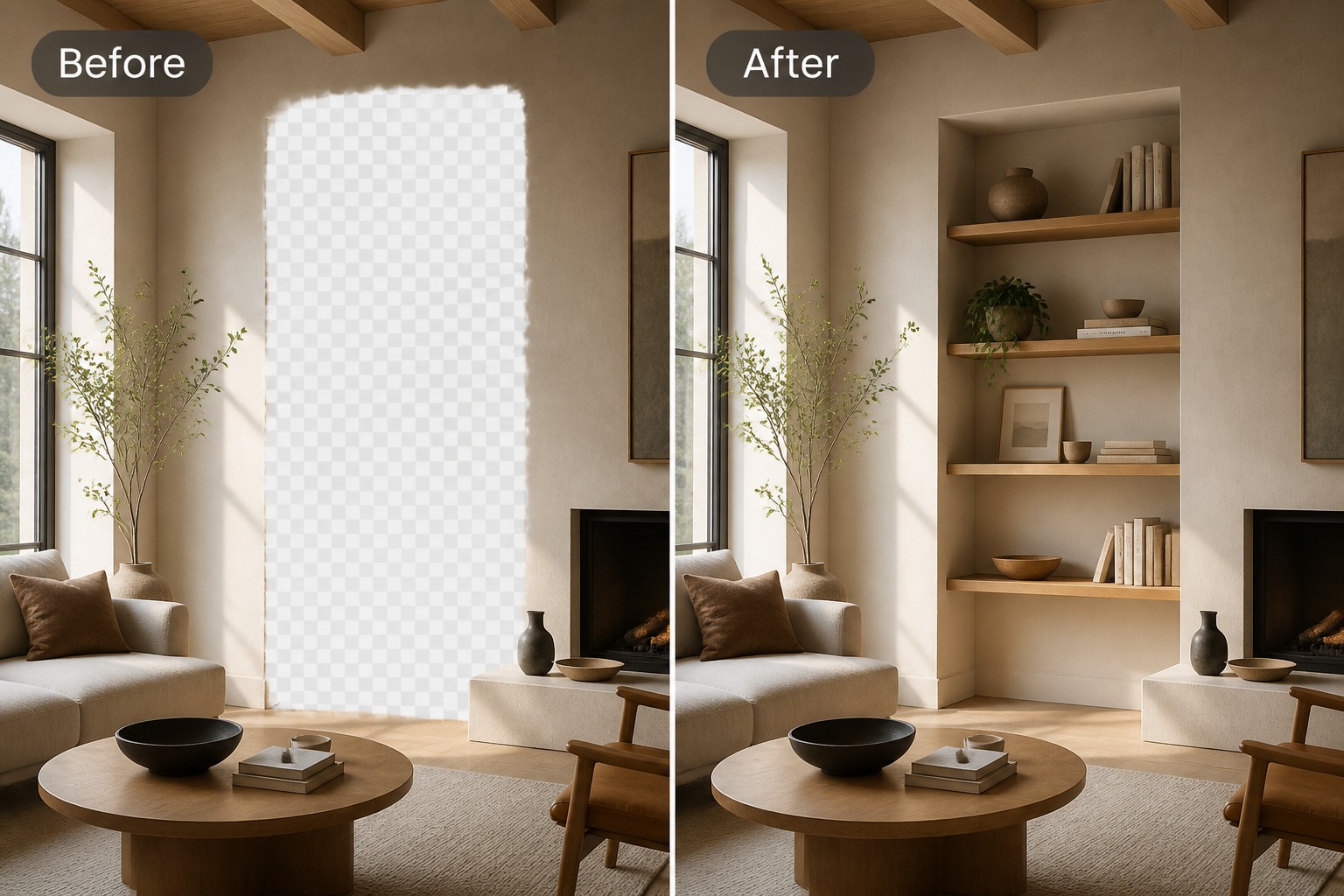
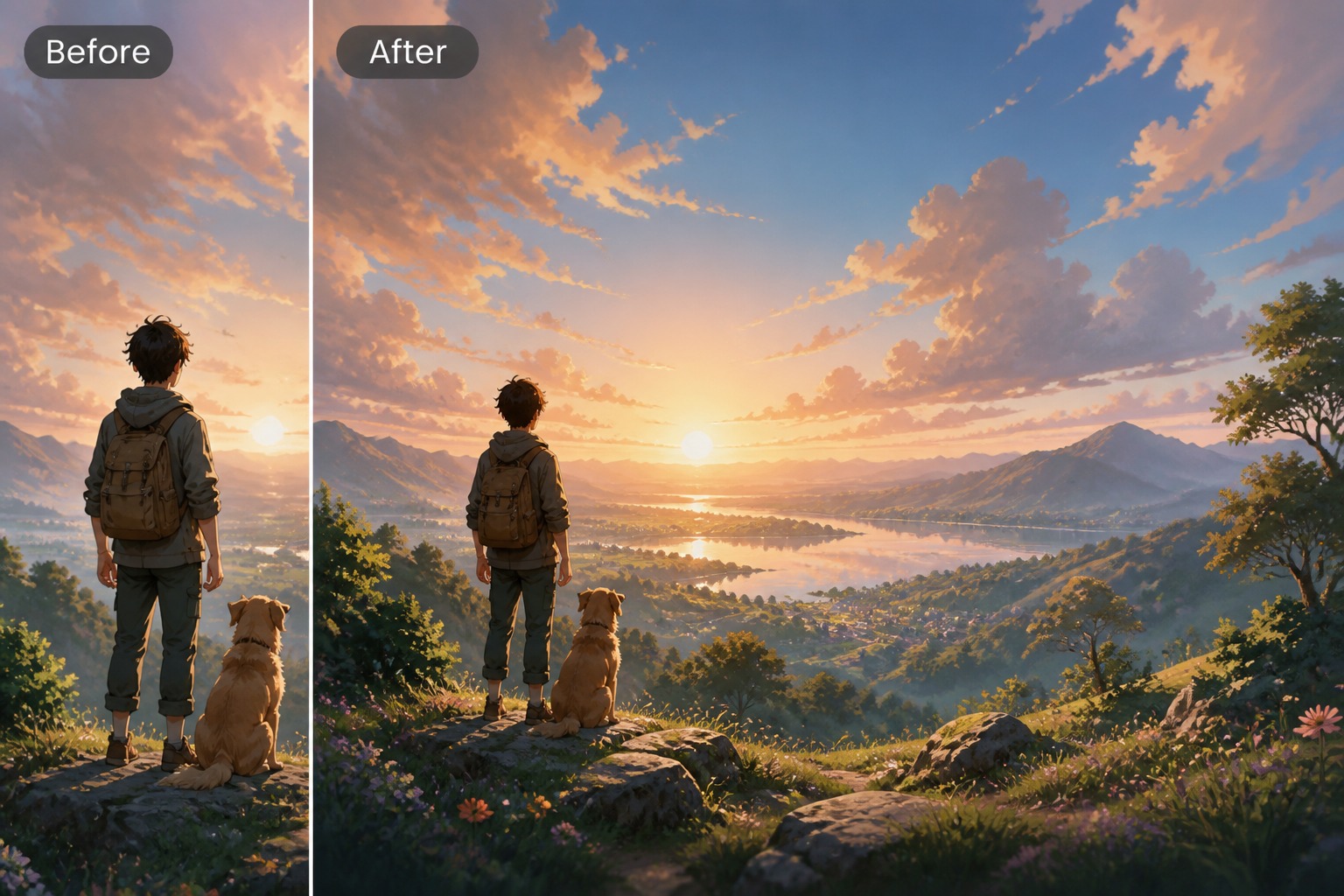
  • Background Adjustment02

    Background Adjustment

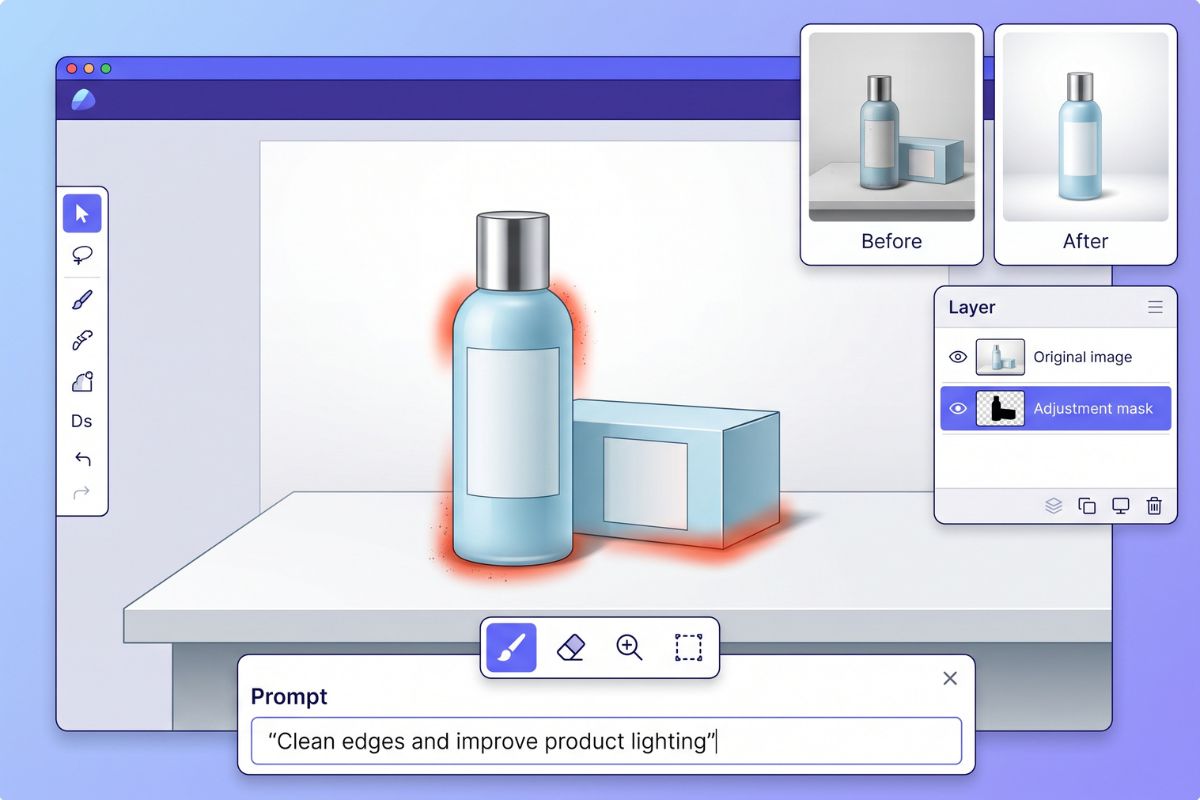
  • Product Photo Retouch03

    Product Photo Retouch

How to Use the AI Image Editor in 3 Steps

Choose a model, select Inpaint or Outpaint, and edit photos with prompts

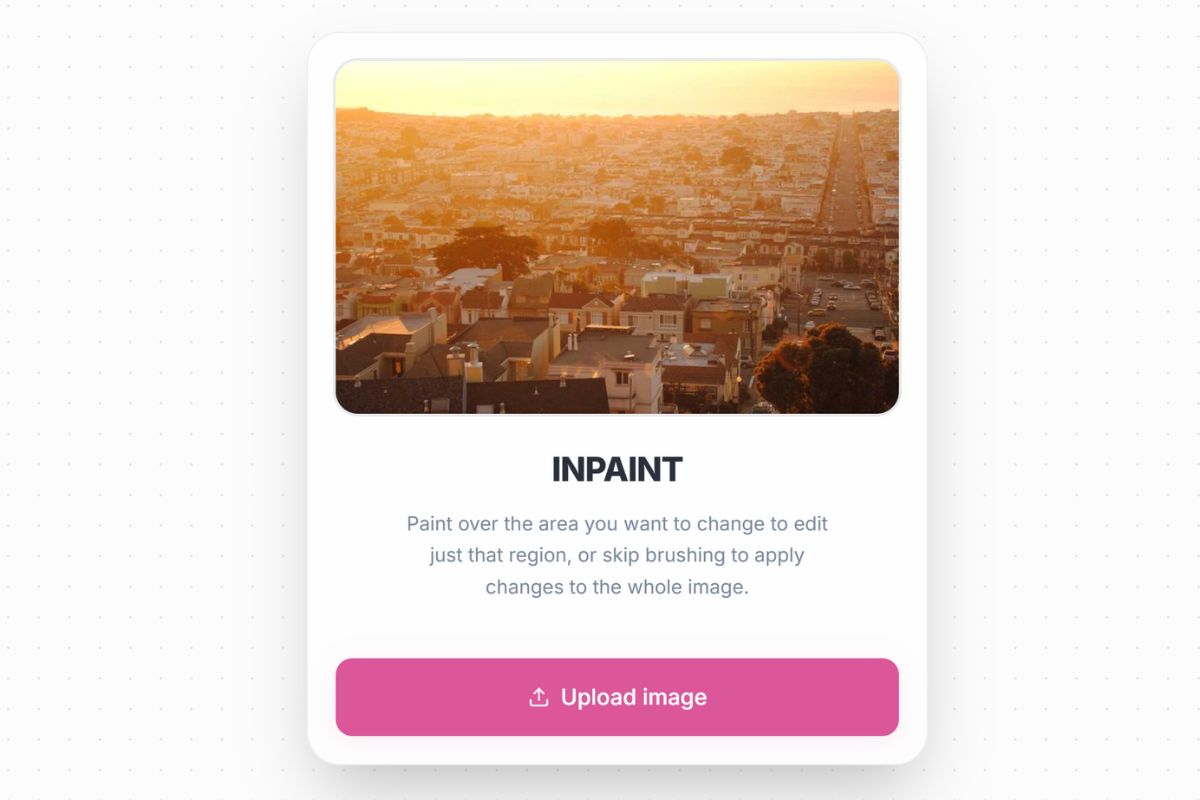
  1. Upload a photo to the AI image editor

    Upload Your Photo

    Choose the photo you want to edit. Start with a clear image whenever possible, because sharper details help the AI image editor rebuild edges, objects, and backgrounds more naturally.

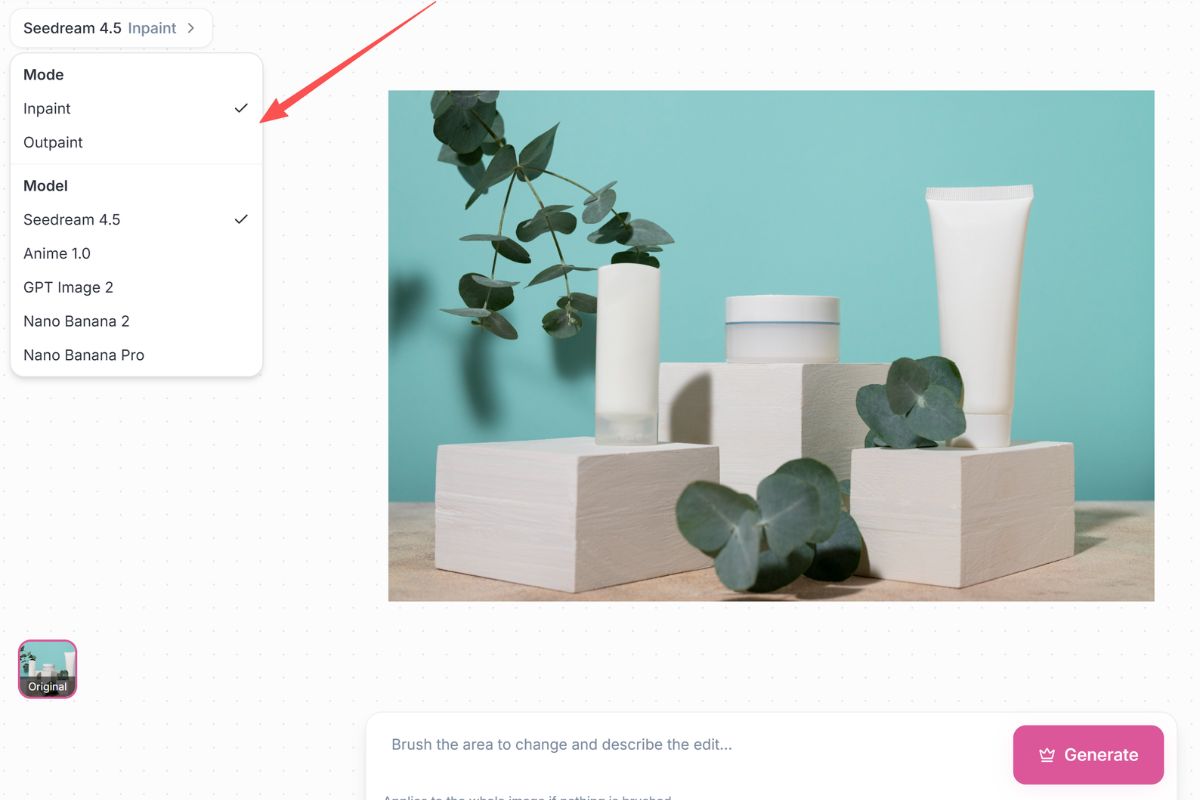
  2. Select an image model and choose Inpaint or Outpaint mode

    Choose a Model and Edit Mode

    Pick the image model that fits your goal, then choose Inpaint to change a selected area or Outpaint to expand the image beyond its original frame.

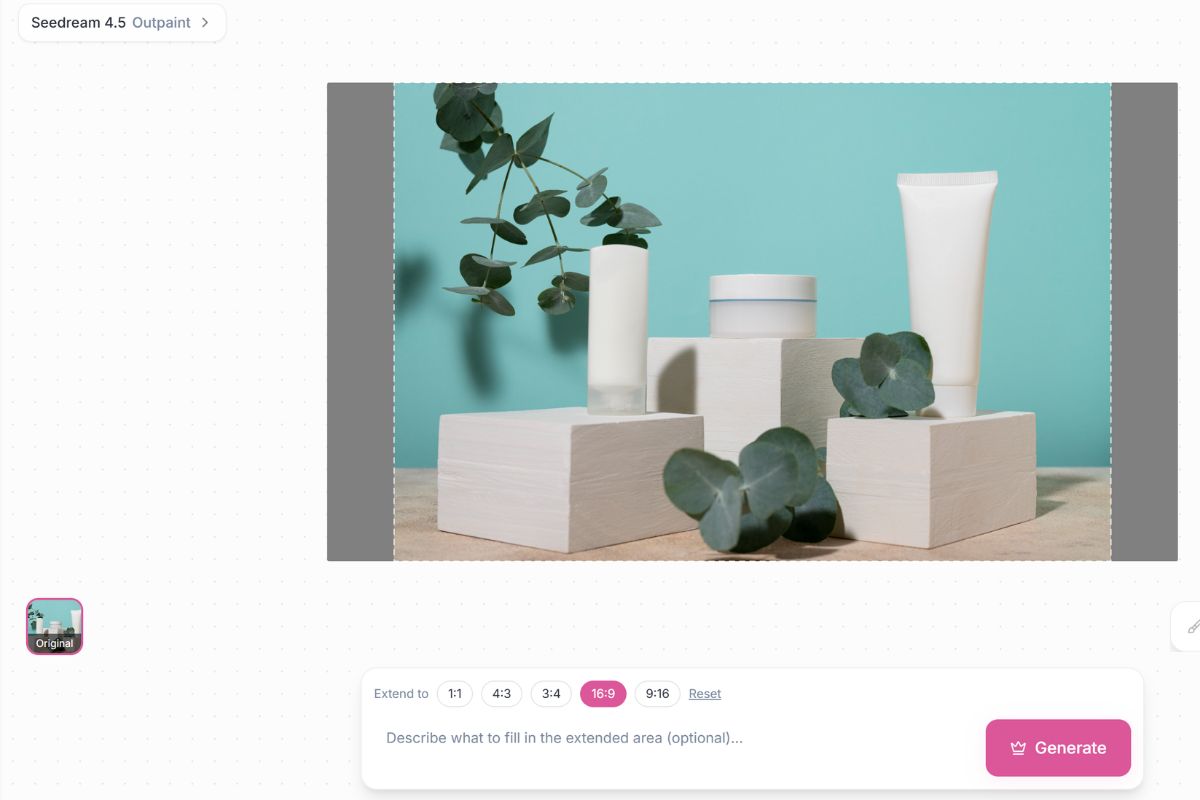
  3. Brush the edit area or expand the canvas and enter a prompt

    Brush, Expand, and Prompt

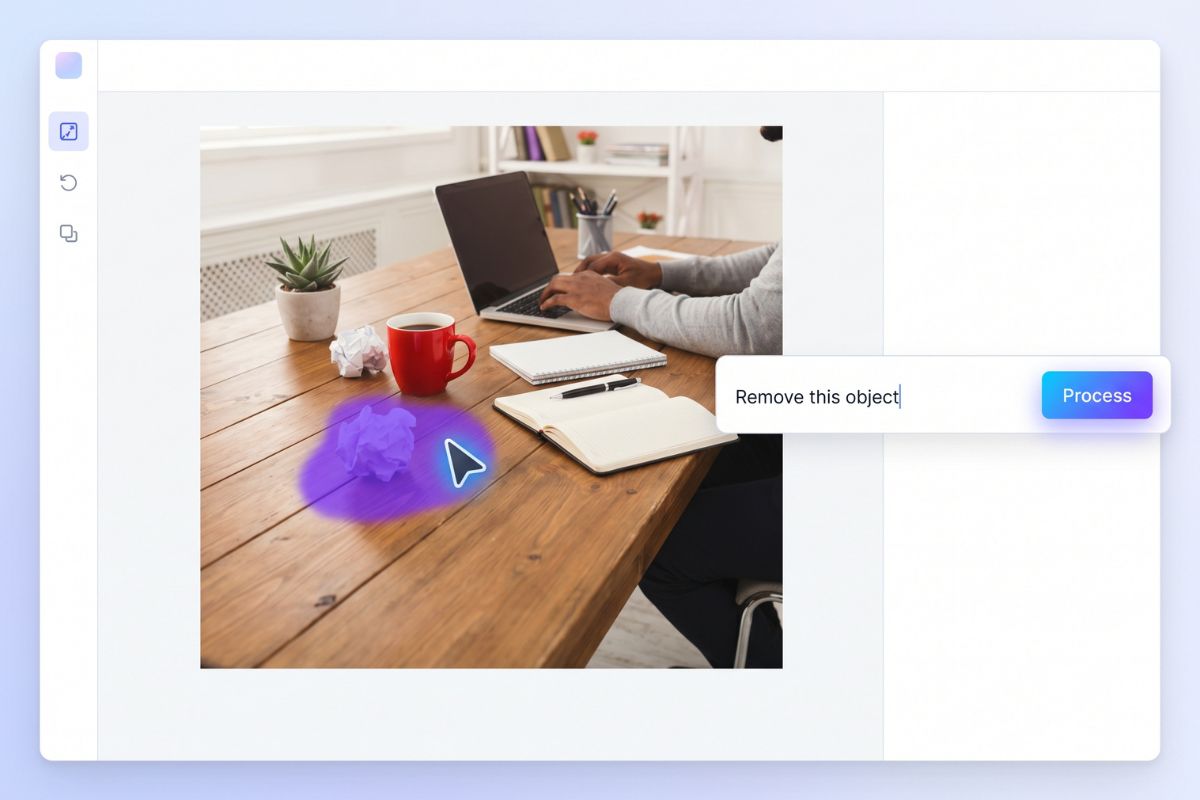
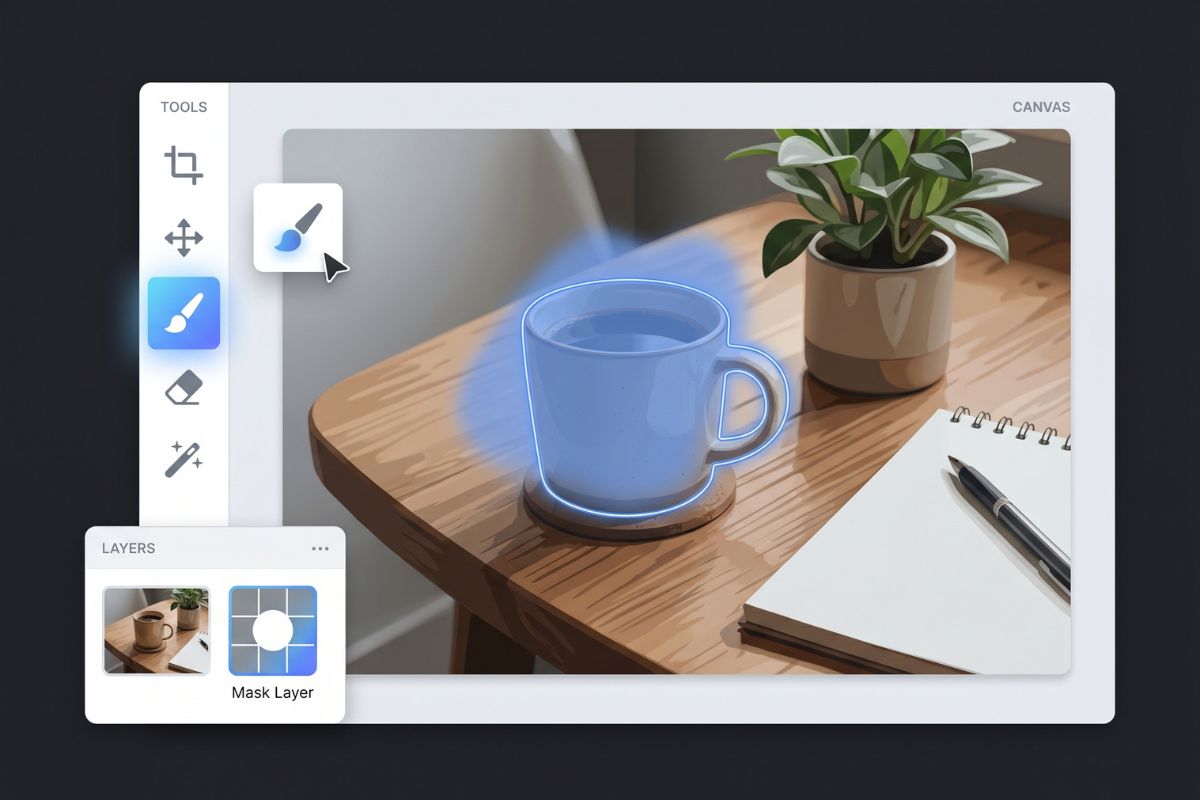
    For Inpaint, brush only the part you want to change. For Outpaint, adjust the canvas area you want to extend. Then type a short prompt describing the result you want, such as remove an object, change the background, or extend the scene naturally.

More Image Tools

Core Features for Prompt-Based Image Editing

0103

Mask Any Area

Brush over a shirt, face shadow, product label, background corner, or unwanted object with the image to image editing workflow. The edit stays focused on the selected area, so the rest of the photo has a better chance of keeping its original layout.
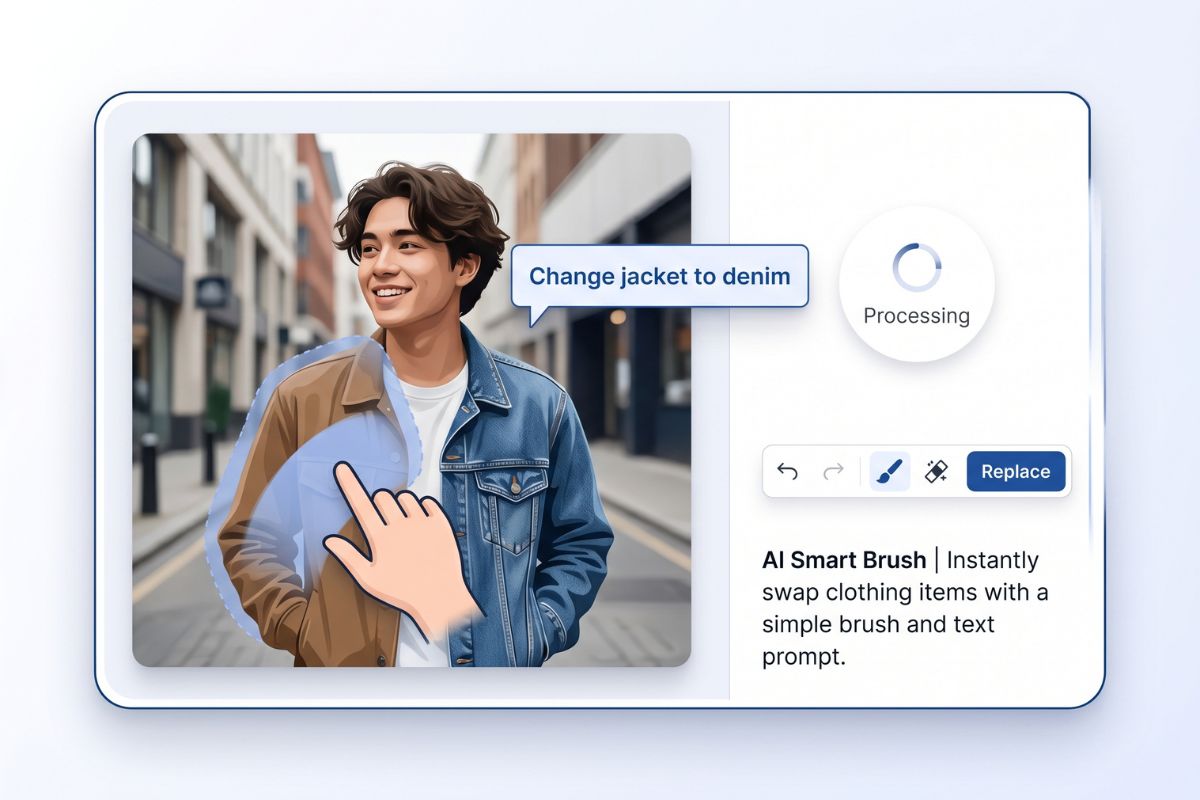
Edit Selected Area
Mask Any Area

0203

Edit by Text Prompt

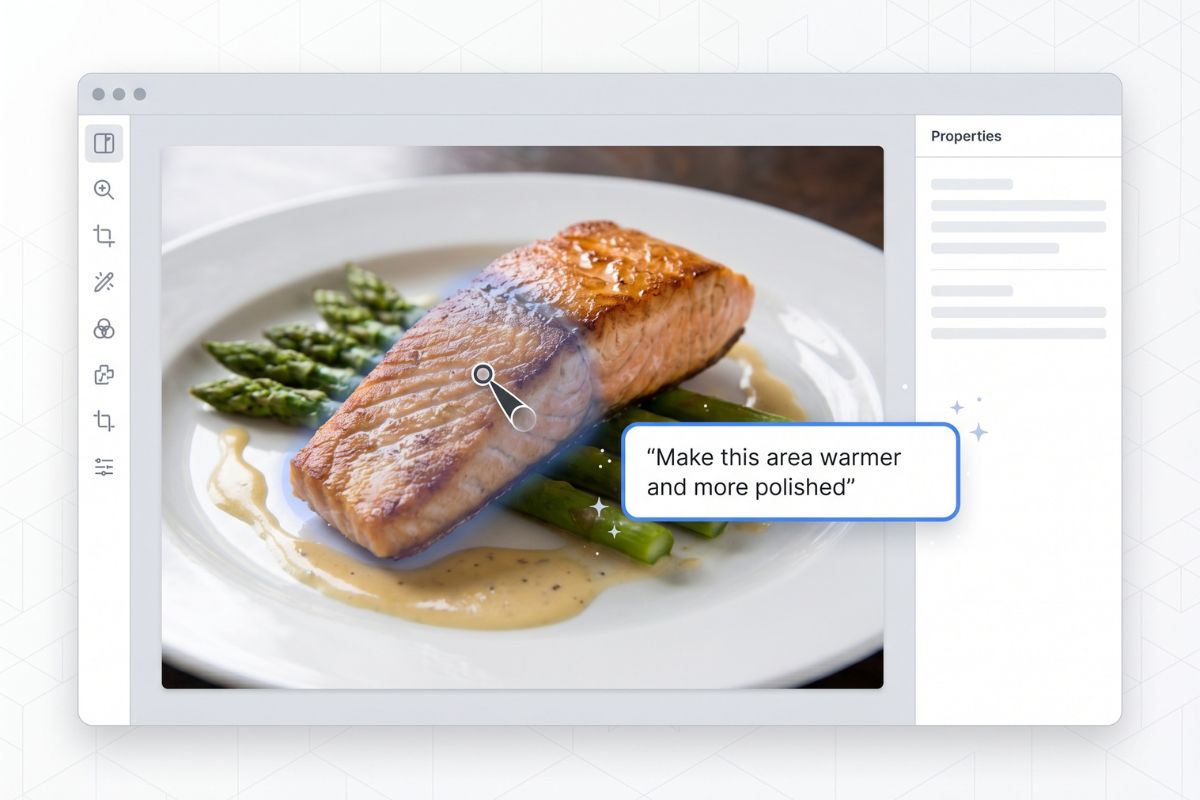
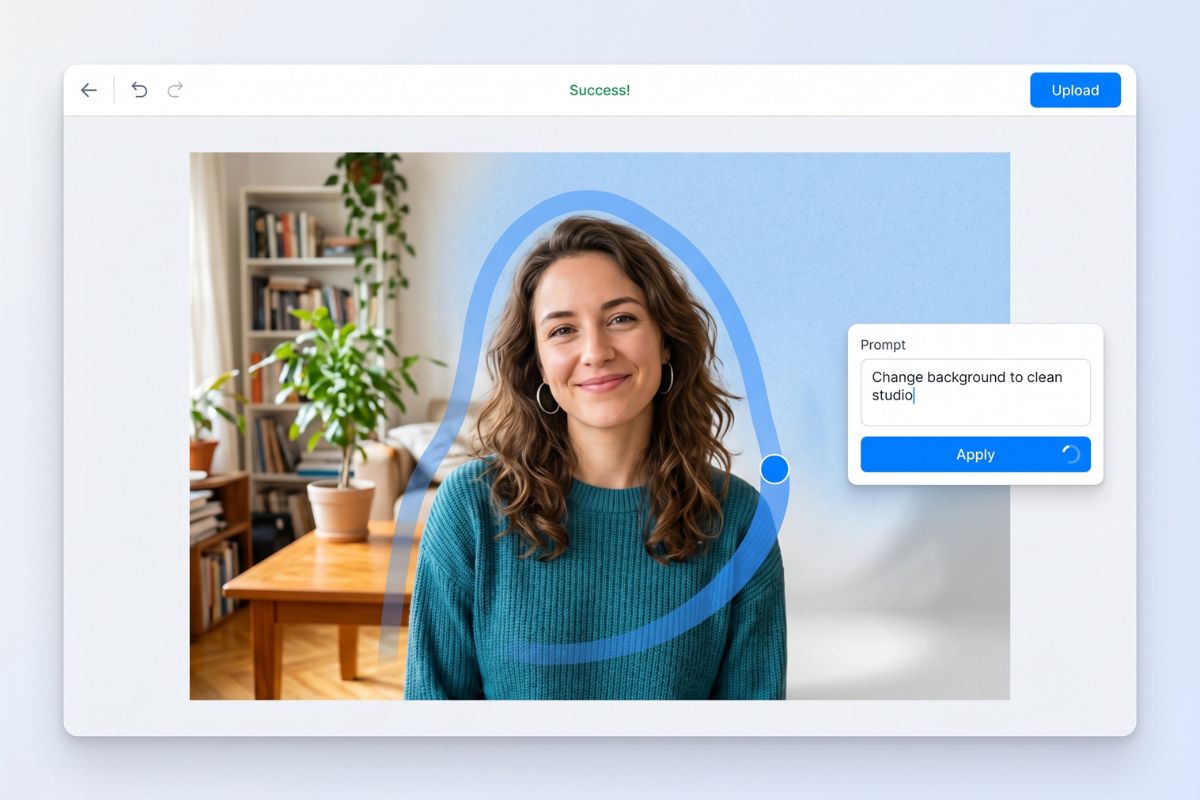
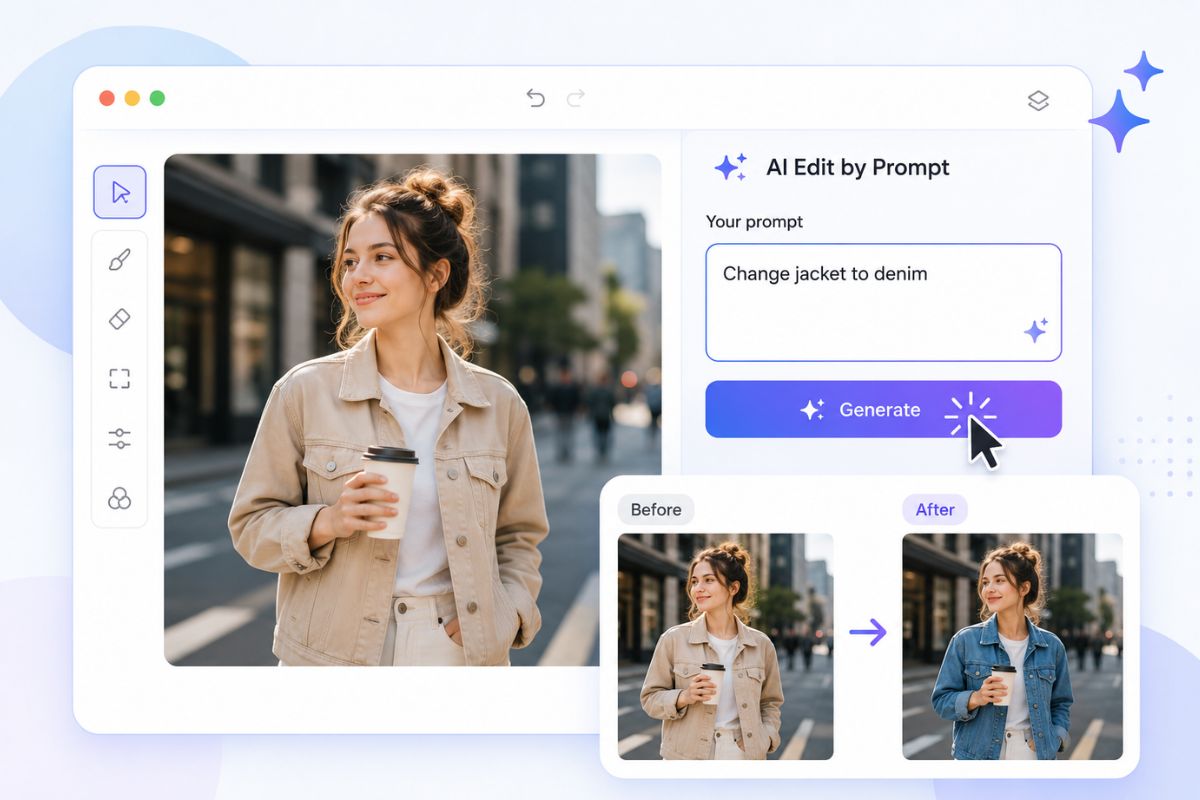
Type a direct instruction such as remove the cup, change the jacket to denim, make the wall warmer, or add soft studio lighting. This AI image editor with prompt control is useful when manual sliders are too slow.

Try Prompt Editing
Edit by Text Prompt

0303

Keep the Photo Usable

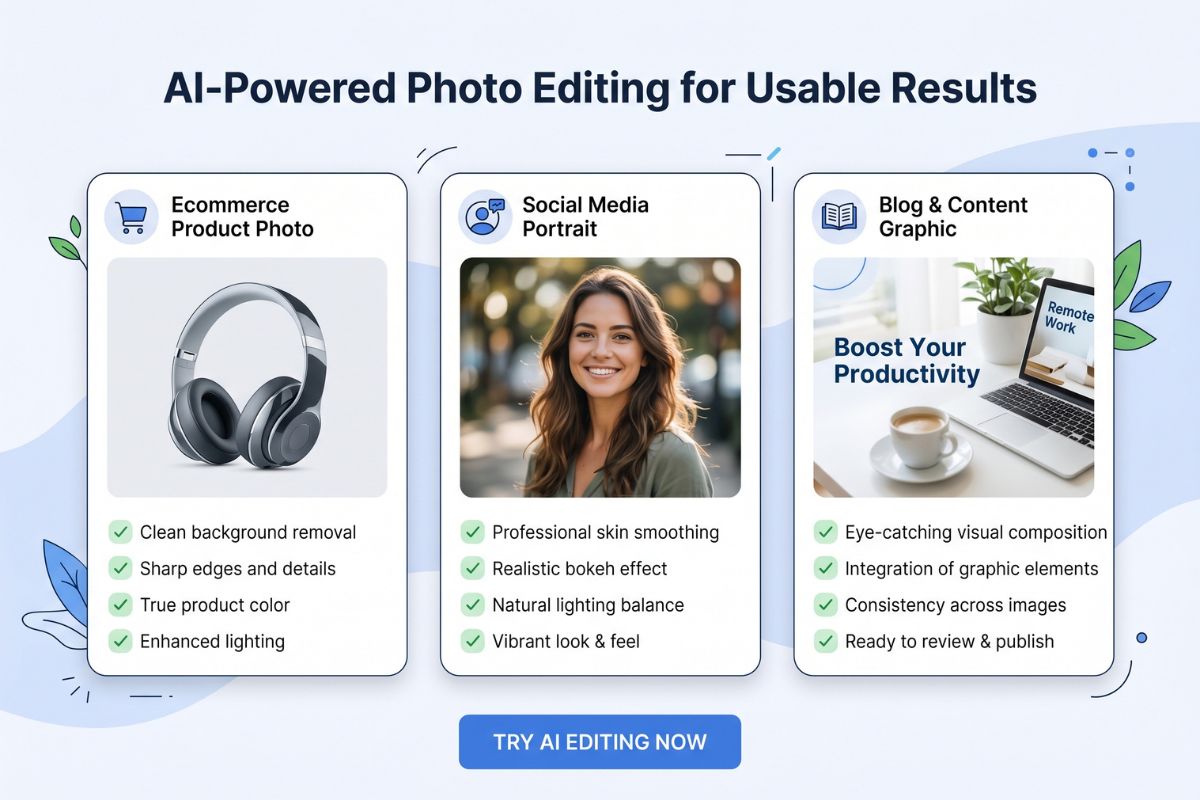
Use it for ecommerce shots, profile photos, social posts, blog graphics, and everyday image cleanup. Review hands, text, logos, and product edges before publishing, especially when the edit changes a visible detail.

Clean Up Image
Keep the Photo Usable

Explore More Image Editing Workflows

Object Removal

Brush over a distracting object and ask the editor to remove it. This works best when the surrounding background has enough texture or empty space to rebuild naturally.

What You Can Edit With It

Common use cases that work better with a clear mask

  • 01

    Remove Small Distractions

    Clean up cups, cables, background clutter, dust marks, awkward shadows, or small objects that pull attention away from the subject.

  • 02

    Change Clothes or Colors

    Swap a jacket color, adjust fabric texture, update a product shade, or test a different outfit direction while keeping the original pose.

  • 03

    Improve Product Photos

    Retouch packaging edges, smooth a backdrop, fix reflections, or create a cleaner product image without reshooting every item.

  • 04

    Refresh Social Images

    Turn an ordinary photo into a cleaner post visual by changing the background, lighting mood, props, or composition details.

  • 05

    Repair Local Details

    Use a small mask for hair flyaways, wall marks, uneven food edges, imperfect surfaces, or areas that need a more natural finish.

  • 06

    Know the Boundaries

    Tiny text, exact logos, complex hands, legal documents, and identity-sensitive edits should be checked carefully before final use.

What Our Users Say

  • OCMaker's image editor makes it easy to refine my original characters after generation. I can adjust clothing, expressions, colors, and small character details without losing the overall OC design.

    Ethan Brooks

    Character Concept Artist

  • I use the image editor to polish anime-style character portraits for stories and roleplay profiles. The brush-and-prompt workflow helps me change specific parts while keeping the character recognizable.

    Olivia Hayes

    Story Creator

  • The editor is really useful when I want to test different OC looks. I can change the outfit, background, hairstyle, or mood quickly, then choose the version that fits my character setting best.

    Mason Reed

    Anime Community Creator

Frequently Asked Questions

Common Questions About AI Image Editor

What is an AI image editor?

An AI image editor lets you upload a photo and change selected parts with text instructions. Instead of editing every pixel by hand, you mark an area, describe the result, and review the generated version before using it.

Does it support inpaint and outpaint editing?

Yes. The AI image editor supports both inpaint and outpaint. You can use inpaint to brush over a specific area and change only that part, or use outpaint to extend the image beyond its original edges. Just select the mode you want, then enter a prompt to guide the result.

How does prompt-based photo editing work?

You brush over the area you want to modify, then write a direct prompt. For example, you can remove a background item, change a shirt color, replace a wall, clean up a product photo, or adjust the mood of one section.

Can I use it as an AI picture editor for ecommerce images?

Yes, it can help with ecommerce drafts, product cleanup, background polishing, and campaign mockups. For final product pages, check labels, brand marks, colors, reflections, and material details against the real product before publishing.

Is this good for photo editing free workflows?

It is a practical starting point for quick edits when you want to test an idea before committing more design time. For best results, keep the mask small, use one instruction at a time, and compare the edited image with the original.

Can an AI image editor with prompt control replace Photoshop?

Not completely. It is faster for local changes, object removal, and visual experiments, while manual editing is still better for exact typography, layered files, print preparation, and brand-critical retouching.

What should I check before using an edited image publicly?

Review the image for distorted hands, unreadable text, false product details, unwanted face changes, and rights issues from source materials. For media transparency, the C2PA official site explains provenance standards that can help describe where digital media came from and how it was edited.

Ready to Edit Your Photo With a Prompt?

AI Image Editor - Edit Images with Prompts