AI Generator

Wan 2.2 Animate: AI Character Animation Guide

Learn AI character animation with a simple wan 2.2 animate tutorial. Create motion transfer videos and animate images in minutes.

Wan 2.2 Animate

Learn AI character animation with a simple wan 2.2 animate tutorial. Create motion transfer videos and animate images in minutes.

Wan 2.2 Animate Examples

Example clips created on OC Maker.

  • 01

    A stylish young woman dancing confidently on a clean studio stage, energetic modern dance moves, the same character throughout the video while her outfit magically changes every moment — streetwear hoodie, elegant evening dress, futuristic cyberpunk suit, and casual summer outfit, smooth seamless outfit transitions, cinematic lighting, highly detailed character, dynamic motion, fashion transformation effect, ultra smooth animation, 5-second video

  • 02

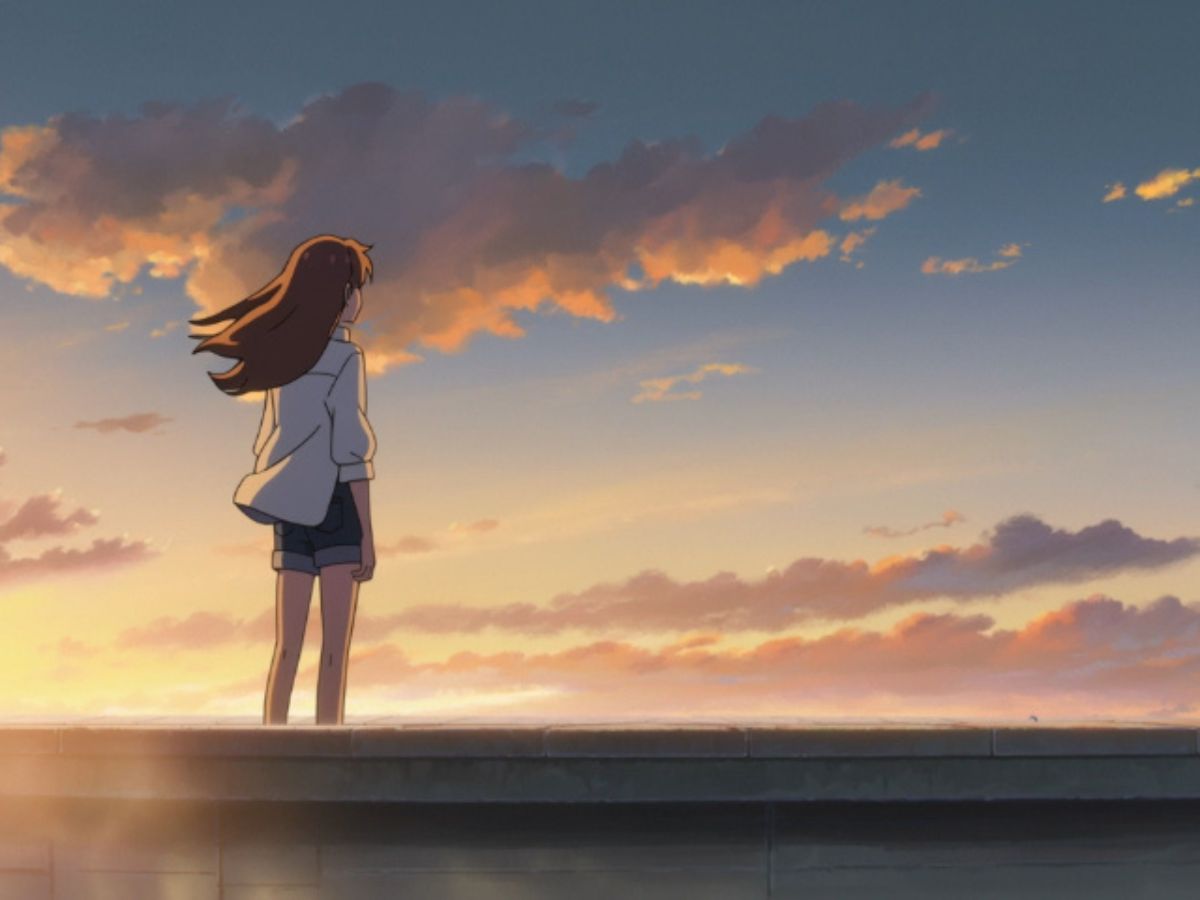
    A beautiful anime girl with long flowing hair dancing happily, smooth energetic dance movements, the same anime character while her outfit transforms repeatedly — school uniform, fantasy mage robe, modern street fashion, and idol stage costume, seamless magical outfit transitions, vibrant lighting, highly detailed anime style, expressive motion, clean background, smooth animation

  • 03

    A confident fantasy female warrior walking forward slowly, long flowing hair moving naturally, subtle head turn and soft smile, dramatic cinematic lighting, shallow depth of field, epic fantasy atmosphere, highly detailed character design, smooth natural motion, cinematic animation shot, 5-second sequence

Explore Wan 2.2 Animate Capabilities for AI Motion Transfer

0104

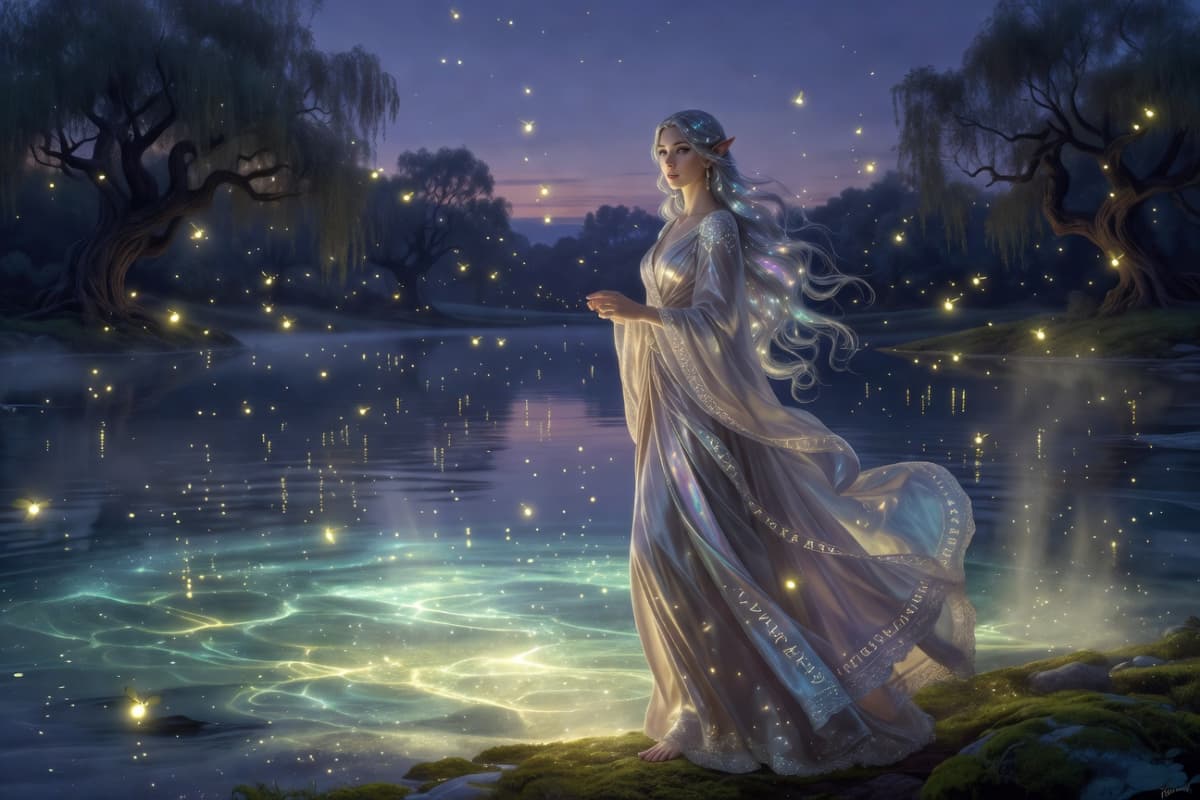
Character-Consistent Animation

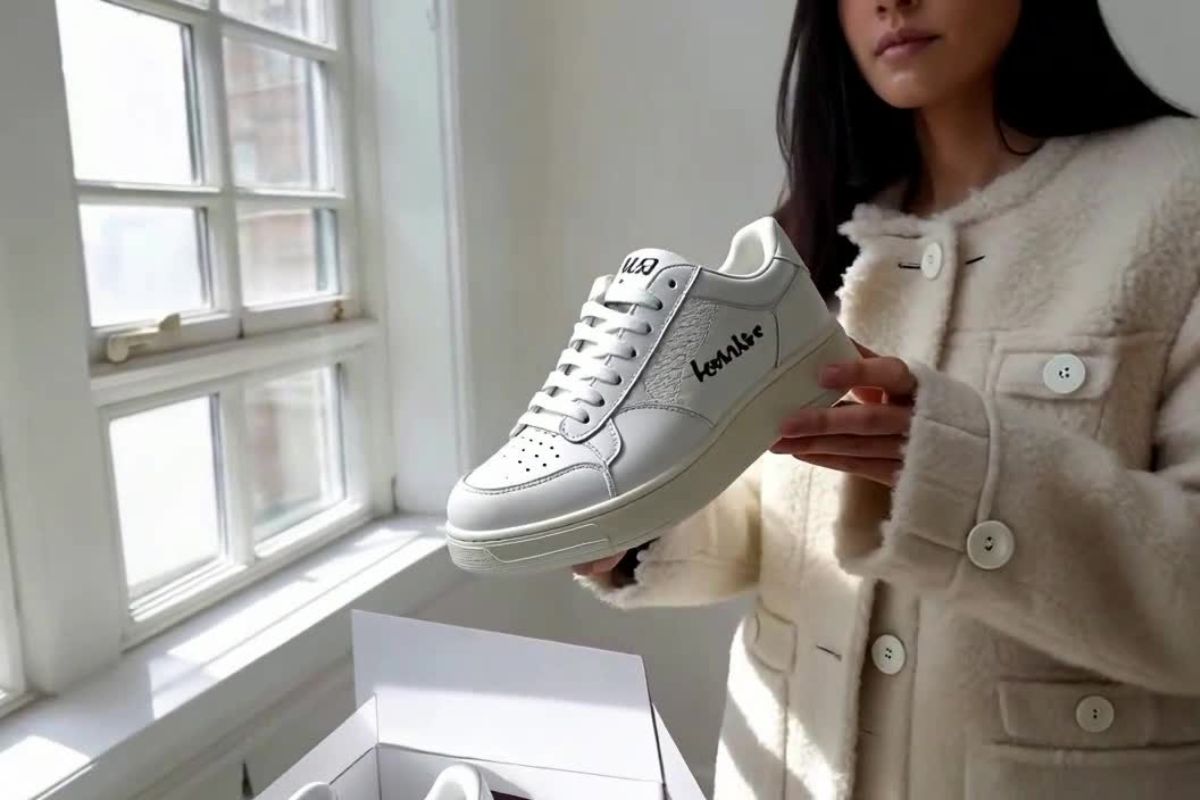
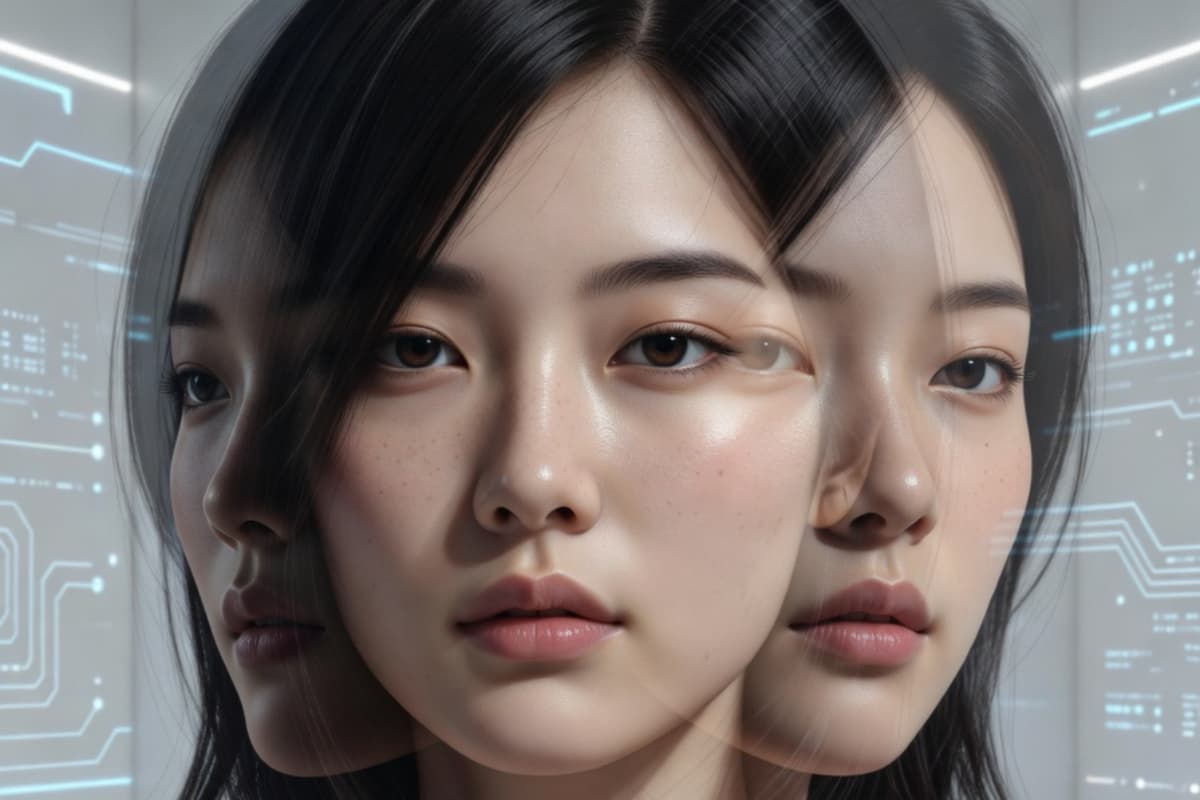
Wan 2.2 Animate stands out for maintaining strong character consistency throughout an animation. Unlike many models that cause facial drift or identity distortion, it preserves key facial features, hairstyle, and proportions from the original image while transferring motion. This allows creators to animate a single character across multiple scenes without losing visual identity, making it especially useful for storytelling workflows alongside tools like OCMaker AI.
consistent AI character animation

0204

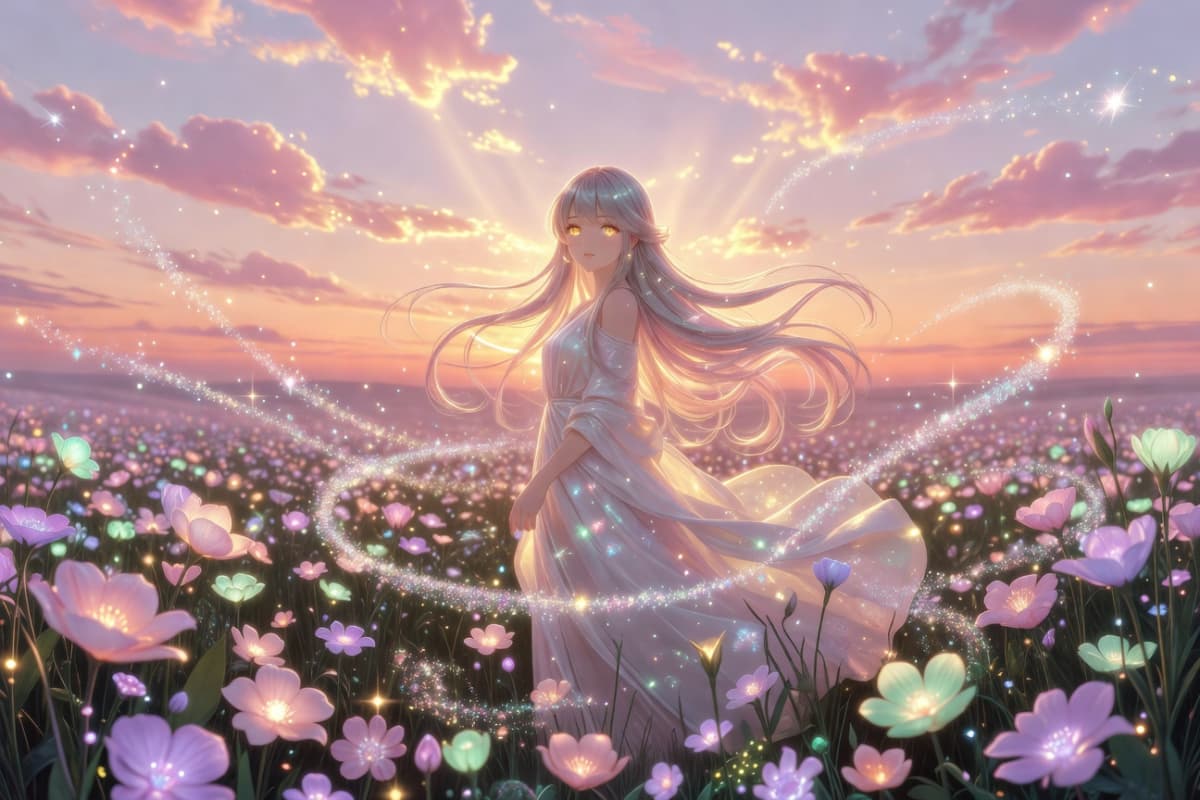
Smooth Motion Interpretation

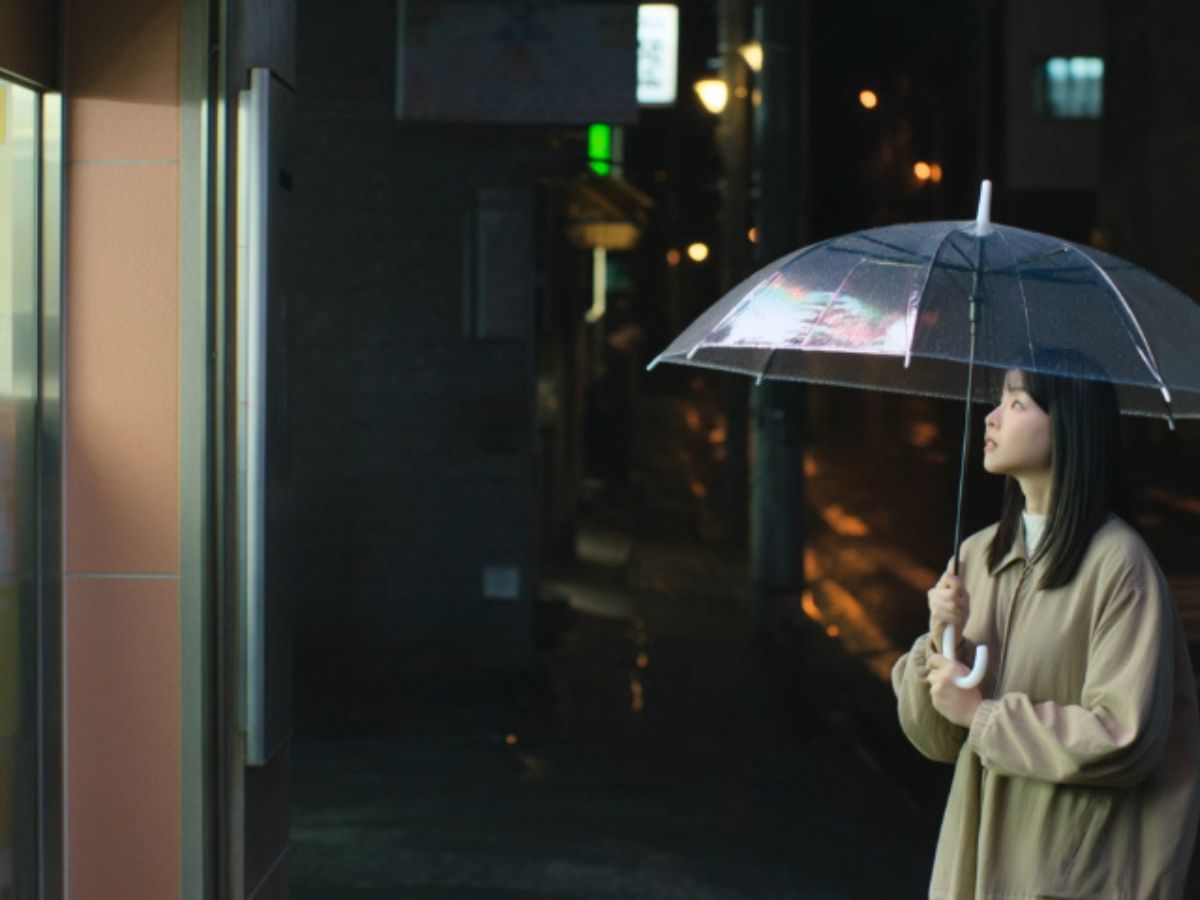
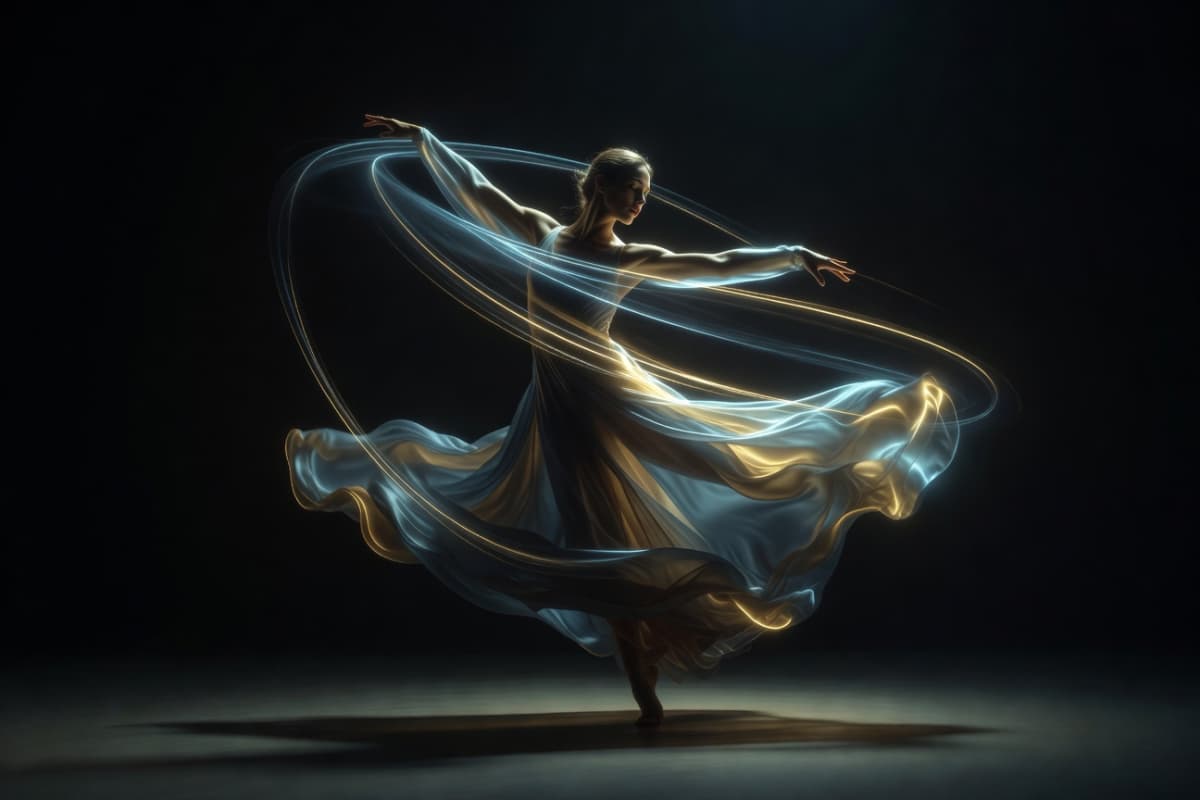
Wan 2.2 Animate interprets motion data with exceptional smoothness, translating subtle body dynamics and timing from the reference footage into natural-looking animation. Even complex movements such as dancing, walking, or expressive gestures remain fluid rather than robotic. This motion stability complements modern creative pipelines where users often combine image to video generation with advanced AI animation.

smooth AI motion animation

0304

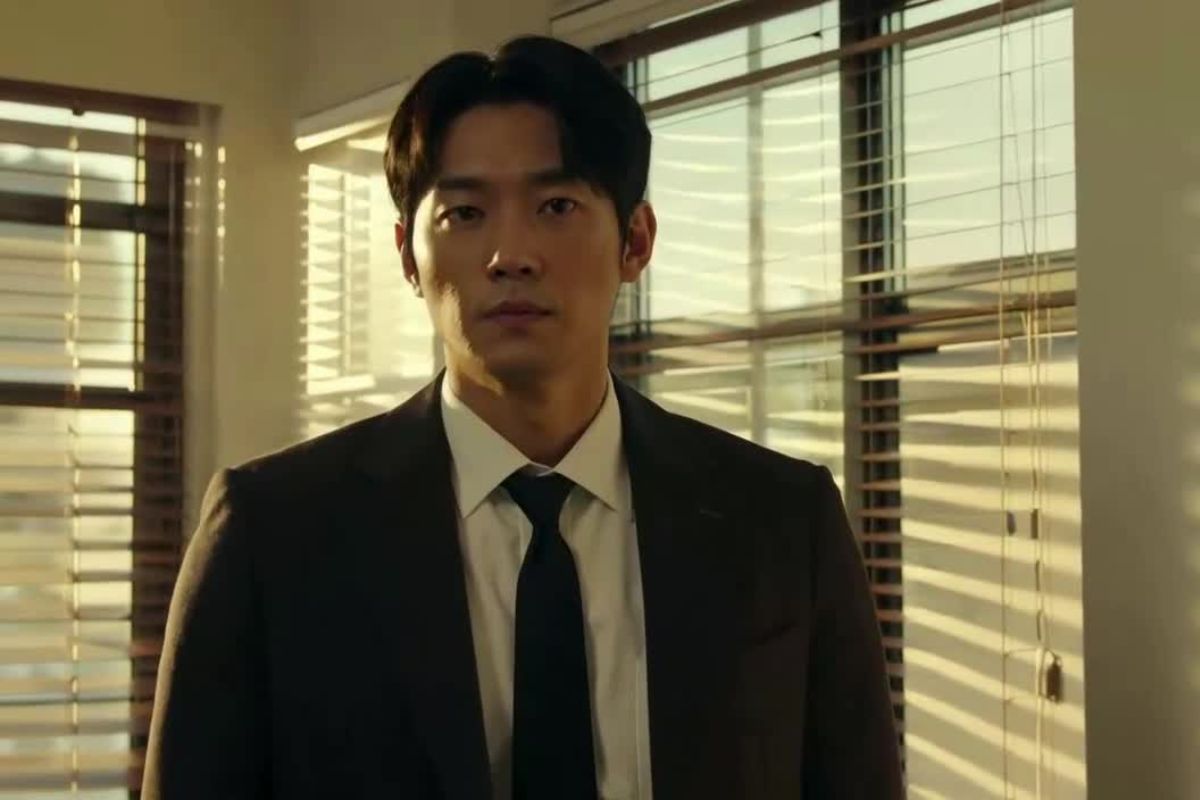
Adaptive Scene Integration

Another advantage is its ability to adapt animated characters to the lighting, perspective, and environment of the target scene. Instead of appearing like a pasted overlay, the generated character blends naturally into the background with consistent shadows and depth cues. This makes Wan 2.2 Animate particularly effective when integrated into broader AI video workflows that also include text to video generation.

AI character scene integration

0404

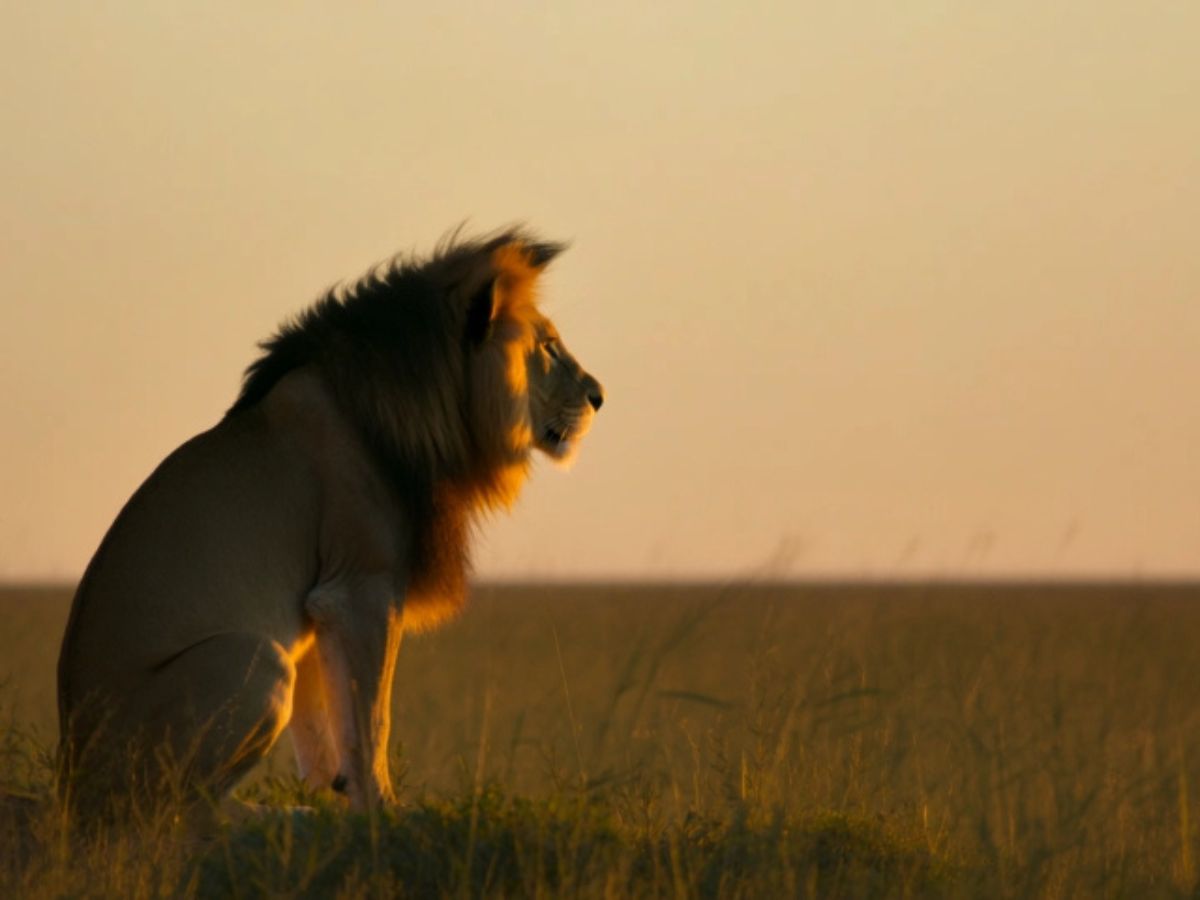
Fine-Grained Expression Capture

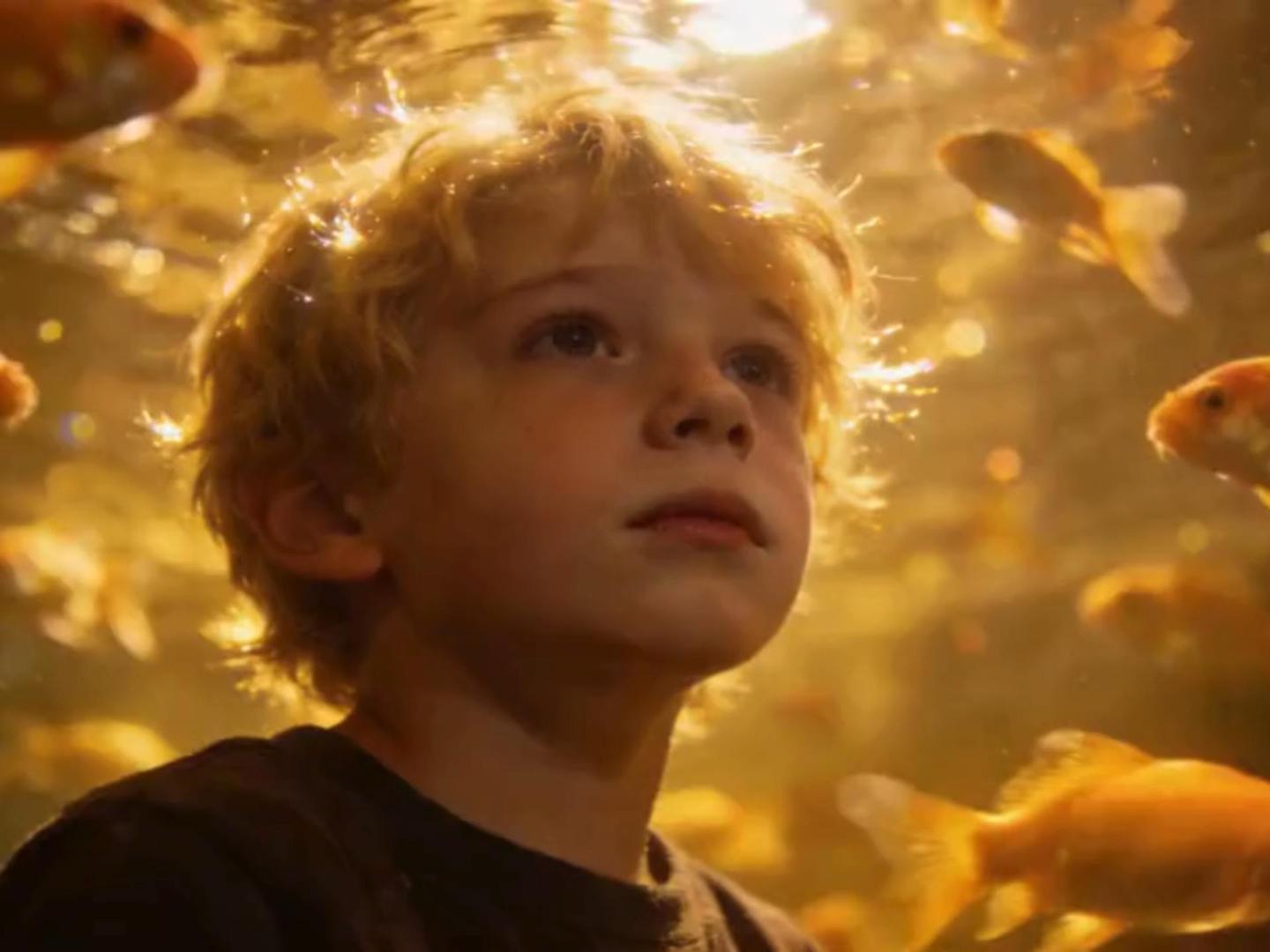
Wan 2.2 Animate also captures nuanced facial expressions and micro-movements that many animation models overlook. Eye direction, mouth movement, and subtle emotional cues are reflected in the generated animation, giving characters a more lifelike presence. This level of detail helps transform simple static images into expressive animated performances suitable for modern AI video creation.

AI facial expression animation

Key Features of Wan 2.2 Animate

  • 01

    AI Motion Transfer Precision

    Wan 2.2 Animate excels at replicating body movements and facial expressions from video to image, ensuring fluid transitions without motion artifacts.

  • 02

    Flexible Animation and Replacement Modes

    Animate still images or replace video subjects while preserving scene context, lighting, and motion dynamics.

  • 03

    Advanced Lighting Matching

    Automatically adjust character lighting to match the scene, providing realistic integration.

  • 04

    Stable and Controlled Video Outputs

    Maintain frame stability and shape consistency across the generated video—ideal for professional projects requiring precision.

How to Use Wan 2.2 Animate for AI Character Animation

  1. Upload a Character Image

    Start by uploading a clear character image. It can be an anime drawing, a portrait photo, or a digital character. Choose an image where the face and body are visible, as this helps the AI track motion more accurately during animation.

  2. Add a Motion Reference Video

    Next, upload a short video that contains the movement you want. This can be a dance clip, a walking motion, or someone speaking. Wan 2.2 Animate analyzes the body posture, gestures, and timing from the video to create the motion blueprint.

  3. Generate the Animation

    Click generate and let the AI process motion transfer. Within a short time, your character will perform the same actions as the reference video. You can preview the result and download the finished animation for editing or sharing.

More Popular Models

Frequently Asked Questions About Wan 2.2 Animate

How does AI help in character animation?

Wan 2.2 Animate uses AI for precise motion transfer, turning static images into lively animations while maintaining context consistency.

Can AI replace characters in a video seamlessly?

Yes, the AI model analyzes existing scenes and adapts lighting and color, ensuring the replacement character fits naturally.

What type of images work best with Wan 2.2 Animate?

Images with clear lighting and visible facial features usually work best. From experience, portraits with simple backgrounds produce the most stable animation. If the face is partly hidden or the image is very dark, the AI may struggle to track expressions.

How long should the reference video be for good results?

Absolutely, it captures and transfers nuanced expressions with high fidelity, enhancing the realism of the animated character.

Why is AI motion transfer revolutionary?

Short clips work best. In most cases, a 3–8 second video produces smooth results. Longer videos can still work, but they sometimes introduce motion drift or repeated frames. Many creators start with short dance or gesture clips to test the workflow.

Can Wan 2.2 Animate work with anime characters?

Yes. Anime characters actually work very well with this model. The clean lines and simple shading make it easier for the AI to track facial features and body posture. Many users use it to animate anime avatars, VTuber characters, or game-style artwork.

Why does the animation sometimes look stiff?

This usually happens when the motion reference video has very fast or complex movements. Try using a clip with slower, clearer motion. Another trick is to choose a reference video where the body is fully visible so the AI can read the pose more easily.

Where can I find Wan 2.2 Animate download or access the model?

Most users access Wan 2.2 Animate through AI video platforms or model libraries that host the workflow. Some communities also share wan 2.2 animate workflow setups for tools like ComfyUI, which makes it easier to generate animations without complex setup.

Experience Wan 2.2 Animate

Explore diverse character animations with cutting-edge AI technology. Try now and transform your creative process.

Wan 2.2 Animate: AI Character Animation Guide